Calendar
The calendar is under Planning → Calendar (/utilities/practices/calendar). It shows a team's practices, games and microcycles for one month. It is the quickest place to plan the week: click a day and create the practice.
The images are screenshots of the app; athlete and club names and crests are blurred.
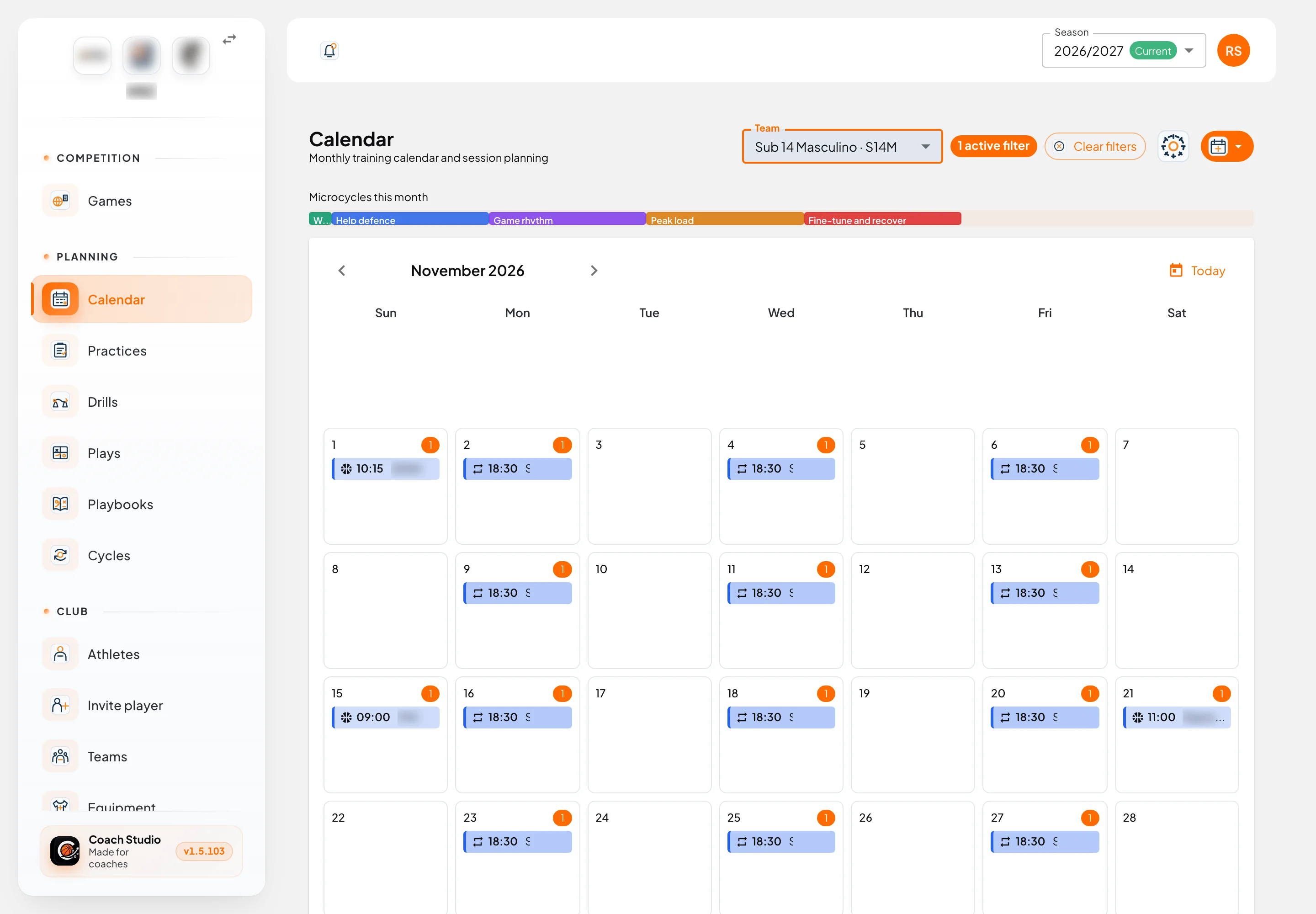
Navigating
- The arrows change the month; Today goes back to the current month.
- Weeks start on Sunday.
- The Team filter shows only that team's practices and games. Your choice is saved to your account and is shared with the practices list. Clear filters shows every team again.
- The settings button (gear) opens the club settings. Only people who can edit club settings see it.
What each day shows
Each practice or game is a chip with the time and the team colour. The number in the corner of the day tells you how many events there are.
| Sign | Meaning |
|---|---|
| Repeat icon | The practice is part of a recurring series |
| Copy icon | The practice was duplicated from another one |
| Green chip | Closed practice (it already has a report) |
| +N | There are more than 4 events that day; click to see them all |
Games only appear when you are in the club workspace.
Microcycles
With a single team selected, the calendar shows a bar with the microcycles this month above the grid: each microcycle is a coloured band with its name, as wide as the days it covers. You can see at a glance which phase of the season each week belongs to. Microcycles are created in Cycles.
Actions
- Click an empty day to create a practice on that day.
- Click a practice to open the editor. People who can only view get the read-only "Session details" window.
- Click a game to open the games page.
- Hover over a practice for shortcuts: PDF, print, duplicate and delete.
Adding
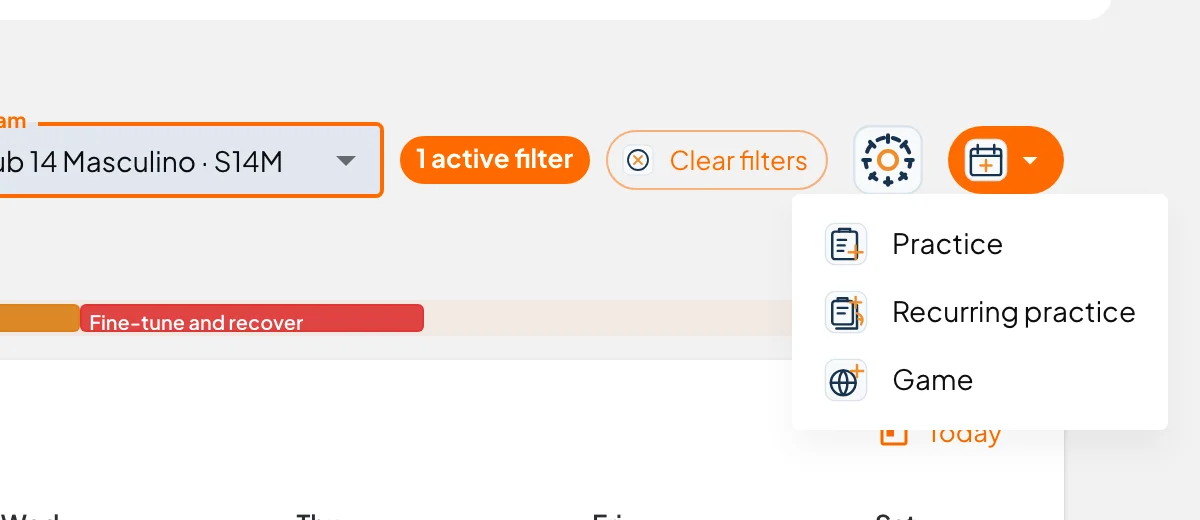
The orange button in the corner (calendar with a +) opens the Add… menu, with three options:
- Practice: a single practice. Opens the practice editor.
- Recurring practice: several practices at once (see below).
- Game: opens game creation.
Recurring practices
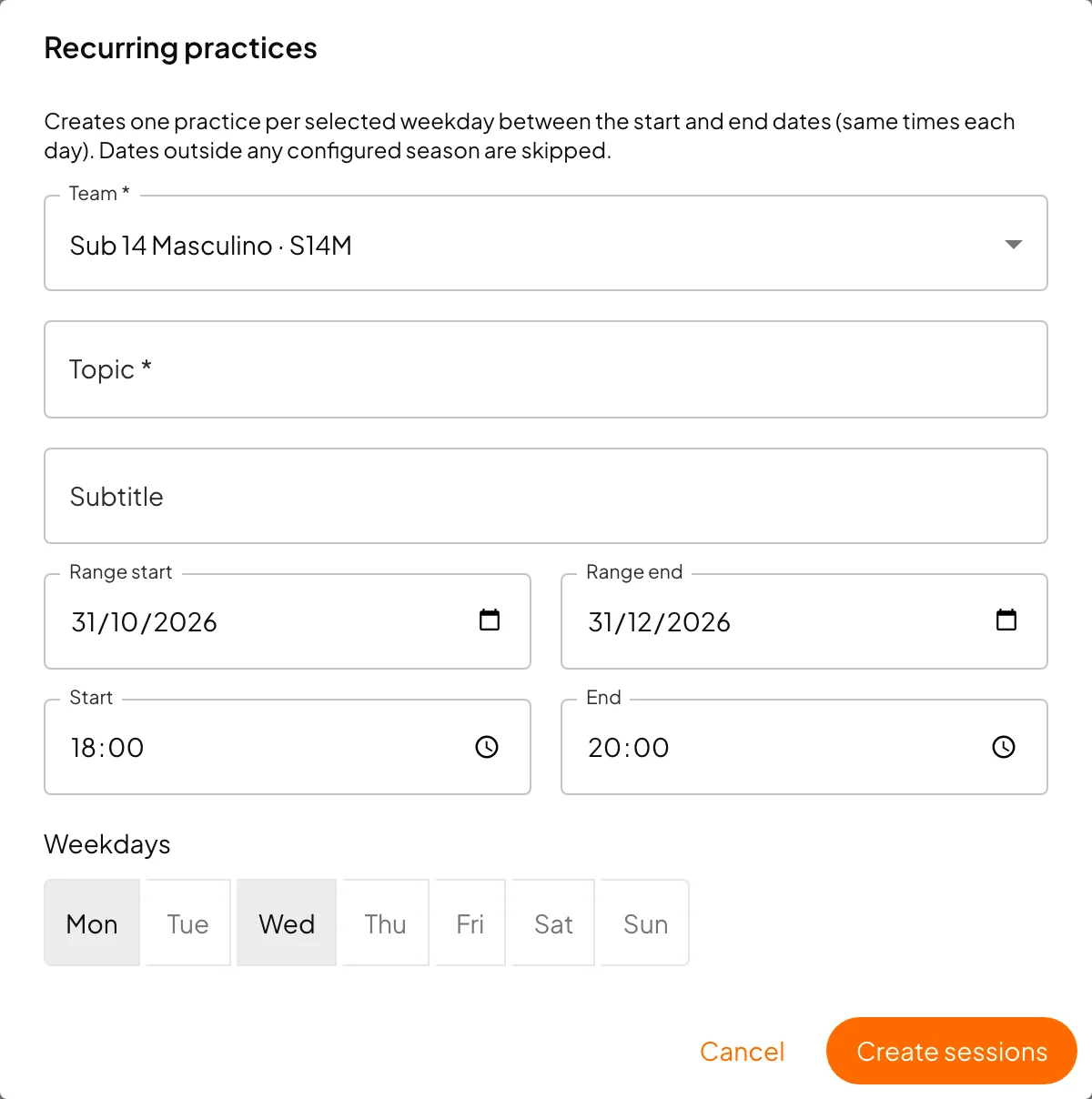
Use it to create the season's practices in one go, for example every Monday, Wednesday and Friday from 18:30 to 20:00.
- Choose the team and type the topic (and a subtitle, if you want).
- Set the range start and range end.
- Set the start and end times.
- Tick the weekdays.
- Press Create sessions.
Days outside the selected season are skipped. Later, when you edit or delete a practice in the series, the app asks whether the change is for This one only or This and following.
What the calendar does not do
There is no week view, no dragging practices between days and no export to other calendars (ICS). To move a practice, open it and change the date.