Plays
Plays are under Planning → Plays (/utilities/plays). Each play is a sequence of court graphics with teaching text, and it can have alternative reads for when the defence forces a different continuation. Plays are grouped into playbooks, used in practices and in the game tactics.
The images are screenshots of the app; athlete and club names and crests are blurred.
Library
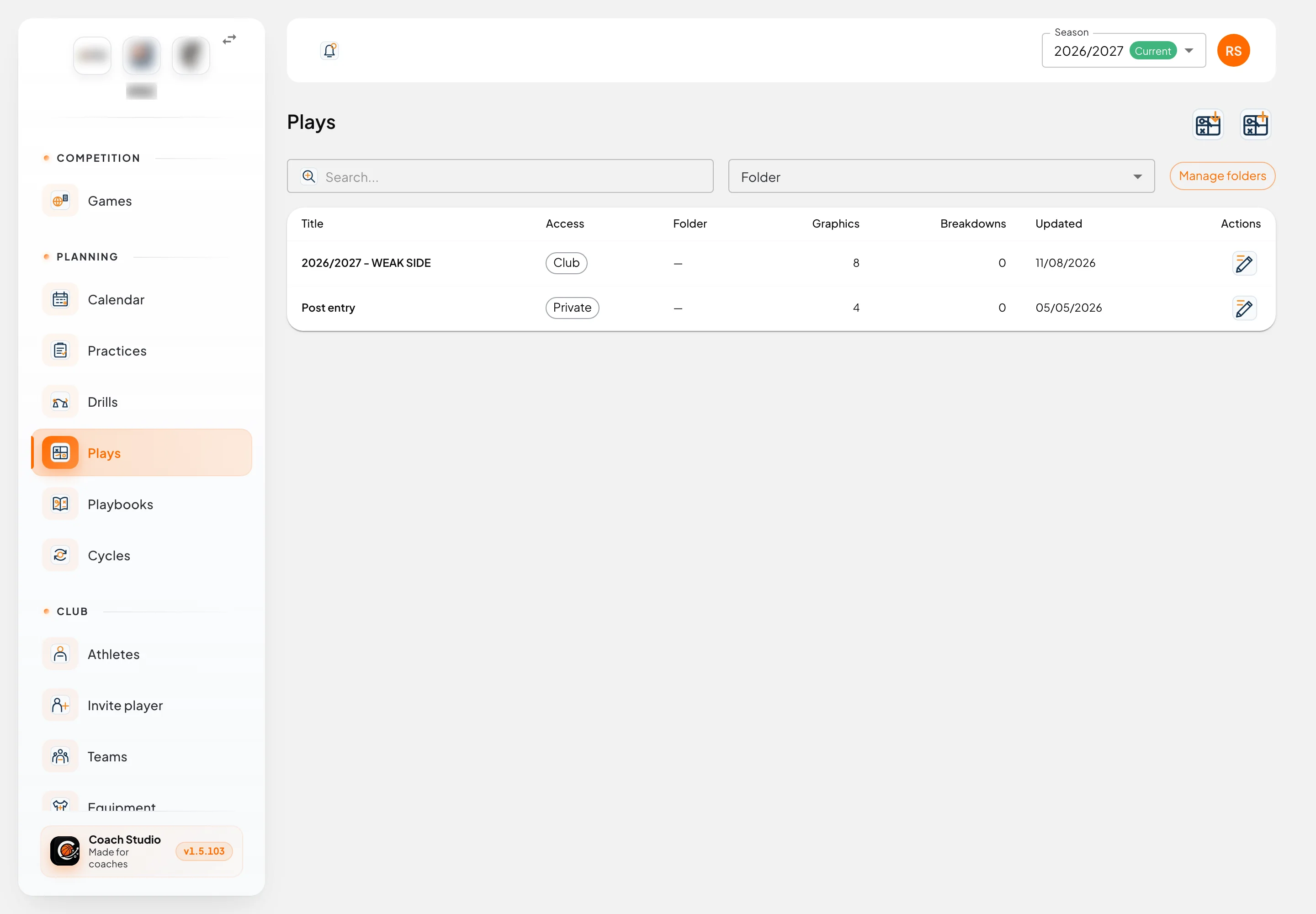
- Search by title and filter by Folder.
- The table shows the title, access (sharing), folder, number of graphics and breakdowns, and the date of the last change.
- Manage folders creates, renames and organises folders. Folders can have subfolders, up to 5 levels.
- The two buttons in the right corner are Import from FIBA Europe and New play.
The FIBA Europe import takes the address of a play from the Coach section (it must contain playID). The title, description, graphics and teaching notes are imported. Breakdown drills only show on the FIBA site when you are signed in; if they are not imported, import them separately in Drills.
Play editor
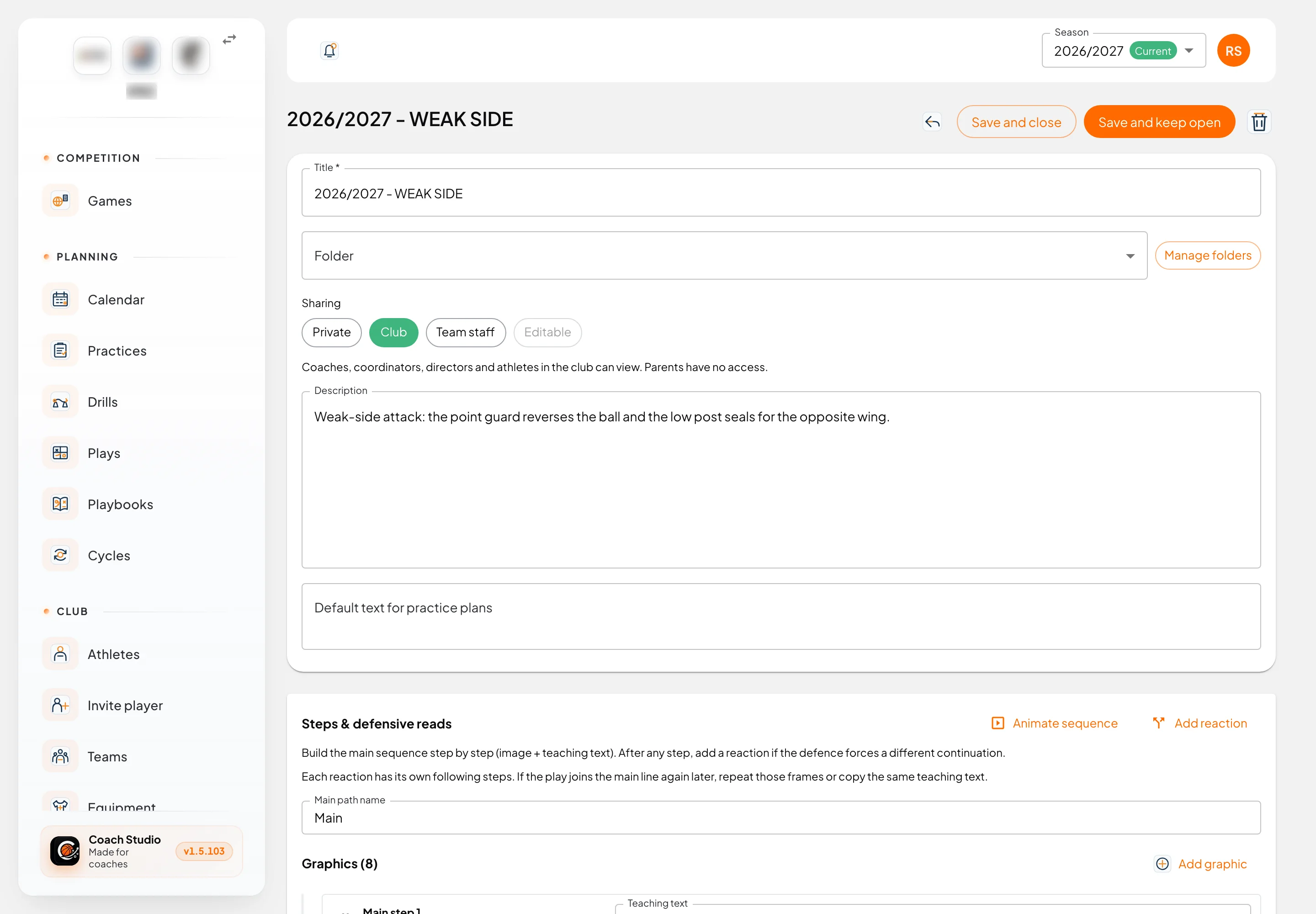
- Title (required) and Folder.
- Sharing: the same options as drills. Athletes only see plays shared with them.
- Description: the general idea of the play.
- Default text for practice plans: added to the block when the play goes into a practice.
Save with Save and keep open or Save and close. The bin deletes the play.
Steps and defensive reads
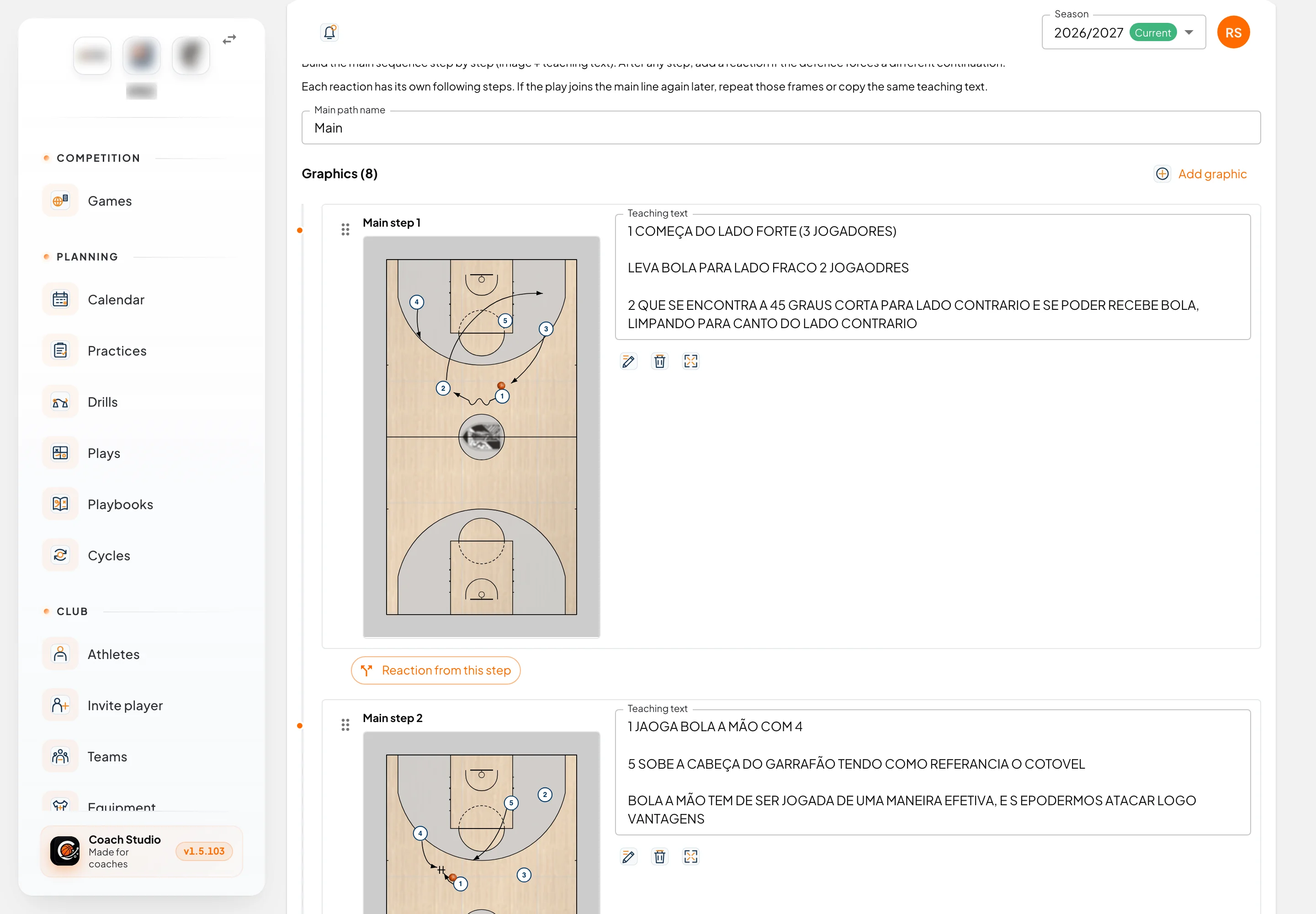
A play is built step by step. Each step is a graphic with its own teaching text.
- Name the main line in Main path name (default "Main").
- Press Add graphic for each step. Draw in the court editor and write the teaching text next to it.
- Drag by the handle to reorder. The pencil edits the graphic, the bin deletes it and the last icon opens it full page.
Reads
When the defence can force another continuation, create a read:
- Reaction from this step (below each step) creates a branch that starts at that step.
- Add reaction (at the top) creates a new branch.
Each read has a condition (for example "the defence switches the screen") and its own steps. If the read returns to the main line, repeat the frames or copy the text.
Animating
Animate sequence plays the steps in a row, like an animation. It needs at least two graphics.
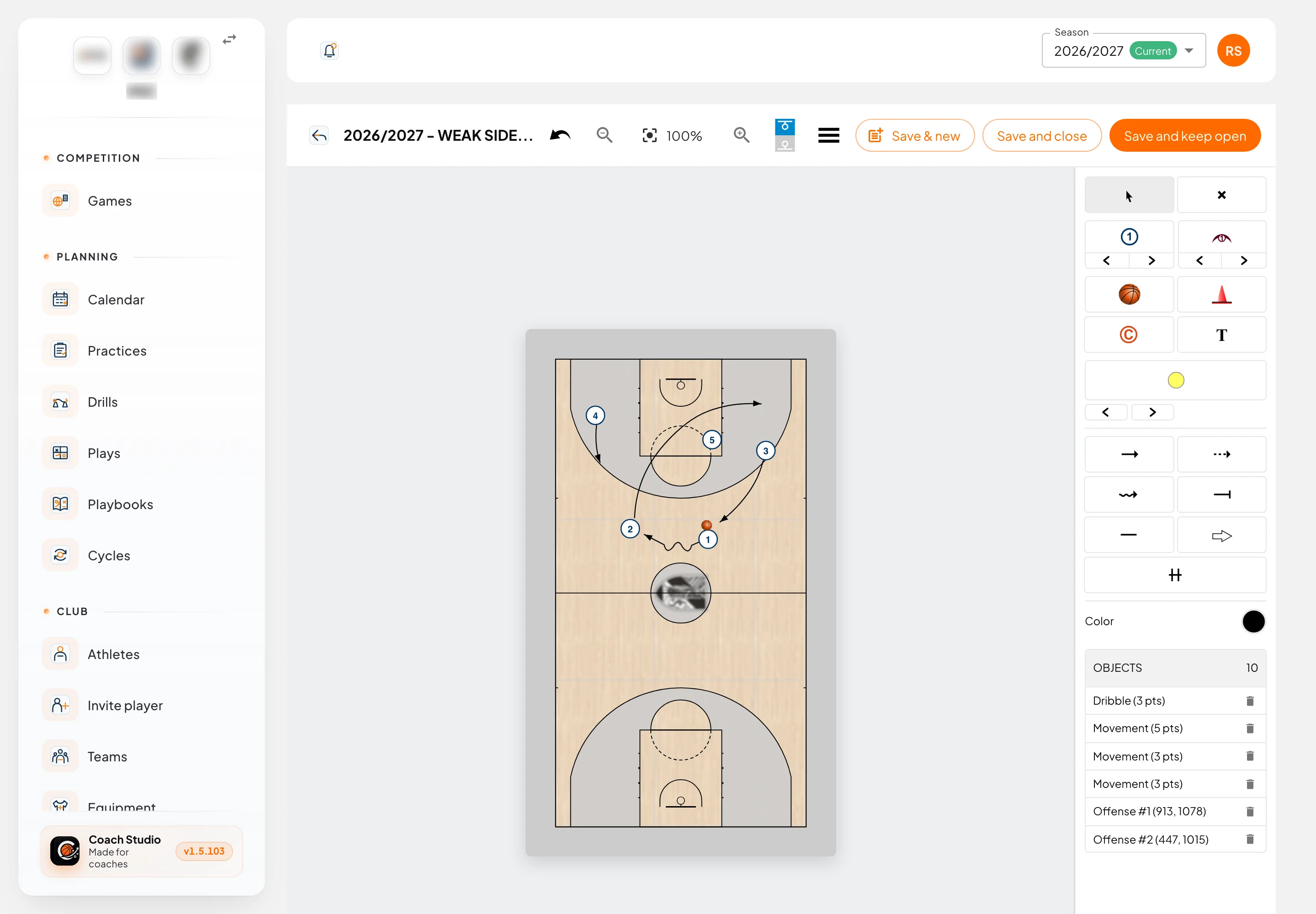
In the court editor, Save & new is the quickest way to build the sequence: it saves and opens the next step with the players and ball already at the end of their lines.
Breakdowns
At the bottom of the editor you link breakdown drills: drills that train parts of the play. You can create a new one, link an existing one or unlink. In the drill library they appear in the Breakdown category.
In game tactics
In the Tactics tab of a game you pick plays from this library for the game sheet: up to 8 tactics, each with up to 6 graphics.
Mobile app
Plays are not in the mobile app yet.