Teams
Teams are under Club → Teams (/utilities/teams). The page is Teams Management: each team in the season, with its roster, games still to play, expectations, attendance and technical staff.
The images are screenshots of the app; athlete and club names and crests are blurred.
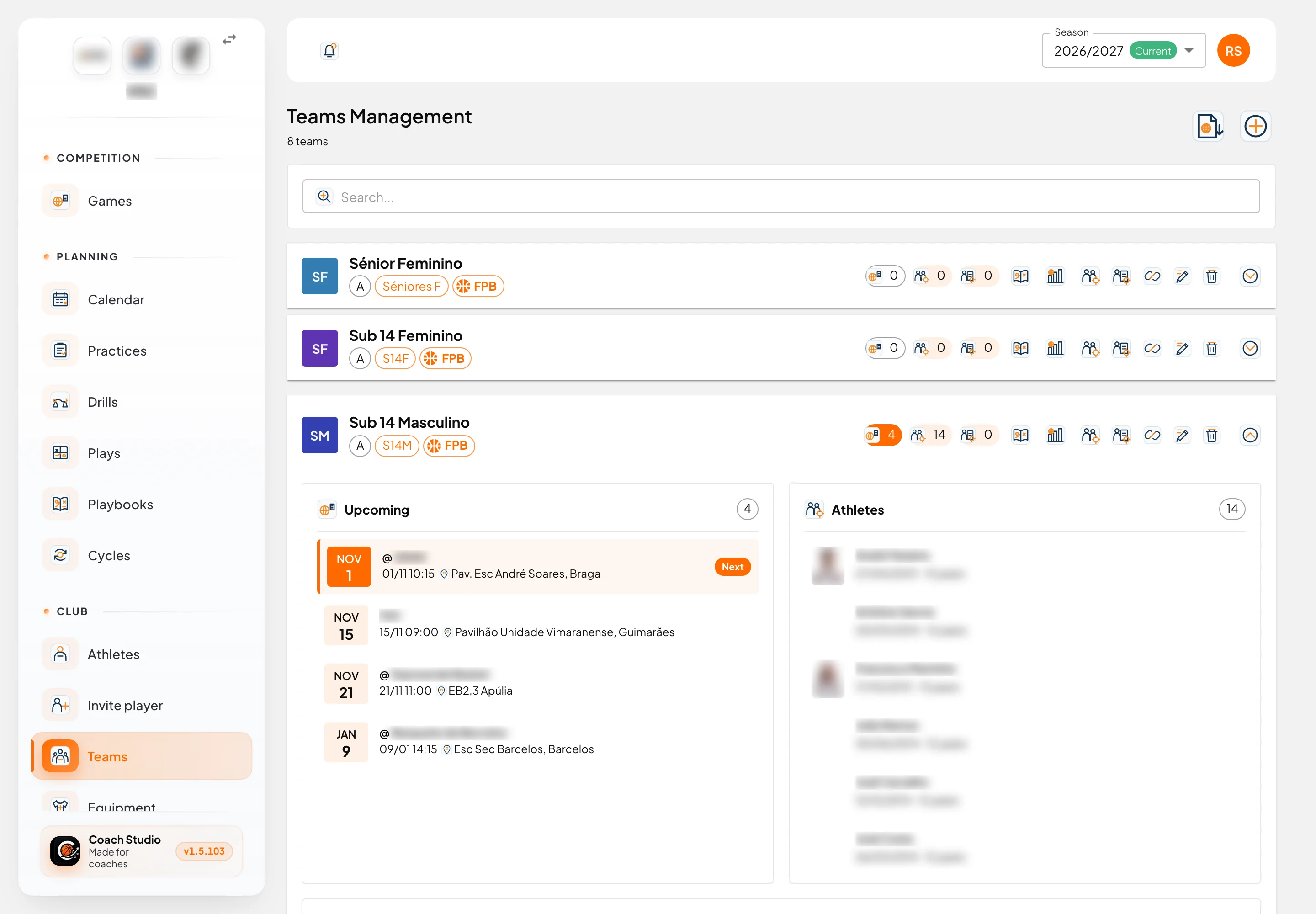
By default, administrators, directors, coordinators, coaches, team managers, players and guardians can see teams. Coaches and team managers only see their own. Creating, editing and deleting is, by default, limited to administrators, directors and coordinators. The club can change this in club settings. A past season is read-only, except for a platform administrator.
Search (Search...) and the team you left open are saved to your account for this club. Clear filters clears the search.
When an echelon has a B team, the name shows the type in brackets, for example U14 (A).
List
Each team is a card. The badges are the Type (A, B, C or Other), the echelon name and, when there is an FPB Team ID, an FPB badge. Hover that badge to see the identifier.
The counts beside the name use these tooltips:
| Sign | Tooltip |
|---|---|
| Games | Upcoming — this team’s games in the next year |
| Athletes | Athletes |
| People | Technical staff |
Row icons, for the people who see them:
| Icon | Tooltip |
|---|---|
| Playbook | Open team playbook |
| Statistics | Team statistics |
| Athletes | Manage Athletes — the roster. Also shown to the head coach and to an assistant with Advanced privileges |
| People | Manage technical staff |
| Link | Athlete registration link (multiple sign-ups up to the club limit) |
| Print tryout evaluation and Print tryout decisions, only on a Tryout team | |
| Pencil / bin | Edit and Delete |
Delete asks for confirmation and cannot be undone.
On the toolbar, people who can edit teams have Import from FPB (administrators, directors and coordinators; hidden for an association) and Add Team. If the season has no teams yet, Copy teams from previous season is there too: it copies name, type, echelon, colour, FPB identifier, tryout flag and photo from the previous season. It does not copy athletes or coaches. A team that already exists with the same name, echelon and type is skipped. If there is no previous season, the app says so.
Open team
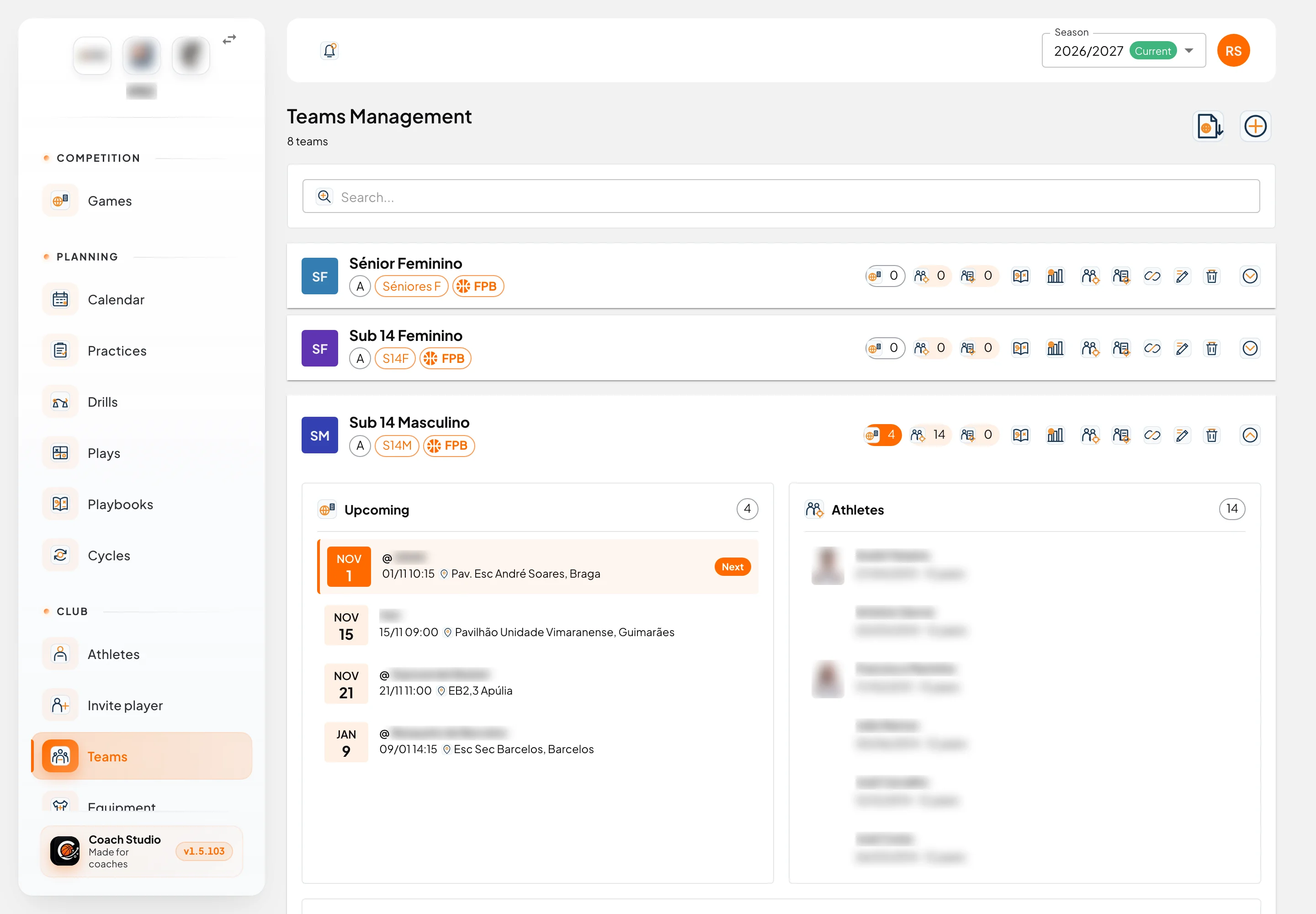
- Upcoming: future games, with date, opponent and venue. The first one is marked Next. If there are none, you see No games found.
- Athletes: photo, name, birth date and federative age. When the club uses a personal number, the number is on the row. On a tryout team, each athlete has a Tryout status: Excluded, Observing, Undecided, Stays or Out. Whoever manages the roster changes the status here.
- Team expectations: an ordered list of Title and Description. People who edit teams can Add expectation, reorder, edit and delete. Players see them in their area.
- Attendance: only for people who can view practices. Pick the Season and a view: By practice, By athlete or Grid. The states are Present, Absent and Unmarked. Print attendance opens a printout of the current view. The season and the view are saved to your account.
- Technical staff: each person with their role on this team. The tooltip shows the email, or No account.
Manage Athletes opens the list where you tick who is on the roster. People who can edit teams can also include Promotion: include one tier below and, when that echelon exists, Super promotion: include two tiers below.
Profile
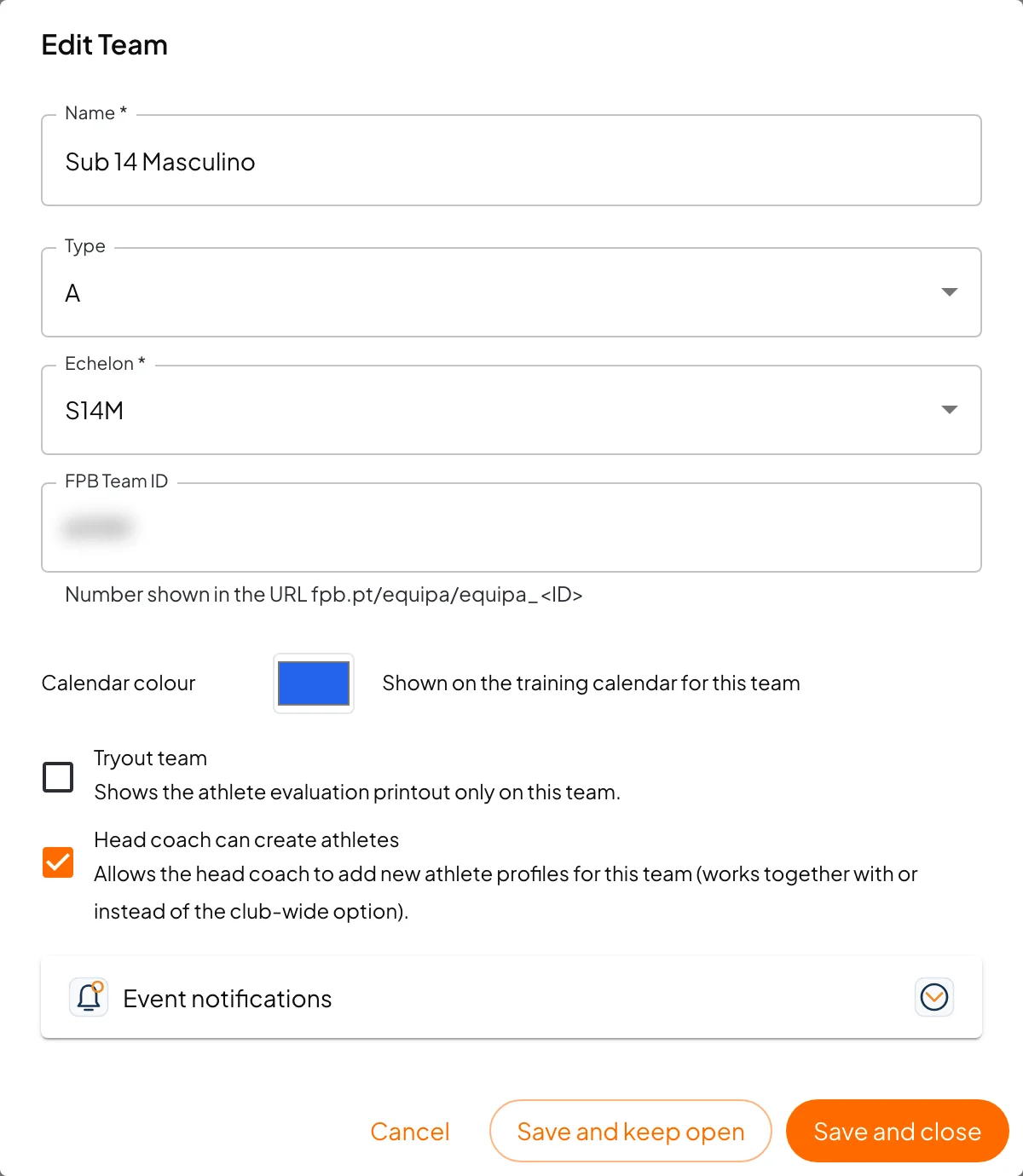
Add Team and Edit Team ask for:
- Name (required).
- Type: A, B, C or Other.
- Echelon (required). If the club has no echelons yet, create them first in echelons.
- FPB Team ID: the number in the address
fpb.pt/equipa/equipa_<ID>. - Calendar colour: only when you edit a team that already exists. It is the colour of this team’s practices on the calendar.
- Tryout team: turns on tryout evaluation and the tryout printouts for this team. You can set Spots, the number of athletes to bring in.
- Head coach can create athletes: lets the head coach (and an assistant with advanced privileges) create athlete profiles for this team, even when the club-wide option is off. See athletes.
When you edit, the profile includes Event notifications: recipients, channels and lead times for this team’s practices and games. The Default column follows the club rules; untick it to change this team only. This table has its own Save.
Save and keep open and Save and close save the profile.
Staff on the team
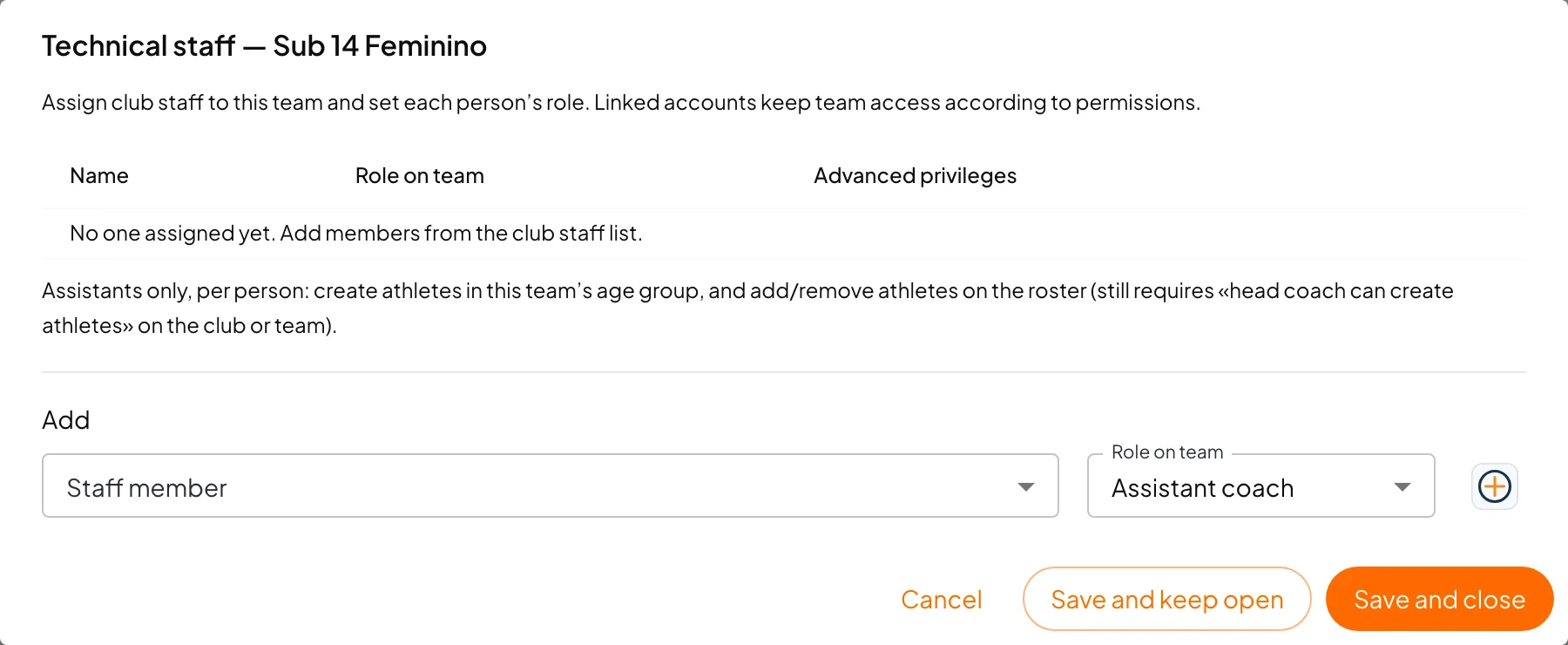
Manage technical staff opens Technical staff — followed by the team name. You pick a Staff member from the club (the profile is created in staff) and the Role on team:
| Role |
|---|
| Head coach |
| Assistant coach |
| Strength & conditioning |
| Statistician |
| Equipment / kit manager |
| Team director |
| Physiotherapist |
| Other |
There can be only one Head coach. For that person, Advanced privileges says Included (head coach): they manage the roster. For an Assistant coach, the Advanced switch lets that person create athletes in the age group and add or remove athletes on the roster, as long as Head coach can create athletes is on for the club or this team. Other roles leave the column empty.
Registration link
The link icon copies the Team registration link and opens a window with the address. The text says to share it with athletes who create a player account on this team. The link lasts 30 days and accepts several sign-ups, up to the club’s Maximum sign-ups per invitation link. If an open link already exists, the app shows that one, with the activations already used. Someone who registers and is not linked to a single profile shows up in Pending.
Personal workspace
In the personal workspace, the same address opens My teams: name, photo, colour and Manage roster. There is no echelon, FPB, attendance or tryouts.
Mobile app
On the phone, Teams shows the roster, technical staff and expectations. People who can edit change the name, calendar colour, FPB identifier, expectations and each person’s role on the team. There is no attendance, tryout printout, FPB import or copy from the previous season.