Playbooks
Playbooks are under Planning → Playbooks (/utilities/playbooks). A playbook collects several plays in the order you choose and prints as a booklet with a cover, to hand to your staff or athletes.
The images are screenshots of the app; athlete and club names and crests are blurred.
Playbook list
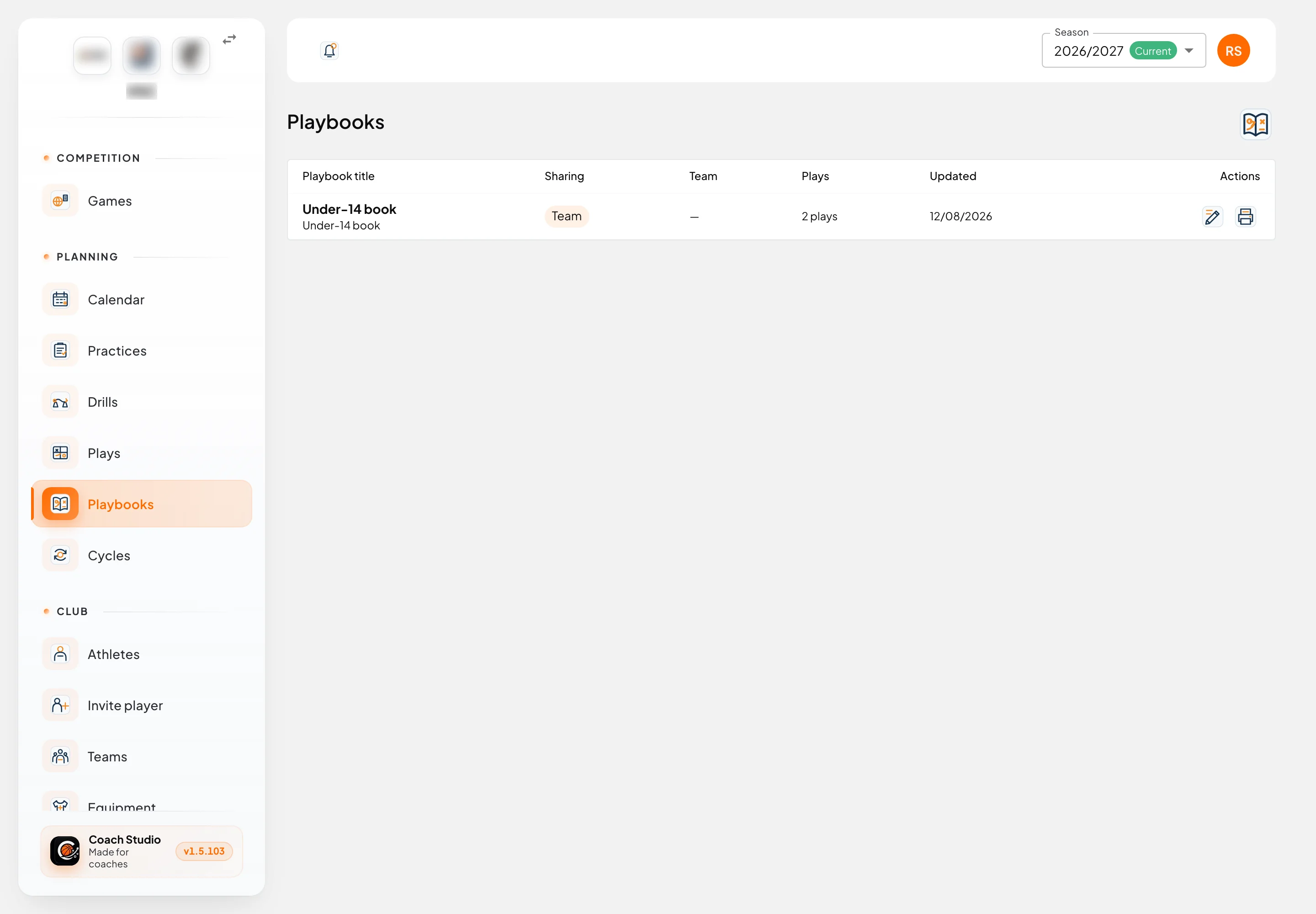
The list shows the title (and subtitle), sharing, team, number of plays and the date of the last change. On each row you can edit or open the printout. The button in the right corner creates a new playbook.
Playbook detail
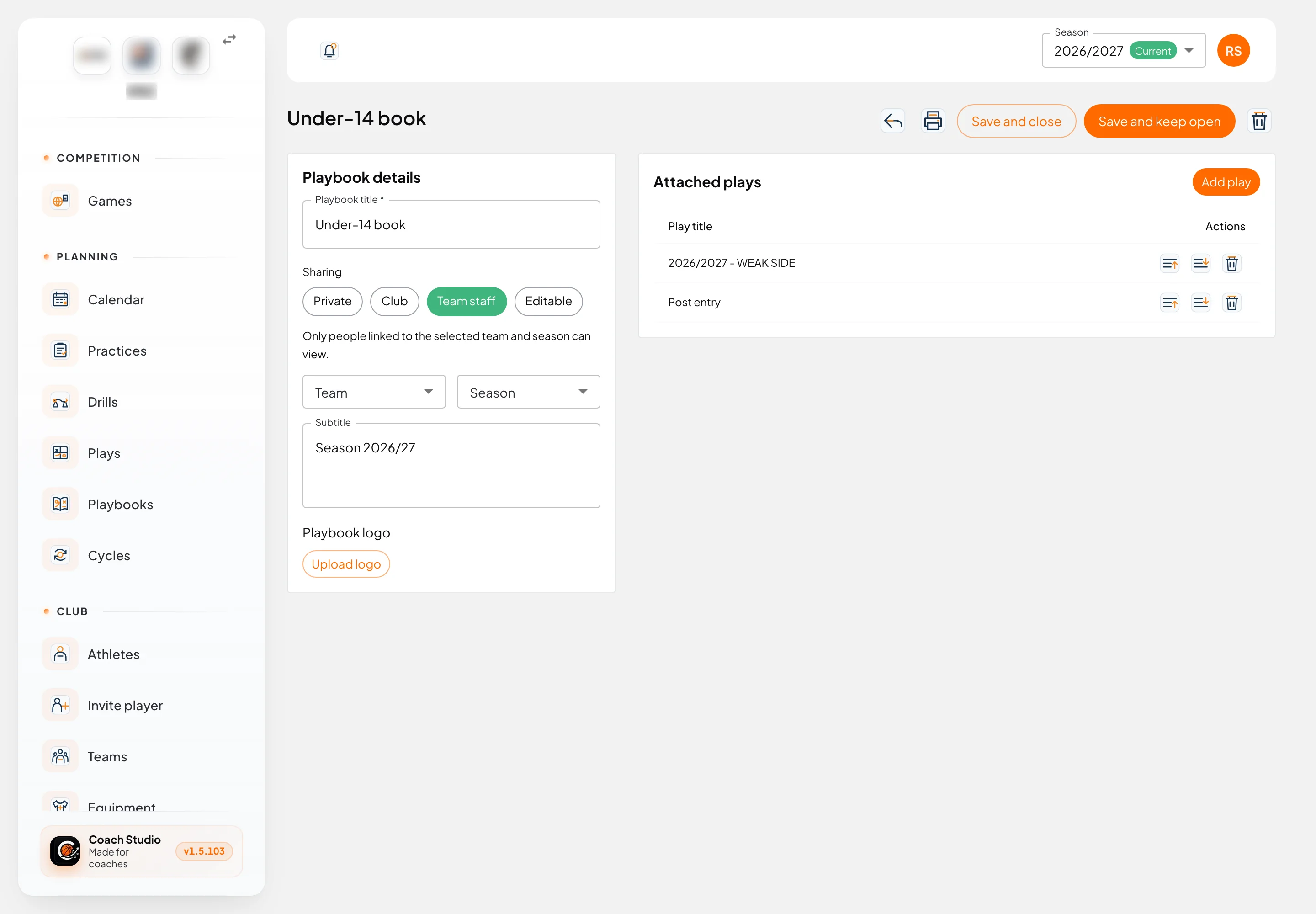
Playbook details
- Playbook title (required) and Subtitle, for example "Season 2026/27".
- Sharing: the same options as drills. With "Team staff" or "Editable" you also choose the team and season.
- Playbook logo: image shown on the cover. Upload logo picks the file.
Save with Save and keep open or Save and close. The printer icon opens the printout; the bin deletes the playbook (the plays are not deleted).
Attached plays
- Add play picks a play from the library.
- On each row: move up, move down and remove from the playbook.
These changes are saved immediately, without pressing save.
Printing
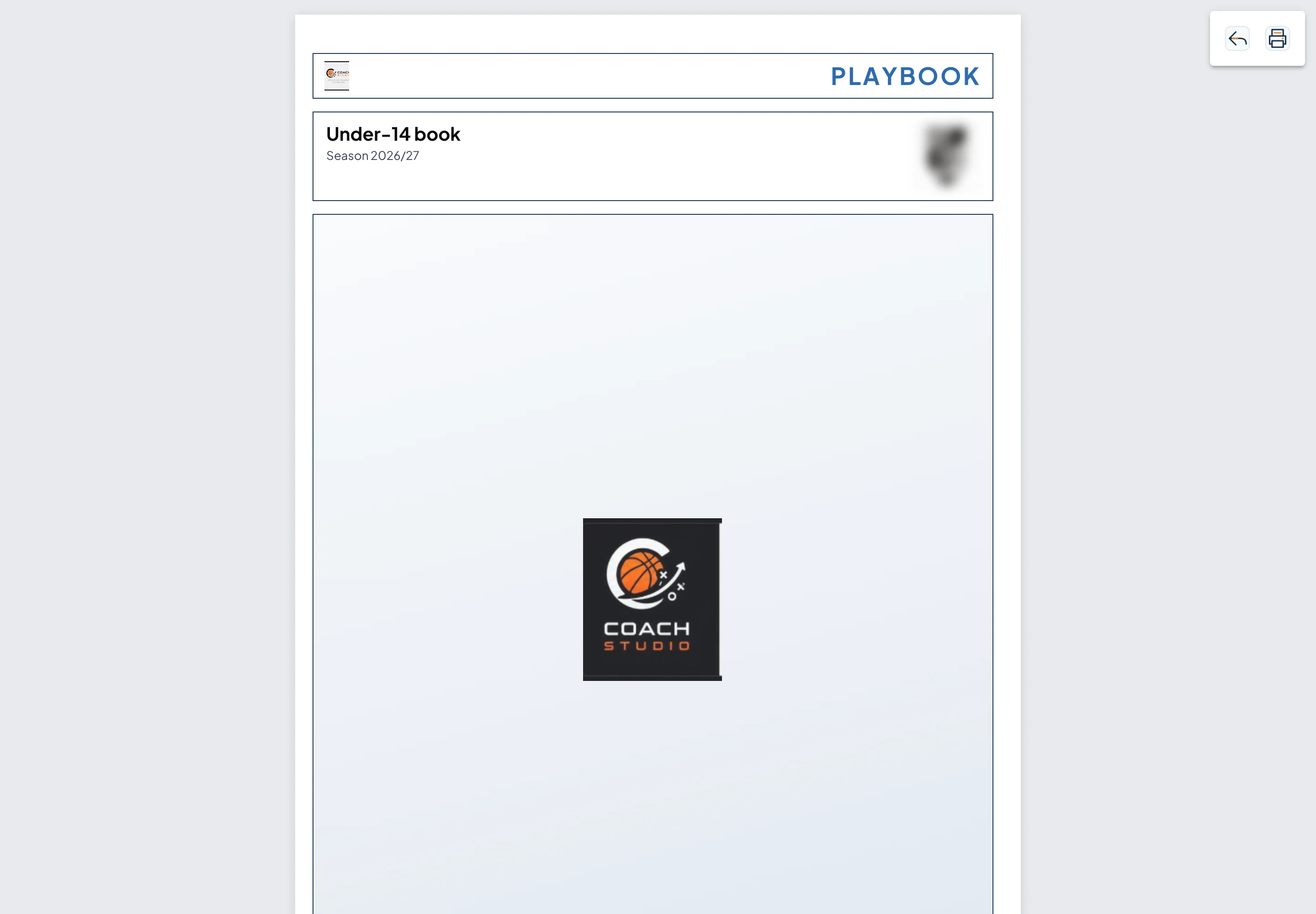
The printout (/utilities/playbooks/[id]/print) starts with a cover: PLAYBOOK, the title, subtitle, logo and club.
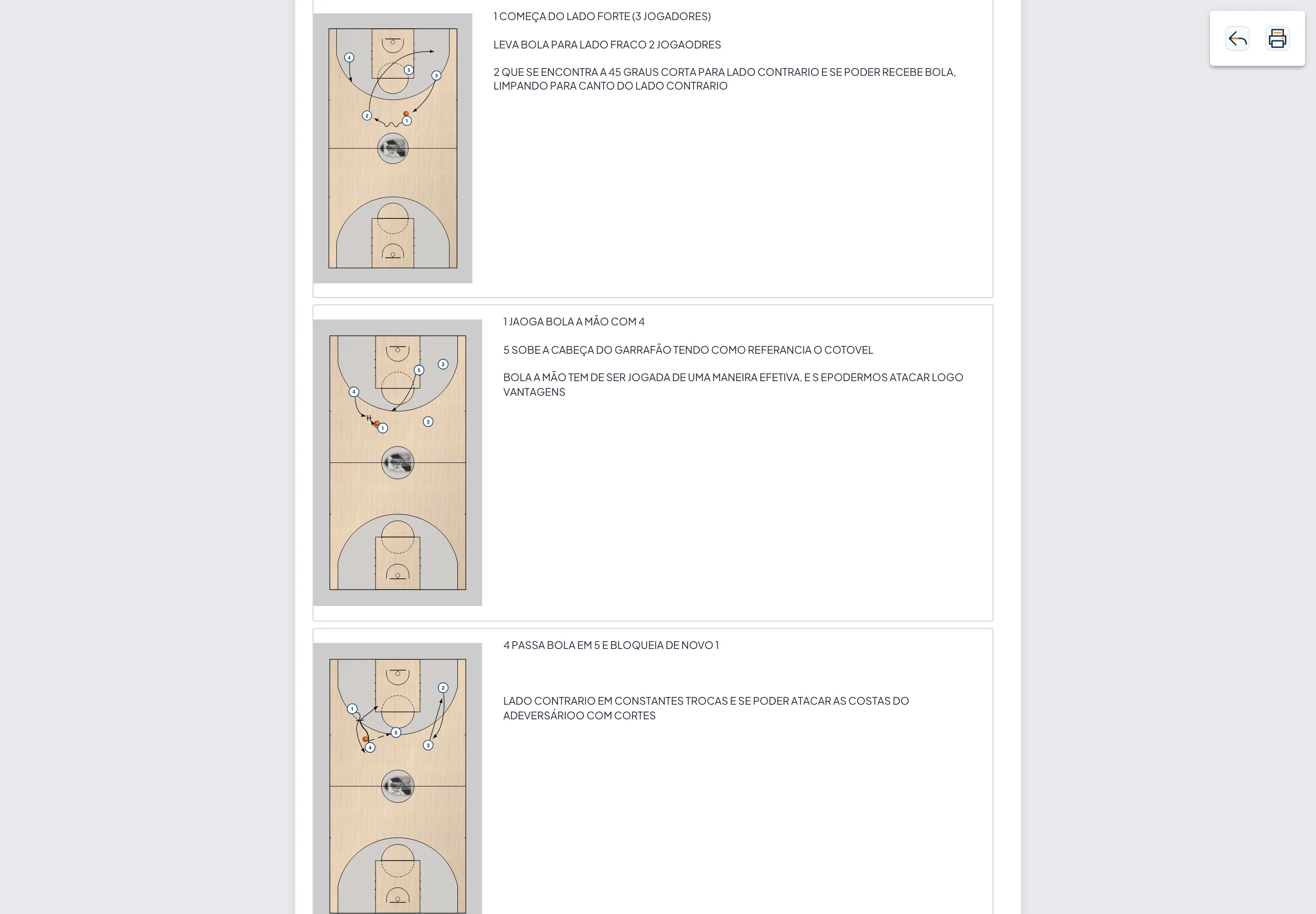
Then come all the plays in playbook order: every step of every read, with the graphic and its teaching text next to it. The play description is not printed; what matters is the teaching text of each step.
Use the printer button (top right corner) and choose "Save as PDF" in the browser dialog to create the file.
Team playbook
Each team also has a read-only team playbook. Open it from Teams, with the "Open team playbook" icon on each row (/utilities/teams/[id]/playbook).
It automatically shows every play shared with that team in the current season ("Team staff" or "Editable" sharing), grouped by folder, with a Watch animation button. You do not need to build a playbook: just share the play with the team.