Getting started
You sign in at /auth/signin. After you pick a club, home is the Home page (/), your profile opens from the avatar menu (My profile, /utilities/profile), and feedback is under Help → Your feedback (/utilities/feedback).
The images are screenshots of the app; athlete and club names and crests are blurred.
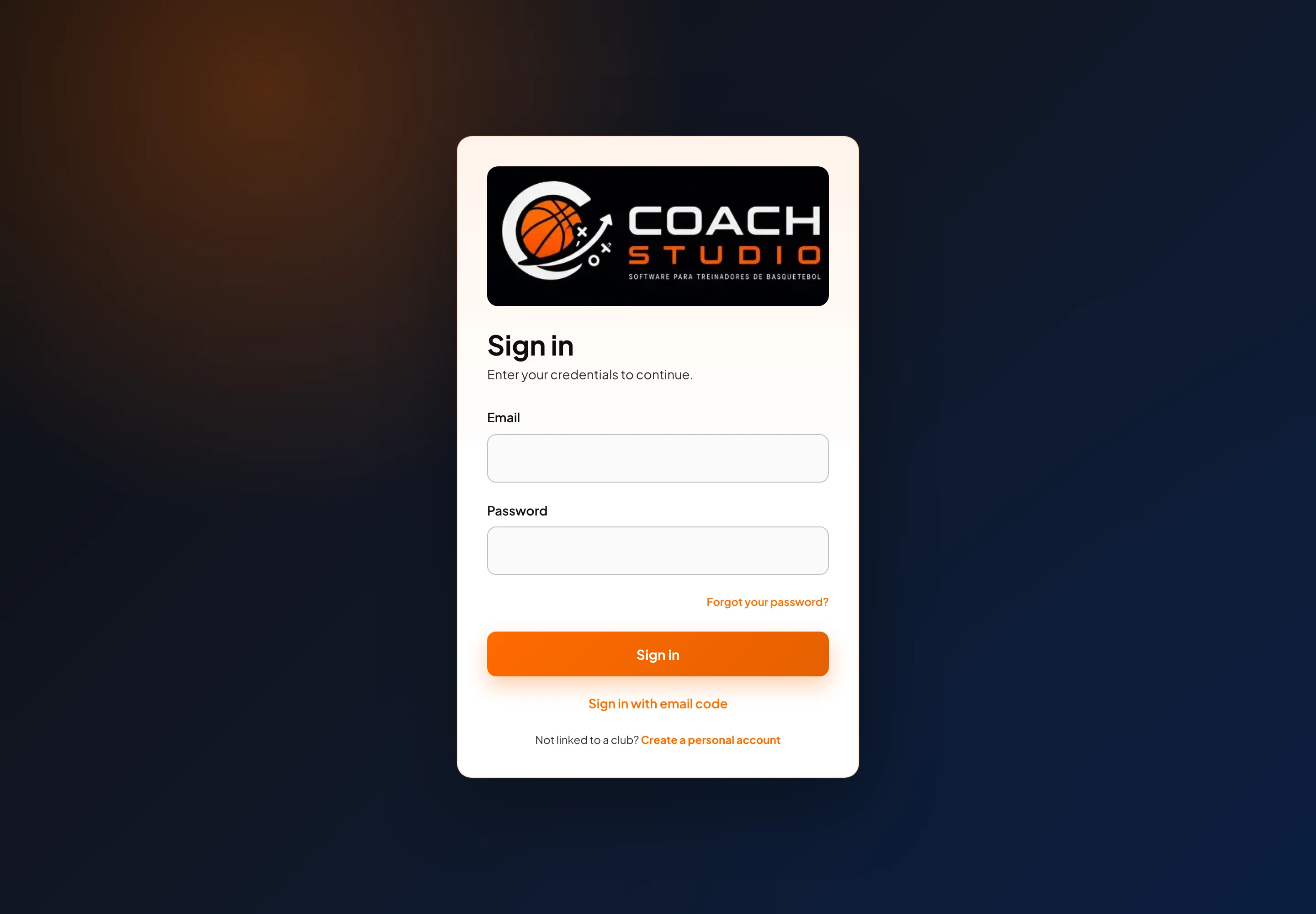
Signing in
On Sign in you type your Email and Password (at least 8 characters) and press Sign in.
- Forgot your password? opens password recovery.
- Sign in with email code asks only for the email. Send code sends a 6-digit code, valid for 10 minutes. You type the 6-digit code and sign in. Resend code becomes available after one minute. The message says a code is sent when an account exists for that email.
- Sign in with password returns to the password form.
- If the account email is not confirmed yet, the password is refused and you can use Resend verification email. Signing in with the code confirms the email.
With a single club, you go straight into it. With a default club, you go into that one. With several clubs and no default, the app opens Choose Club.
A coach account without a club
The line Not linked to a club? and the link Create a personal account appear only when the platform has Coaches without a club turned on (a site setting, not a club setting). While it is off, the link is hidden and an existing personal account cannot sign in either — except a platform administrator.
Registration (/auth/personal-register) asks for Name, Email and Password (at least 8 characters). You must tick consent to data processing; Coach Studio communications are optional. Create personal workspace takes you to Check your email. The confirmation link lasts 48 hours.
Resetting your password
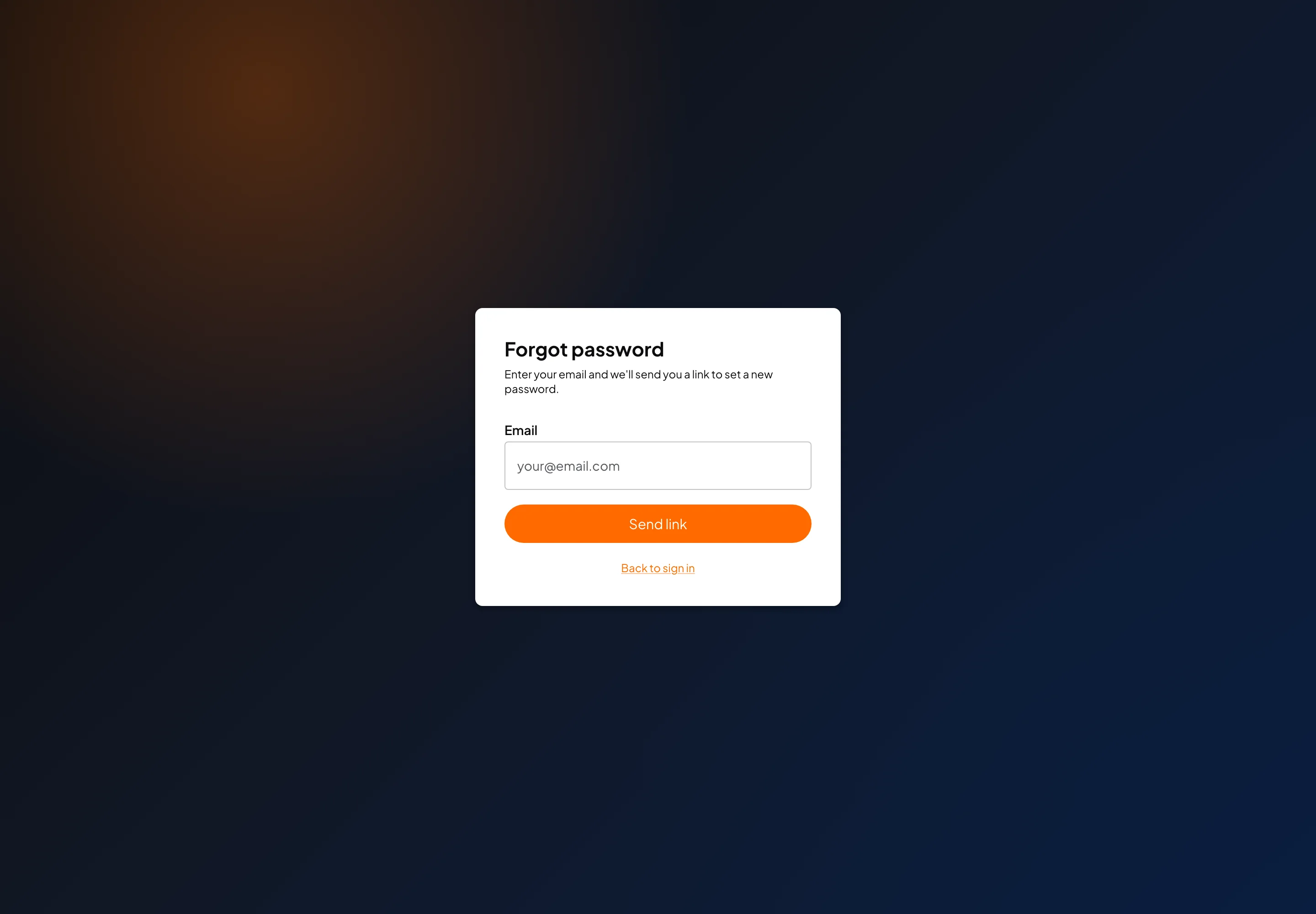
At /auth/forgot-password the Forgot password page asks for your Email and Send link. You then see Check your email: the message says that, if an account exists, you receive a link.
The link opens New password (/auth/reset-password). It lasts one hour. The new password must be at least 8 characters; you repeat it in Confirm password and press Save password. A link that was already used or is past its time shows Invalid or expired link, with Request a new link.
Choosing a club
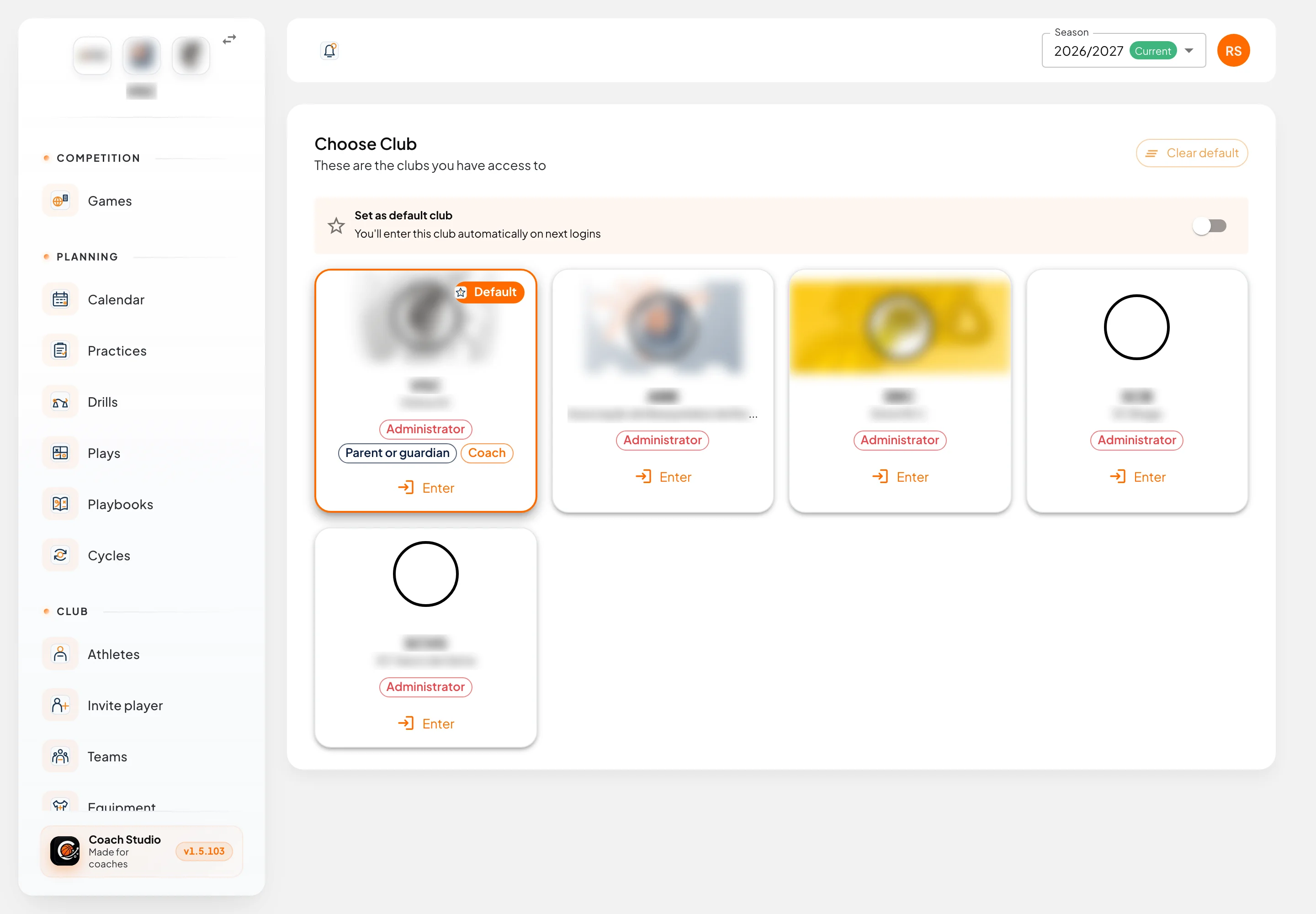
Choose Club (/utilities/chooseClub) lists the clubs on your account. Each card shows the crest, the name and your roles (for example Coach, Director, Coordinator, Administrator, Team manager, Player, Parent or guardian). Enter opens that club.
- The card with the Default chip is the club you enter automatically.
- The Set as default club switch makes the next Enter save that club as the default.
- Clear default removes the default. With several clubs, the next sign-in asks you to choose again. With a single club, you still go straight in.
- With no club at all, you see No clubs linked. If personal workspaces are on, you can Create personal workspace.
When you belong to more than one club, the switch icon at the corner of the crest (sidebar) has the tooltip Switch club and opens the same page. The avatar menu, next to Current club, has the same icon.
Personal workspace
The Personal workspace is a planning space of your own, with the chip Individual planning. The menu has Home, Calendar, Practices, Cycles, Teams, Athletes, Venues, Drills, Plays, Playbooks, your profile and Your feedback. Items in a personal workspace are always private.
The personal home shows the next practice and Planning tools (Create practice, Record attendance, Add drill). There are no games, no competitions and no button to customise widgets.
If Coaches without a club is off, the workspace drops out of the list and, when you sign in, you are told that access is disabled.
Season
In the top bar, the Season selector changes the season for the whole app. The season in force has the Current chip.
In a past season the data is read-only: the app shows a notice, and only a platform administrator can change that data. Switch back to Current to edit again.
Language
Open the avatar in the top corner. Under Language you choose Portuguese or English. The choice is stored on the account, so the mobile app uses the same language when you sign in. Logout is at the bottom of the same menu.
What's new
After you sign in, the What's new dialog summarises what changed in the version. The text says the summary is shown only once per version. If more than one version is unseen, Next moves on; at the end, Explore the new version closes the dialog.
Alerts
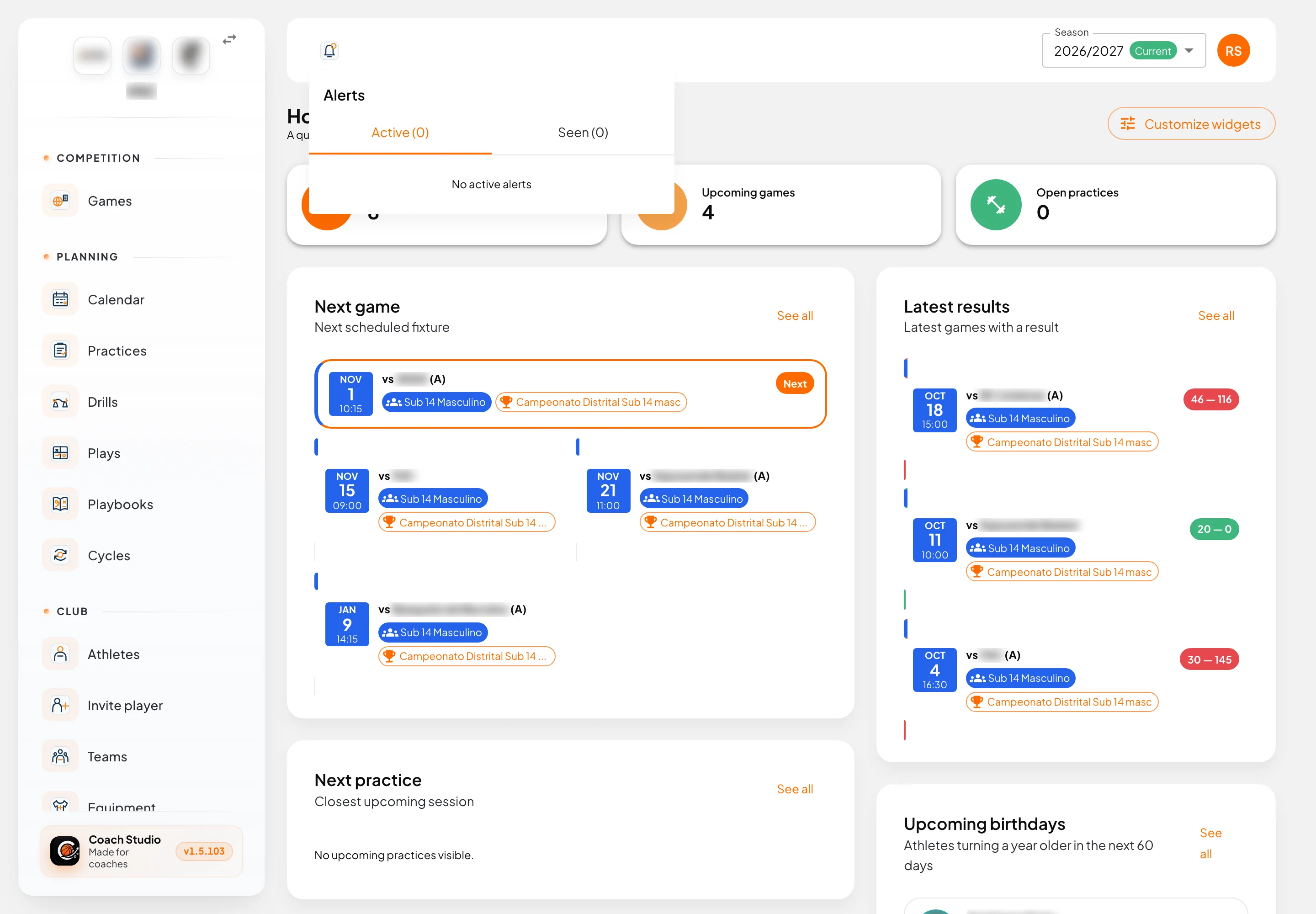
The bell in the top bar opens Alerts. The number on the bell is what you have not seen yet.
| Tab | What it shows |
|---|---|
| Active | Alerts you have not seen |
| Seen | Alerts you have already marked |
Each alert has a severity colour. Opening the detail shows the type: Information, Attention, Important or Priority.
- The tick icon is Mark as read. On Seen you can Mark as unread.
- The bin icon Delete removes the alert from your list.
Depending on your role, alerts cover birthdays, practices still to close (Past sessions not closed), registrations waiting, assignment to a team, club insurance, call-ups and absences, roster changes and doubts about games imported from the FPB. People who can edit athletes can also see Athletes missing numbers. Club administrators and directors can see Expired documents.
To answer a call-up with I can't attend, see the athlete area.
Home
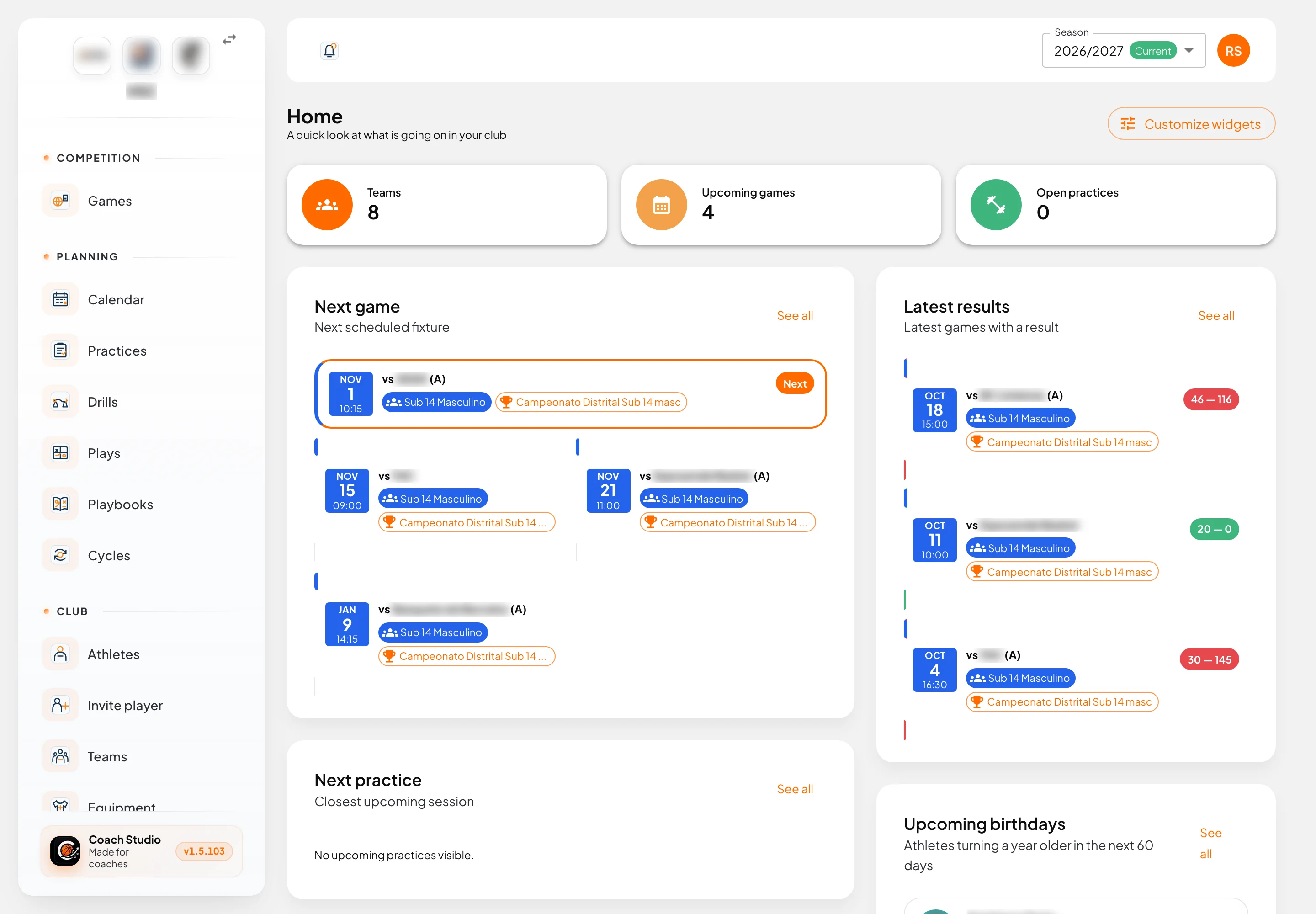
Home (/) opens when you click the club crest (tooltip Go to Home) or Home in the avatar menu. The subtitle is a quick look at the club.
The numbers at the top, Summary (KPIs), are:
| Number | Opens |
|---|---|
| Teams | Teams |
| Upcoming games | Games |
| Open practices | Calendar. Shown only to people who can view practices |
The starting layout is one row of numbers and, below, a wider column (Next game, Next practice, Shortcuts) and a narrower one (Latest results, Birthdays). See all on each block opens the matching page. Birthdays are those in the next 60 days. Latest results show up to four games.
Shortcuts follow what you are allowed to do: Create practice, Record attendance (when there is already a next practice) and Add drill.
Customising widgets
Customize widgets opens Home widgets. You drag the blocks, change rows and columns (Full width, Main column, Secondary column), Add widget, Add row or Remove row. Reset to default restores the starting layout. The layout is saved on your account, per club.
If the club has no echelons, competitions or opponents yet, the Prepare this club notice links to Create echelons, Create competitions and Create opponents.
Profile
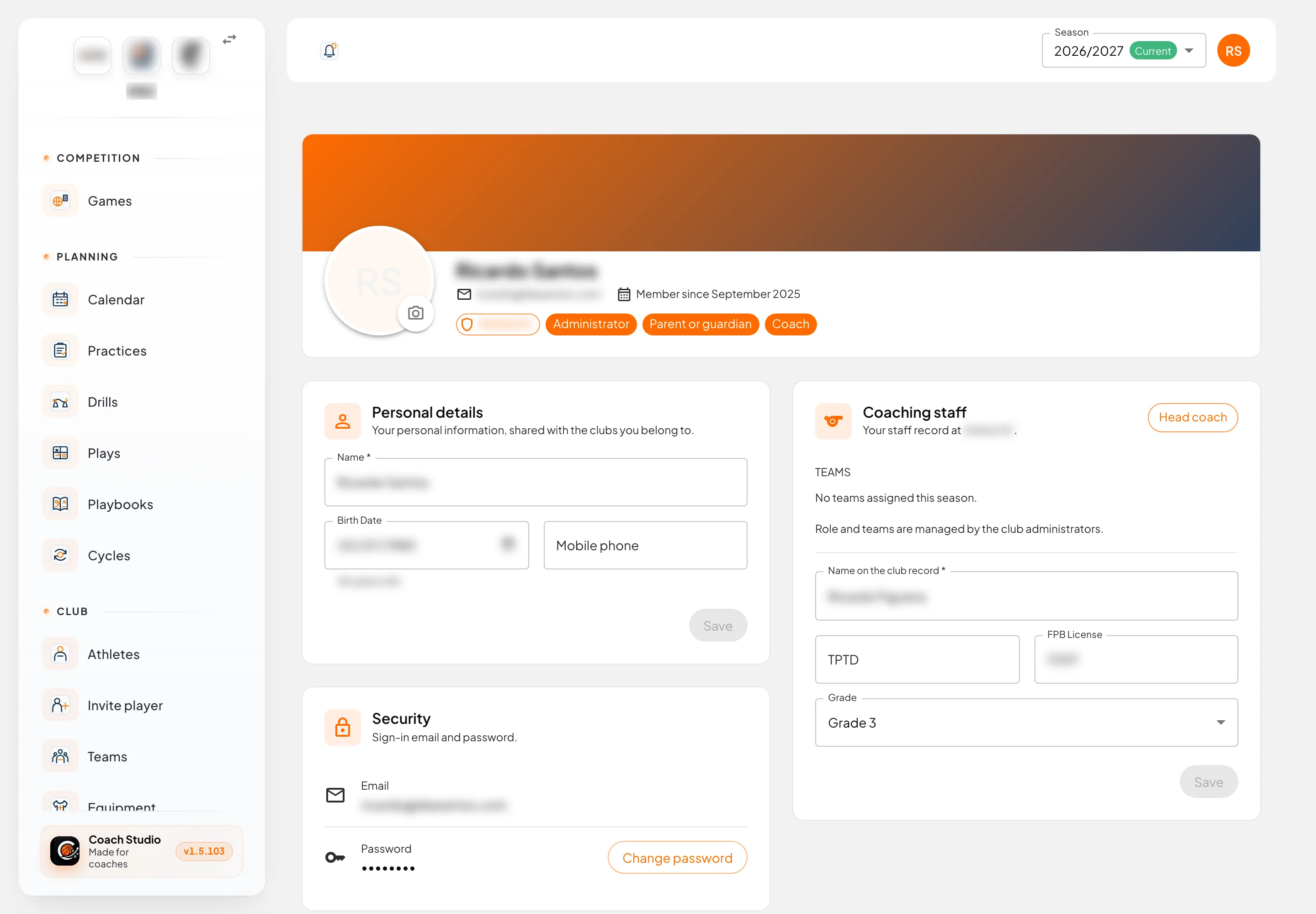
My profile (/utilities/profile) is your account, shared by the clubs you belong to.
- Personal details: Name, Birth Date, Mobile phone and the photo.
- Security: the sign-in email (you do not change it here) and Change password. You confirm the Current password and set a new one, at least 8 characters and different from the current one.
- Preferences: only when you have more than one club. Default club is the club that opens when you sign in.
- Coaching staff: your staff record at this club. You see the season's teams. Role and teams belong to the club leadership; you can update Name on the club record, the TPTD, the FPB License and the Grade.
- If you are also an athlete or a guardian, the matching record appears, read-only. To change it, talk to the coaching staff. Day-to-day use for players and guardians is in the athlete area.
Your feedback
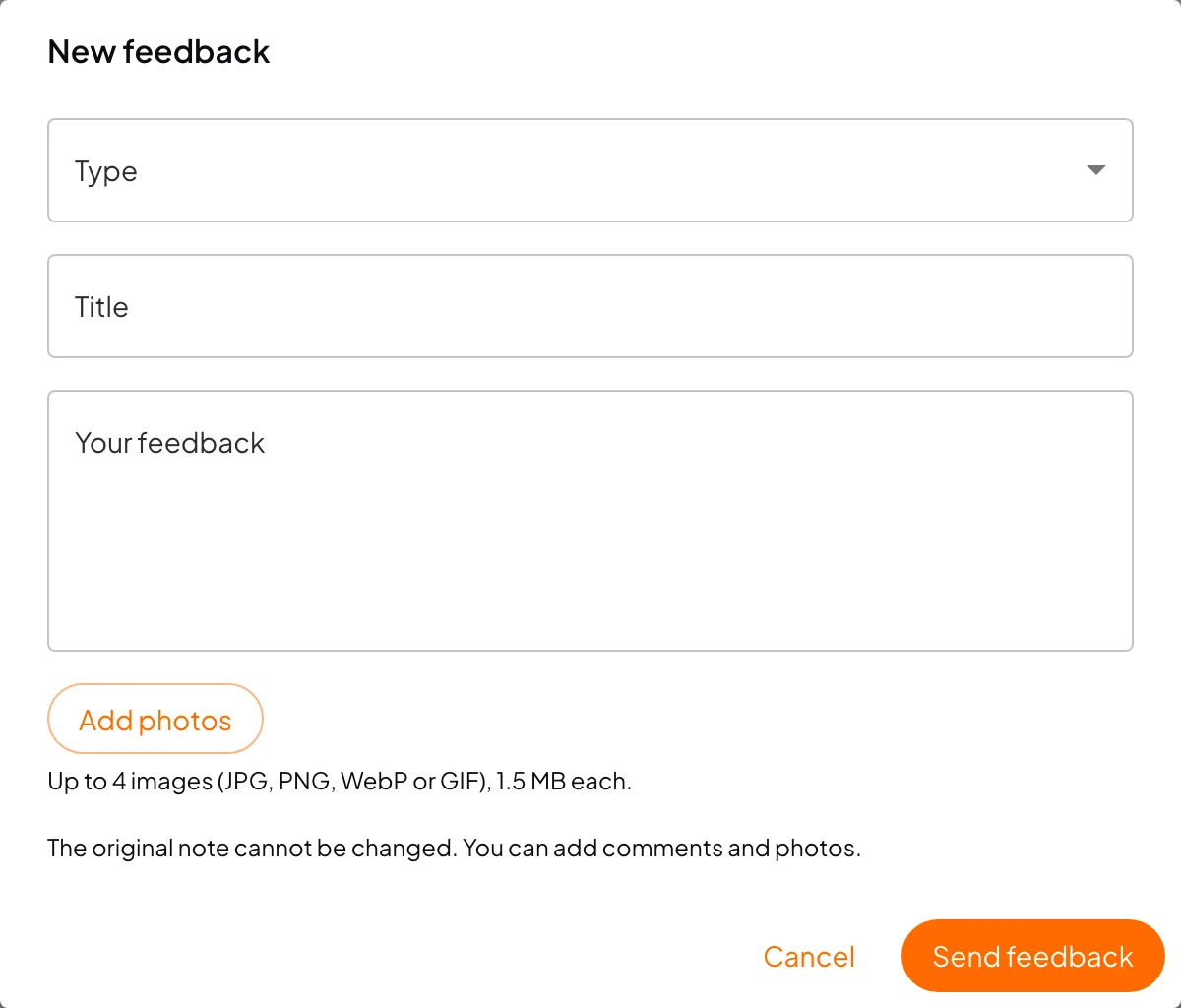
Help → Your feedback (/utilities/feedback) is where you say what is missing or what went wrong. New feedback asks for a Title, Your feedback and a Type:
| Type | When to use it |
|---|---|
| Idea | Something that does not exist yet |
| Problem | Something that failed |
| Improvement | Something that exists and could be better |
| Other | The rest |
You can attach up to 4 photos (JPG, PNG, WebP or GIF), 1.5 MB each. Send feedback stores the text. The original note cannot be changed; the page lets you add comments (Post comment) and more photos. A platform reply appears as Platform team.
Status filters the list. The platform team is who changes the status:
| Status | Meaning |
|---|---|
| Not resolved | It has just arrived |
| In review | Someone is looking at it |
| Needs information | A detail from you is missing |
| Planned | It is lined up for a later version |
| Resolved | It is done |
| Won't do | It stays out |
A new reply marks the note with Update.
When access is limited
A coach or team manager who is not linked to any team staff role yet sees a notice: until the club completes that link, the menu stays on Drills (yours and the club library) and Your feedback. Other club pages send you back to drills. Profile and switching club stay available.
An account that at this club is only a Player or a Guardian, and that has no active athlete record (and no active child), lands on Access suspended (/auth/account-deactivated). The app stays blocked until the club reactivates the athlete. Choose another club switches club; Sign out leaves. If every club on the account is like that, Sign in itself is refused.
Mobile app
The mobile app signs in with a password or an email code and has the Home, Alerts and Menu tabs. Password recovery, the profile, Your feedback and the What's new dialog stay on the web app.