Equipment
Equipment is under Club → Equipment (/utilities/equipments). You manage numbered kit stock for each echelon and the number grid by gender. The old address /utilities/equipment-control opens the numbers tab directly.
The images are screenshots of the app; athlete and club names and crests are blurred.
The page title is Equipment. When both tabs are available it shows Team equipment and Equipment numbers. The tab you pick is saved to your account. If there is only one tab, the tab bar is hidden.
What you see depends on Game numbers & kit policy in Club settings:
| Option | What changes |
|---|---|
| Personal player number (required, unique in the club) | The athlete profile stores a game number. The stock tab stays hidden. |
| Club-owned kit (no fixed roster number on the profile) | The profile does not store a single number. Stock by echelon appears, and game call-ups use the assigned pieces. |
Team equipment
This tab only appears with Club-owned kit (no fixed roster number on the profile), and only for people who can view equipment. Stock belongs to the selected season.
There is no screenshot of this tab: the test club has no pieces recorded yet.
- The Echelon filter starts on the first echelon. All echelons shows every piece. Your choice is saved. Clear filters returns to the first echelon.
- Each echelon is a section you open. Inside it, each colour is another section, with a swatch (the number 7 in the colours you chose) and an items count.
- Add Color is only enabled when one echelon is selected, not All echelons. The form asks for the name (Color), the Background color and the Number color, and shows a Preview.
- On each colour, Add Item asks for the Number and the Size (S, M, L, XL or XXL). Each piece is a coloured chip. Click it to edit; the delete icon asks you to confirm.
- Deleting a colour also deletes every piece in that colour.
By default, administrator, director, coordinator, coach and team manager can view and edit stock. The club can change this in permissions.
Equipment numbers
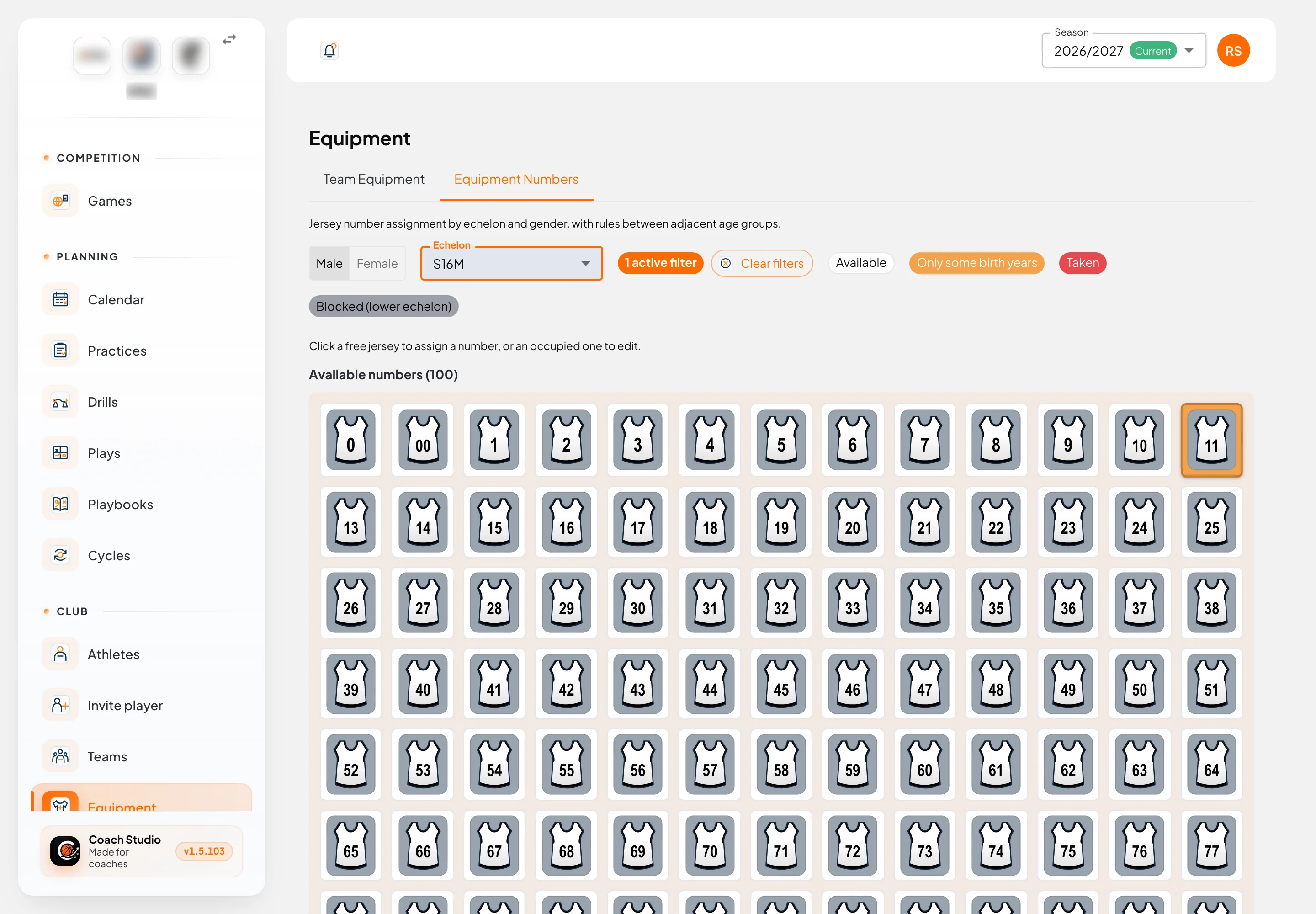
Jersey number assignment by echelon and gender, with rules between adjacent age groups. Valid numbers are 0, 00 and 1 to 99. They also belong to the selected season.
By default only administrator, director and coordinator can view and edit this grid. Coach and team manager do not see it unless the club widens the permission.
- The Male / Female switch changes the pool. Coed echelons appear in both. Your choice is saved. Clear filters returns to Male and the youngest echelon of that gender.
- The Echelon filter lists that gender's echelons, youngest first. With no echelon, the page asks you to select one to see the available numbers.
The grid is split into Available numbers, Used numbers and, when something is blocked, Blocked by lower echelon. The legend:
| Colour | Meaning |
|---|---|
| Available | Free for the birth years in this echelon |
| Only some birth years | Free for some years and blocked for others; the jersey stays in the free area, with a warning border |
| Taken | Already assigned in this echelon and gender; the jersey shows the name |
| Blocked (lower echelon) | A 2nd-year athlete in the echelon immediately below already has the number (they might play up). The jersey is grey and cannot be clicked |
People who can edit click a free jersey to Assign number, or a taken one to Edit assignment. The line under the grid says the same: Click a free jersey to assign a number, or an occupied one to edit. People who can only view open a taken jersey and see the preview, without the form.
The side panel shows the jersey in the club colours. If Club settings has two kits (Kit colours), you see Primary and Secondary.
- Choose Existing athlete or Add athlete (a name with no profile, for someone not on the roster yet).
- For an existing athlete, the list only includes active athletes of that echelon and gender. Picking one fills Name on jersey (the profile jersey name, or the last name), Birth year and Shorts size.
- Birth year is the years that fall inside the echelon's ages this season. A disabled year is blocked, either by the echelon above or the one below.
- Confirm the Number, and you can type Jersey size and Shorts size (free text).
- Save. On an existing assignment, Delete asks you to confirm.
Rules between echelons
Echelons of the same gender (and coed ones) are ordered by age. Only the echelon immediately below and the one immediately above count.
- The same number is not used twice in the same echelon and gender.
- A 2nd-year athlete (the oldest year in the band) in the lower echelon blocks that number for the whole echelon above, because they might play up.
- A 1st-year athlete in the lower echelon may share a number with the echelon above.
- A 2nd-year athlete in this echelon cannot take a number already used in the echelon above. That is why some numbers are Only some birth years: the younger year can still use them, the older year cannot.
Preferred numbers and call-ups
On the athlete profile, Preferred Numbers (optional) appears once kit colours exist for this season. You pick the Color and the Number. The same number in a colour cannot belong to another athlete in the club.
On the game Call-up, each stock colour has a list. The app assigns in this order: a piece someone picked by hand, then the preferred number if that piece is free, then the smallest piece that fits the athlete's shirt size. If nothing fits, the list shows No fit.
| Outline | Meaning |
|---|---|
| Fixed number | The athlete has a preferred number in that colour |
| Manual change | Someone picked a different piece |
| Auto assignment | The app chose using the order above |
If several combinations fail, you see Equipment assignment issues.
Mobile app
These pages are not in the mobile app. On the athlete screen, a club that uses club-owned kit does not ask for a roster number; shirt size can still be edited. Colours, pieces, the numbers grid and preferred numbers stay on the web.