Staff
Staff are under Club → Staff (/utilities/staff). The page is Staff Management: club staff profiles, each person’s role, and linked accounts.
The images are screenshots of the app; athlete and club names and crests are blurred.
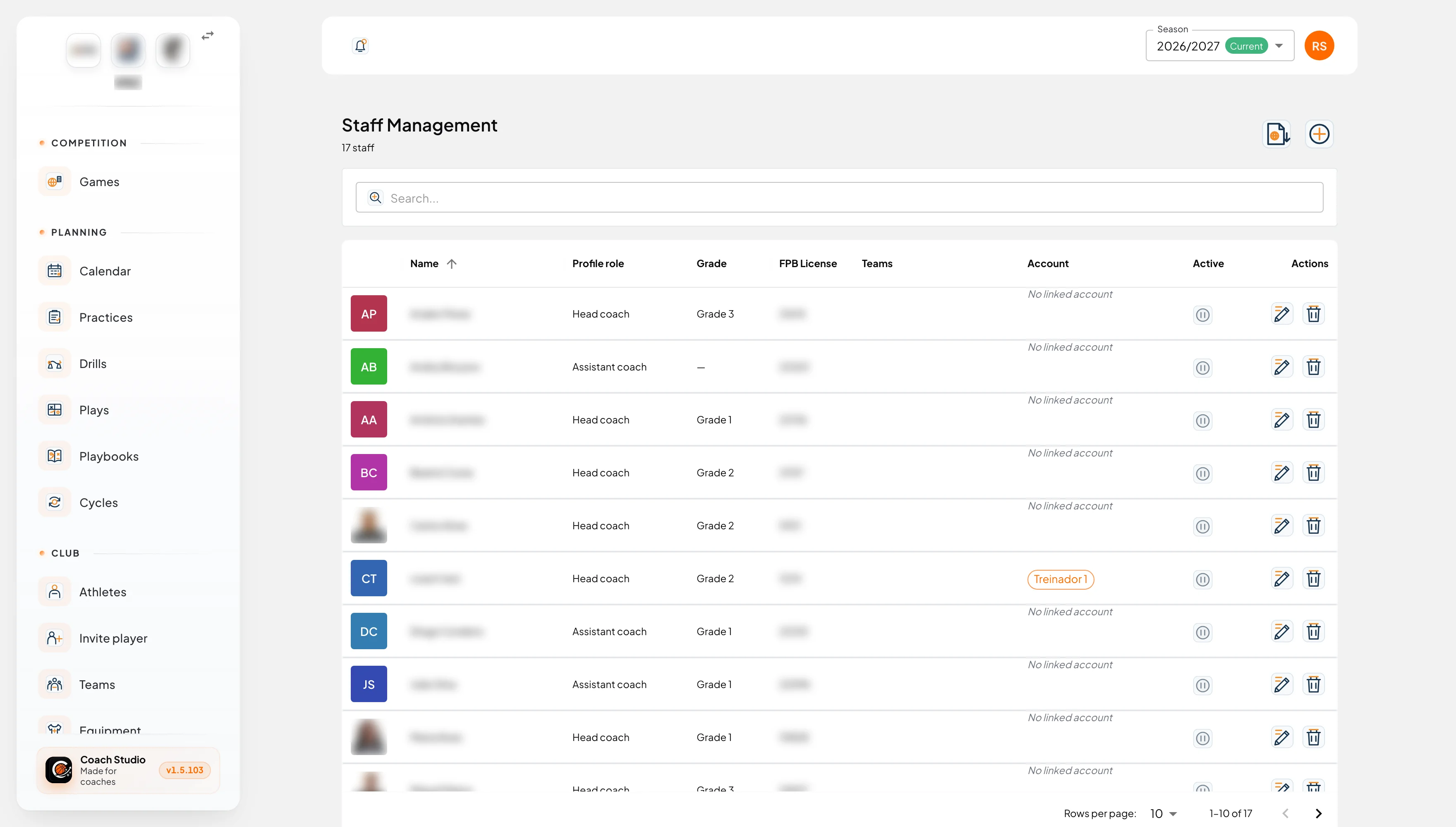
By default, administrators, directors, coordinators, coaches and team managers can view and edit. The club can change this in club settings.
Search (Search...) filters by name, contact email, account or team. It is not saved.
List
| Column | What it shows |
|---|---|
| Name | The person’s name |
| Profile role | Role on the club record, not the role on a team |
| Grade | Grade 1, Grade 2, Grade 3, Grade 4 or Trainee |
| FPB License | Licence number, when there is one |
| Teams | Each team with the role on that team |
| Account | The account name or email, or No linked account |
| Active | Yes or No |
Row actions are Edit and Delete. Delete asks for confirmation with the name.
On the toolbar, people who can edit have Add and, for an administrator, director or coordinator, Import coaches (FPB). An association does not import from the FPB.
Import from the FPB
The import reads the club’s coaches on the FPB for the chosen season. It brings name, FPB identifier, grade and, when the public profile exists, date of birth, licence and photo. TPTD is not on the public site, so it stays empty. It also brings the teams and role the FPB lists for each coach.
Someone who already exists is matched by FPB identifier or, when only one person has that name, by name. You can untick rows. A newly created record gets the profile role matching the most senior role the FPB lists (for example Head coach); change it afterwards if that is wrong. Each team listed on the FPB links the person to the club team only when that team was already imported for the season selected at the top of the app, with the role listed. If the match is not certain (for example two possible teams), no link is made. Each team has only one head coach: if the team already has one (or another coach in the same listing takes that role), the link as head coach is not made. The preview shows each line as will be linked or the reason it is not; handle those under Teams. After the import, the summary says how many links were created and which ones were not.
Profile
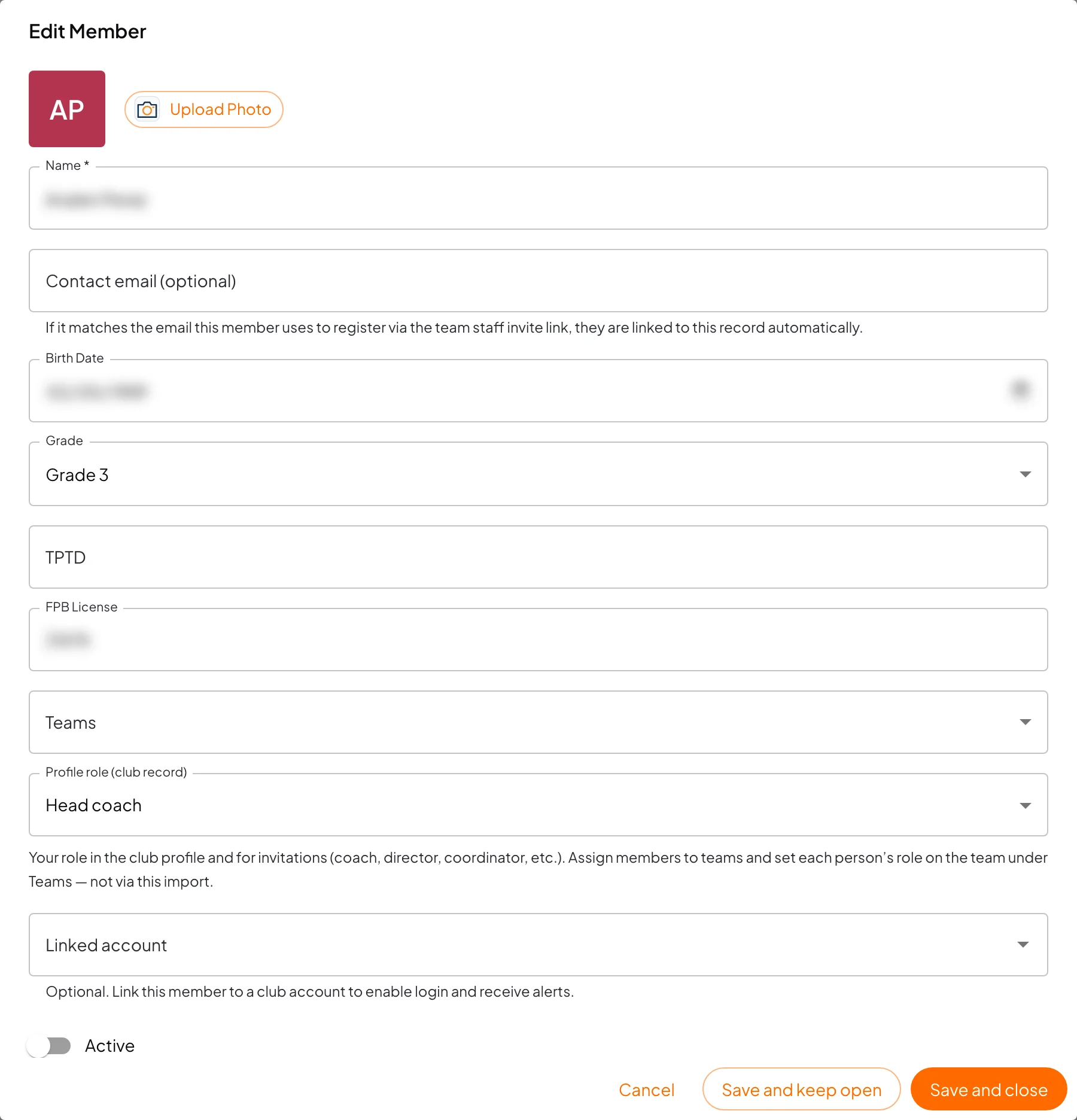
Add Member and Edit Member have:
- Photo: Upload Photo and, when there is one, Remove Image.
- Name.
- Contact email (optional). If it is the email the person uses to register through a staff invite, the account links itself to this profile. If another profile in the club already uses that email, the save fails.
- Birth Date.
- Grade.
- TPTD and FPB License.
- Teams: you can pick several. For each one, Role on each team appears (Role on followed by the name). A newly added team starts as Assistant coach. The roles are the same as on Teams: Head coach, Assistant coach, Strength & conditioning, Statistician, Equipment / kit manager, Team director, Physiotherapist and Other. There can be only one head coach per team. An assistant’s Advanced privileges are set on the team, not on this profile.
- Profile role (club record): the person’s role in the club and on invitations. It is not the role on a team. The options are Head coach, Assistant coach, Director, Coordinator, Team delegate, Physiotherapist, Statistician and Other.
- Linked account: attaches the profile to a club account, so they can sign in and receive alerts. If the account is already on another profile, the list warns Already linked to that person.
- Active: turning it off takes the person off lists and new assignments.
Save and keep open and Save and close save the profile.
Invite and registration
The staff page does not send invites. A platform administrator creates the link with Create invitation link, picks the team and the Staff role on team, and the club roles after registration.
When the person registers:
- If the email is the Contact email of a single profile that has no account yet, the account links to that profile and the person joins the invite’s team.
- If the profile is already linked to another account, or there is no match, the request stays in Pending, on the Technical staff tab: Link to existing staff, Create staff member or Dismiss.
Waiting for a team
A coach or team manager whose account is not on any team staff role yet sees a notice: until the club completes that link, they only have access to drills (their own and the club library). The menu shrinks to Drills and Your feedback. Other actions reply that a team staff assignment is required.
Mobile app
On the phone, Staff lists the people you can see (role, teams and whether they are active). People who can edit change the photo, name, birth date, email, grade, TPTD, licence, profile role and Active. Teams are shown on the profile, but the role on each team is edited on the web. There is no FPB import and no account linking.