Games
Games live under Games (/utilities/games). The list shows the games of the selected season. Each game opens in a form with tabs, always the same size: switch tabs without losing what you typed and save at the end.
- Save and keep open saves and keeps the form open. The confirmation shows above the form.
- Save and close saves and goes back to the list.
Everything you fill in under Preparation, Tactics and Notes goes on the game sheet.
The pictures are screenshots of the app; athlete and club names and crests are blurred.
Game tabs
| Tab | What it is for |
|---|---|
| Match | Competition, teams, date, venue and FPB |
| Call-up and five | Athletes, kit, periods, starting five and rotations |
| Preparation | Defensive and offensive focus, attacks, opponent notes |
| Tactics | Plays from the playbook, with text and images |
| Notes | Notes and speech |
| Notifications | Reminders for this game |
| Score | Total and per-period score |
Match
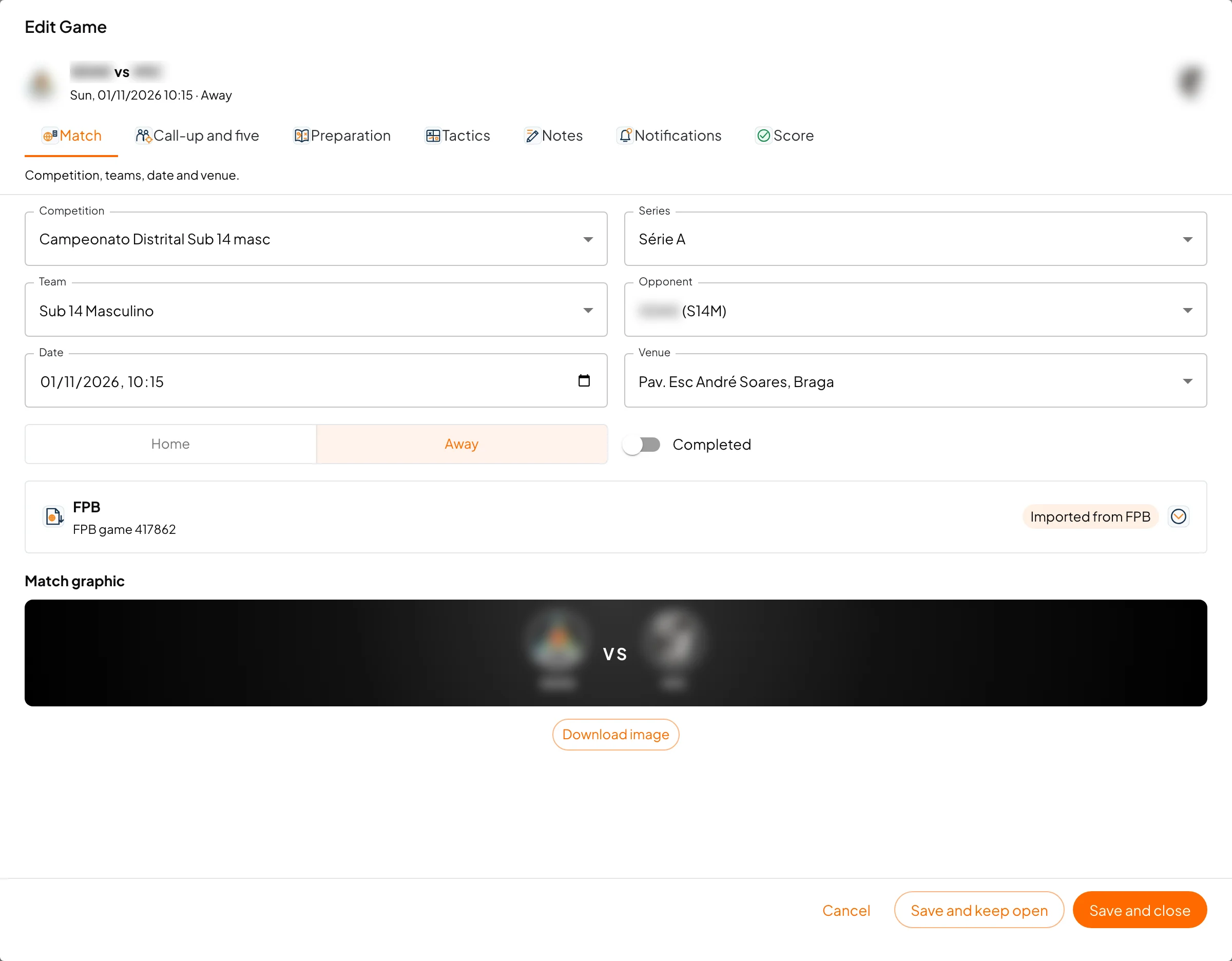
- Pick the competition and, if any, the series.
- Pick the team. The opponent list only shows opponents of the same age group.
- Set the date (with time), the venue and whether the game is home or away.
- Tick Completed once the game has been played.
With both teams picked, the match graphic (both crests) appears. You can download it to share.
FPB is optional. The FPB game ID is in the address of the FPB game sheet (…ficha-de-jogo/?internalID=…). If the game came from the imported FPB calendar, the ID is locked. With the ID saved, Refresh officials (FPB) brings in referees and table officials.
Call-up and five
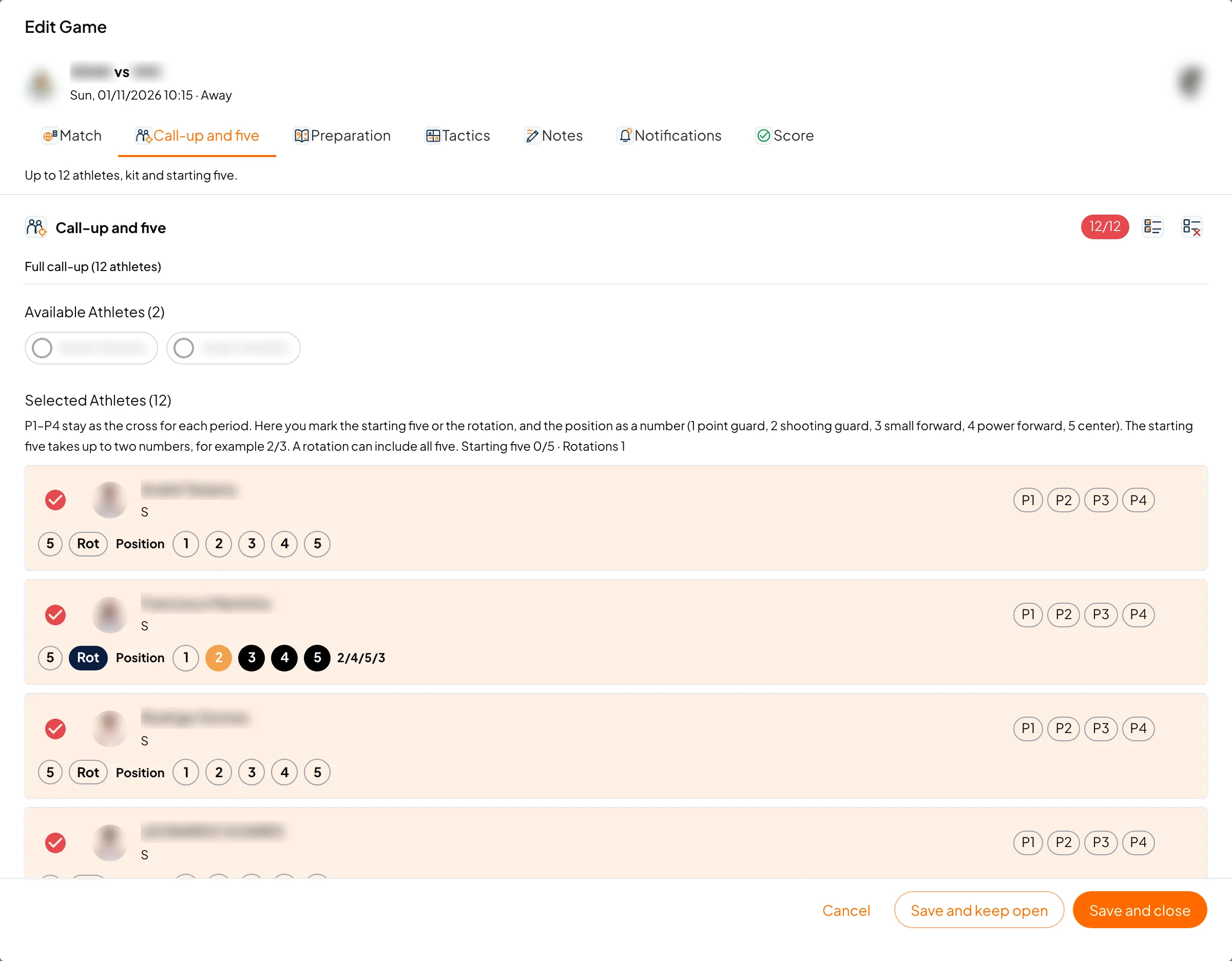
- Available athletes are on top. Click to call up, up to 12. Select All and Clear Selection help with small squads.
- Among selected athletes, each one has a kit number and colour. The legend tells fixed number, manual change and auto assignment apart. "No fit" means there is no kit in the athlete's size.
- P1 to P4 are the crosses for each period.
- On the same row you set each athlete's role: starting five (up to 5) or Rotation. You also set the position as numbers (1 point guard, 2 shooting guard, 3 small forward, 4 power forward, 5 centre). Starters take up to two positions, e.g. 2/3; rotation players can take all five.
The sheet's "Starting five and rotations" block is built from these marks.
Preparation
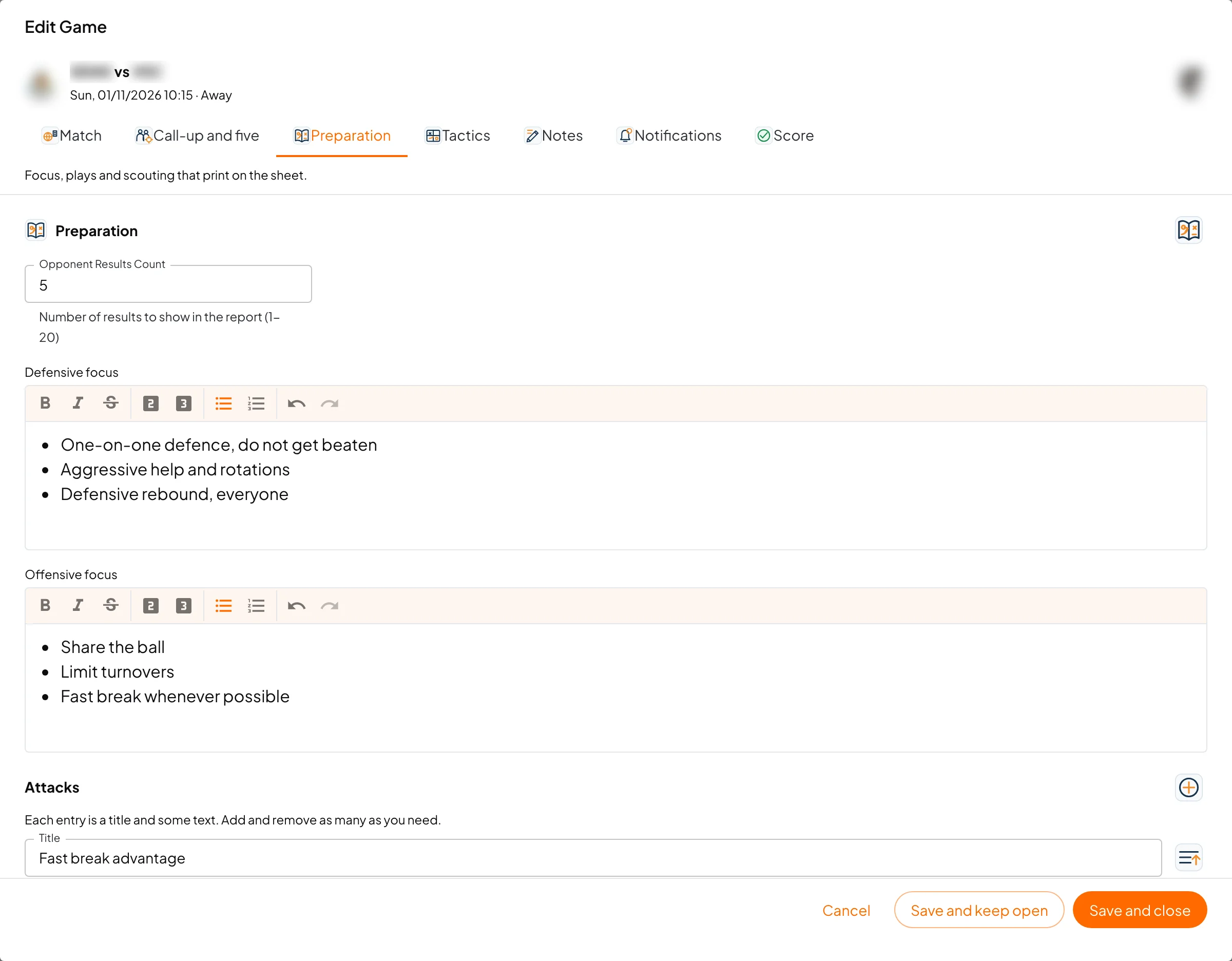
- Defensive focus and offensive focus: lists of what you want in this game. On the sheet the box prints even when empty, to write by hand.
- Attacks: a free list, up to 24 entries. Each entry has a title and a text. Add, reorder and remove as you like; on the sheet they sit side by side.
- Opponent notes: scouting for this game only, separate from the general notes.
Tactics
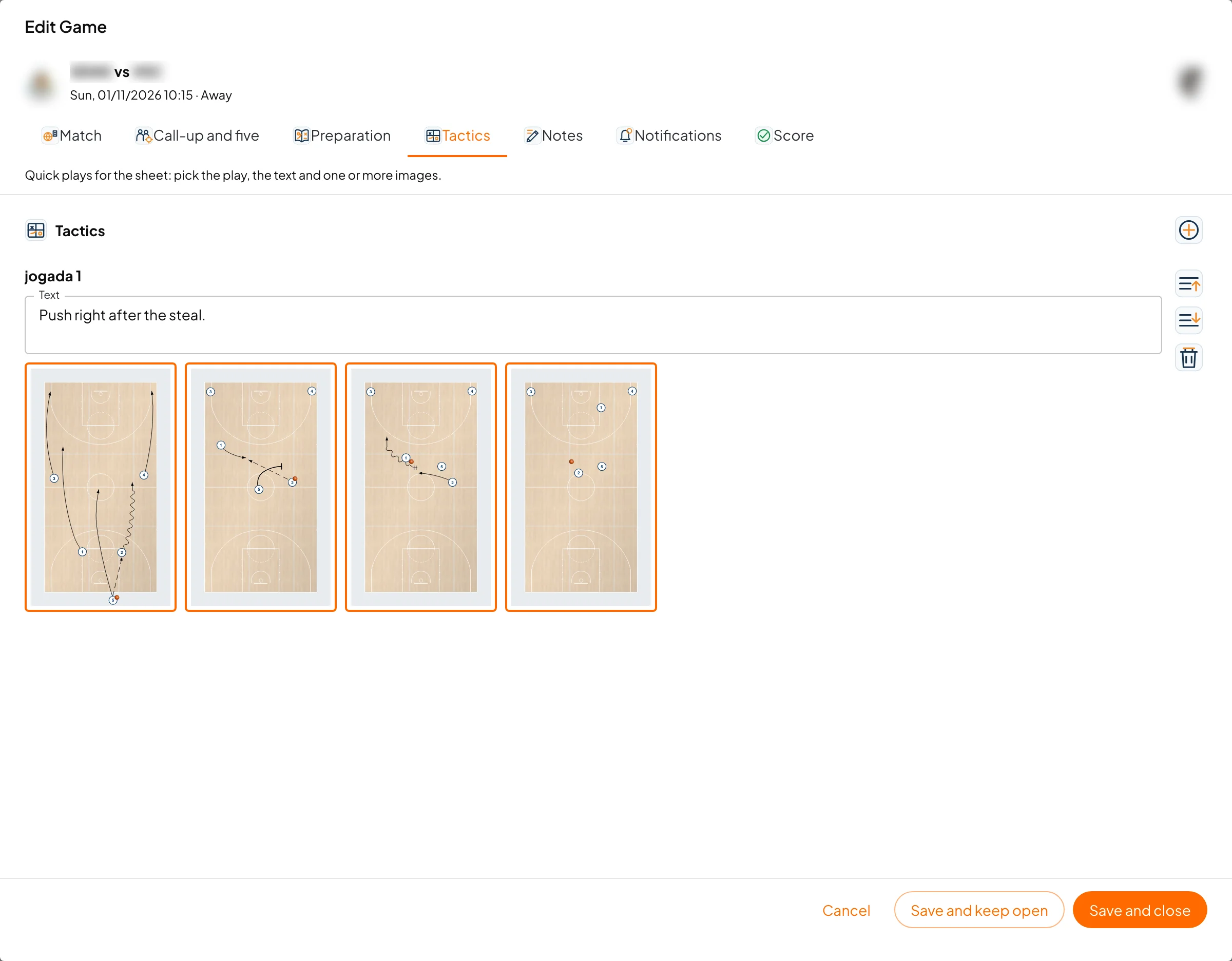
Tactics bring plays from the playbook onto the sheet, for example the quick plays you want to run in this game.
- Click Add play.
- Search and pick the play.
- The text is filled in from the play; you can change it.
- Pick one or more images of the play. The first one is already selected.
- Click Add play to add it to the game.
Once added, you can still change the text, toggle images (the selected image has an outline), move it up or down, or remove it. Each game takes up to 8 plays, each with up to 6 images.
On the sheet, each play prints with its title, text and images. If space is short, images get smaller or are cropped, but they never disappear.
Notes
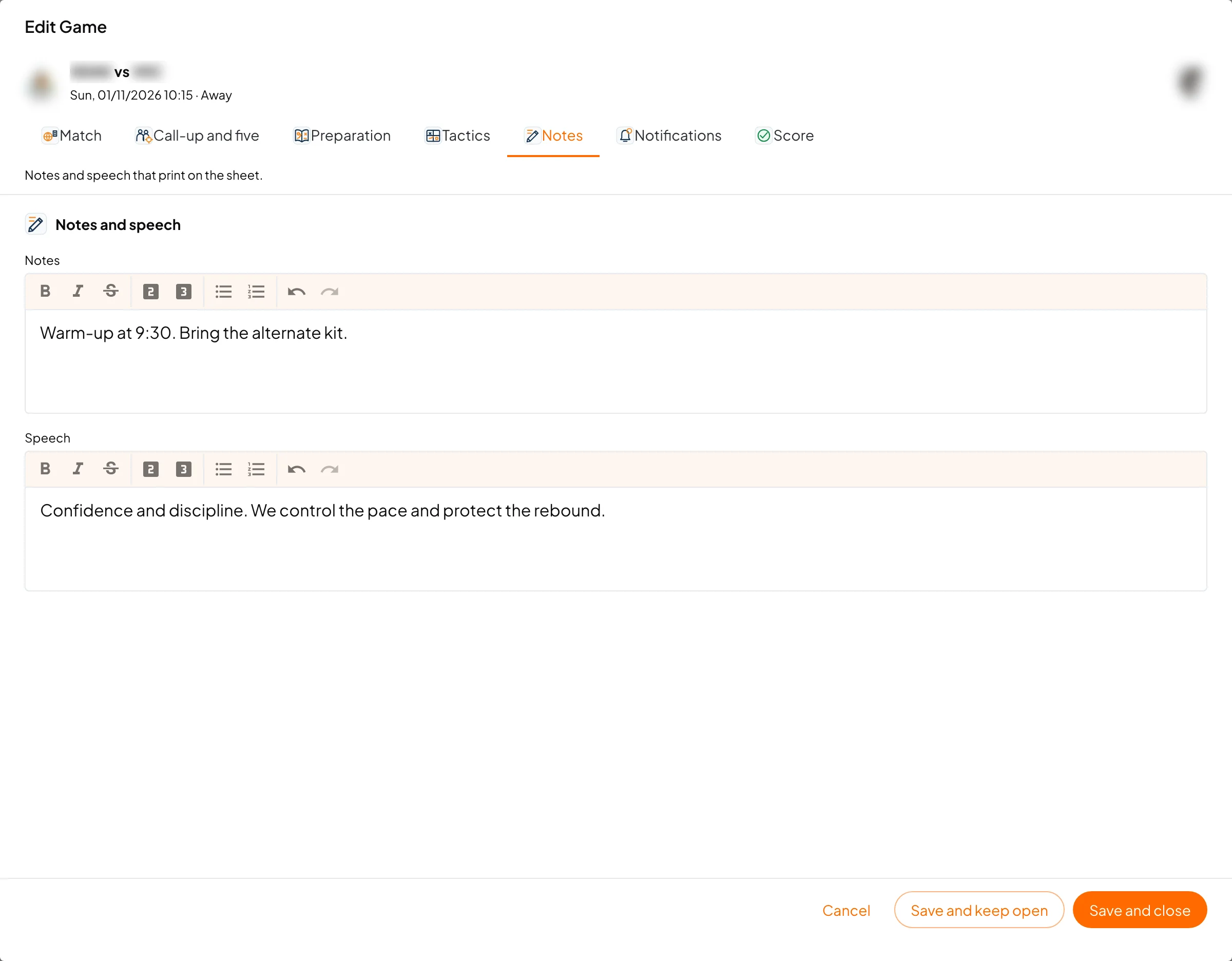
Notes and Speech accept formatted text (bold, headings, lists). Both print on the sheet.
Notifications
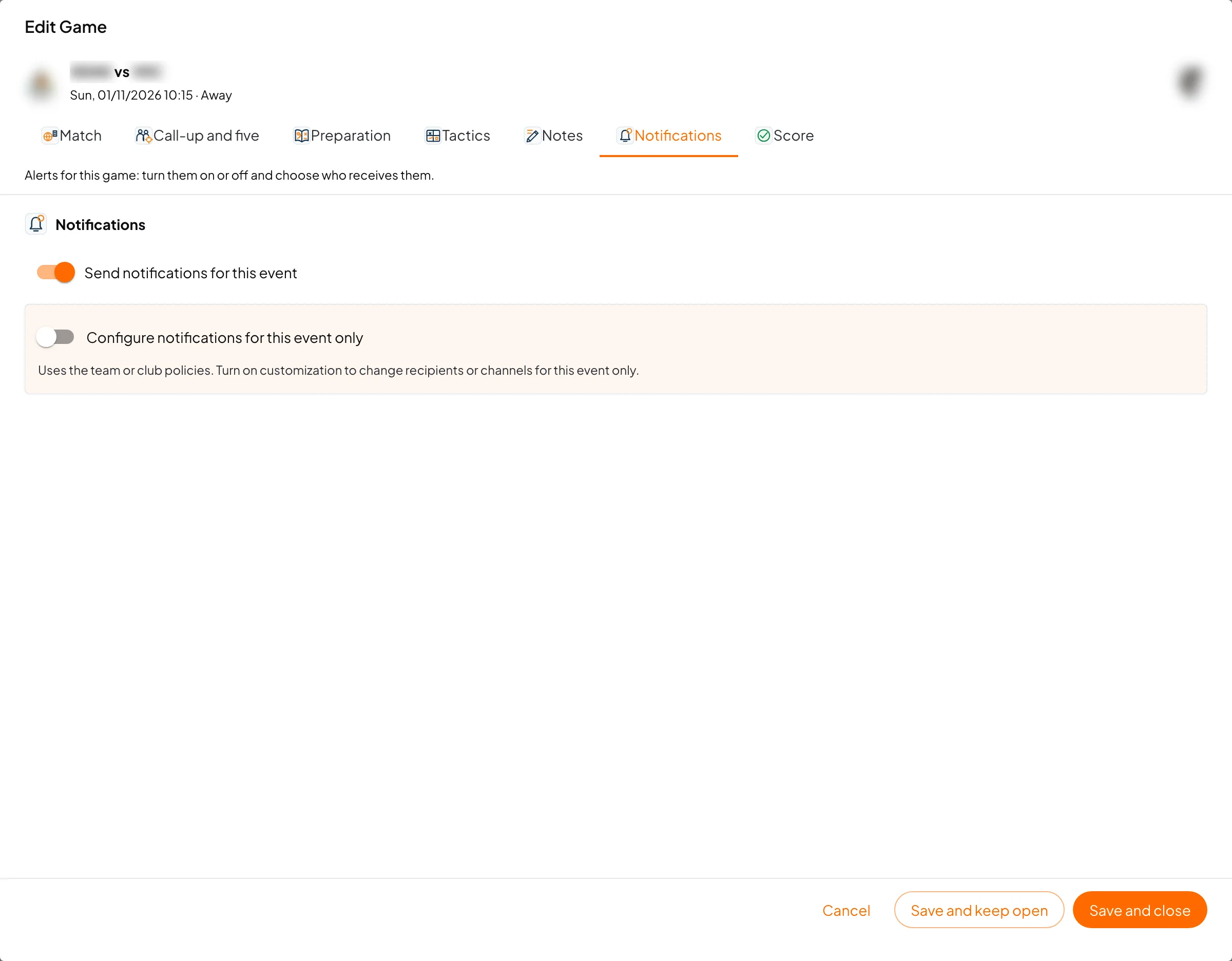
By default the game follows the team or club notification policies.
- Send notifications for this event turns reminders on or off for this game only.
- Configure notifications for this event only lets you choose, per reminder type (call-up reminder for the coach, call-up notice for athletes and parents), the recipients, the channels (email, app, web) and how many hours before the game it is sent.
Score
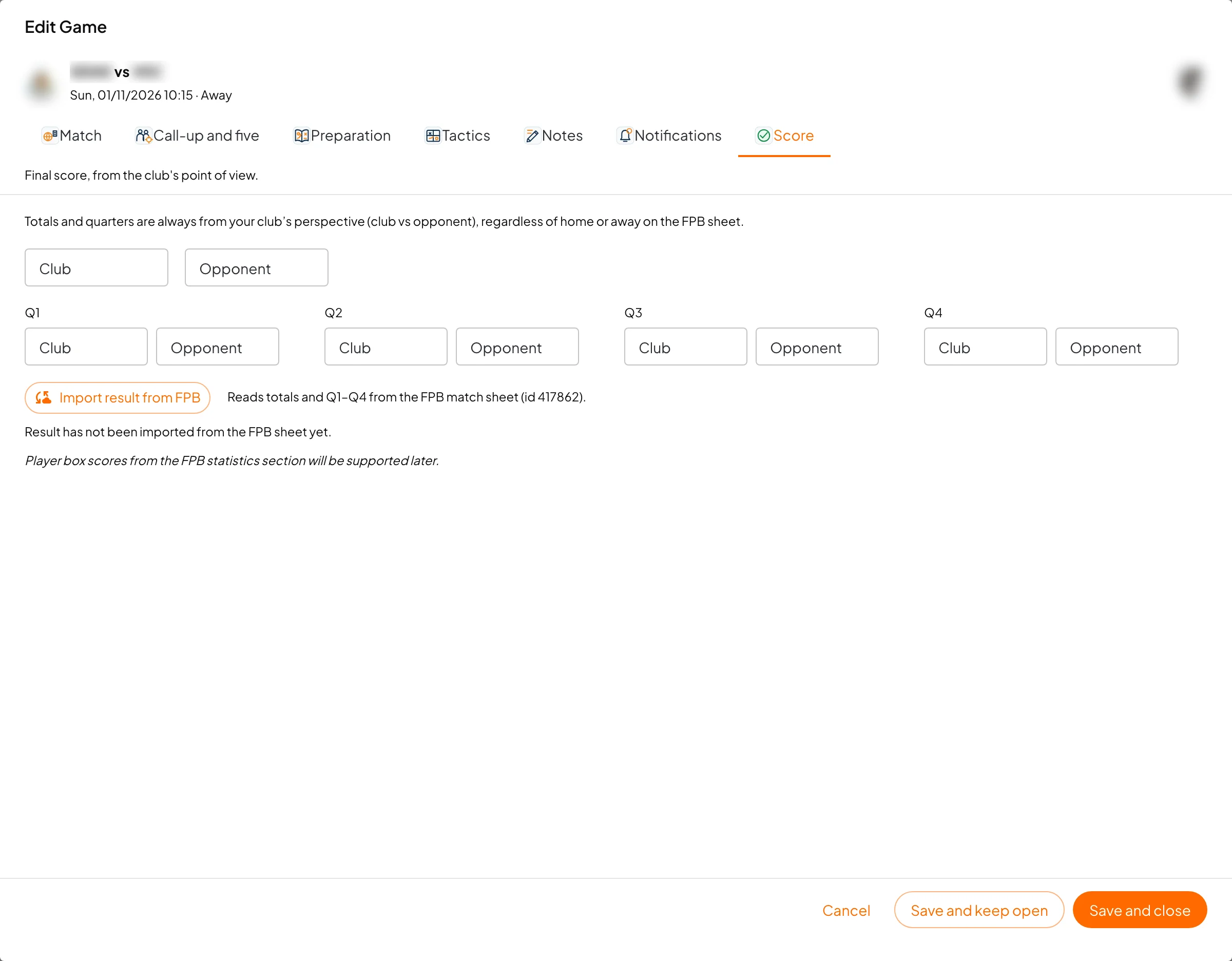
Only available after the game is saved. Totals and per-period scores are always from the club's side (club vs opponent), home or away. With the FPB ID, Import result from FPB fills in the score from the FPB sheet.
Game sheet
In the list, the sheet icon opens the print view in a new tab.
If the game has an FPB ID, the app asks whether to refresh the officials first. If the last sync was less than 2 days ago, it skips the question and opens straight away.
How to build and print the sheet is in Game sheet.