Practices
Practices are under Planning → Practices (/utilities/practices). Each practice has the session (team, date, times, location), the planning linked to the cycles, the session plan with drills and plays, attendance and groups. After the practice you close the session with a report.
To see practices by month and create several at once, use the calendar.
The images are screenshots of the app; athlete and club names and crests are blurred.
Practice list
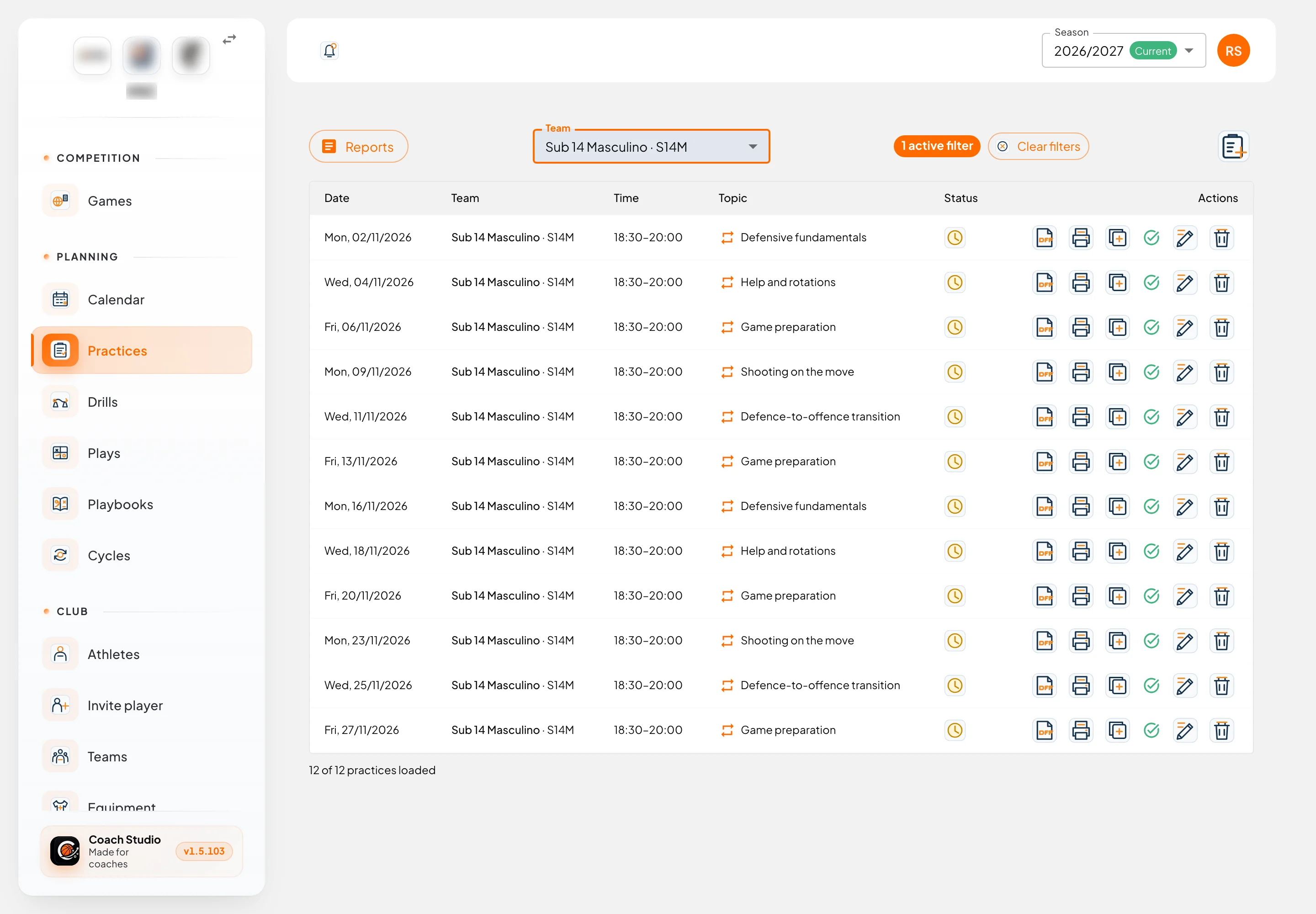
The list shows the practices of the selected season: date, team, time, topic, status and actions.
- The Team filter is saved to your account and is the same as the calendar's.
- The repeat icon before the topic marks a practice from a series; the copy icon, a duplicated practice.
- Reports opens the attendance reports.
- Load more practices appears at the bottom when there are more practices than loaded.
- The icon in the right corner creates a new practice.
The status can be:
| Status | Meaning |
|---|---|
| Closed | The practice was closed with a report |
| Open | Future practice, or not done yet |
| Needs closing | The practice is in the past and has no report |
The actions on each row: download PDF, print the plan, copy the plan to another practice, close practice and report, edit and delete.
Practice editor
The editor opens in a large window. At the bottom you always have delete, print and duplicate on the left, and Cancel, Save and keep open and Save and close on the right.
Session and location
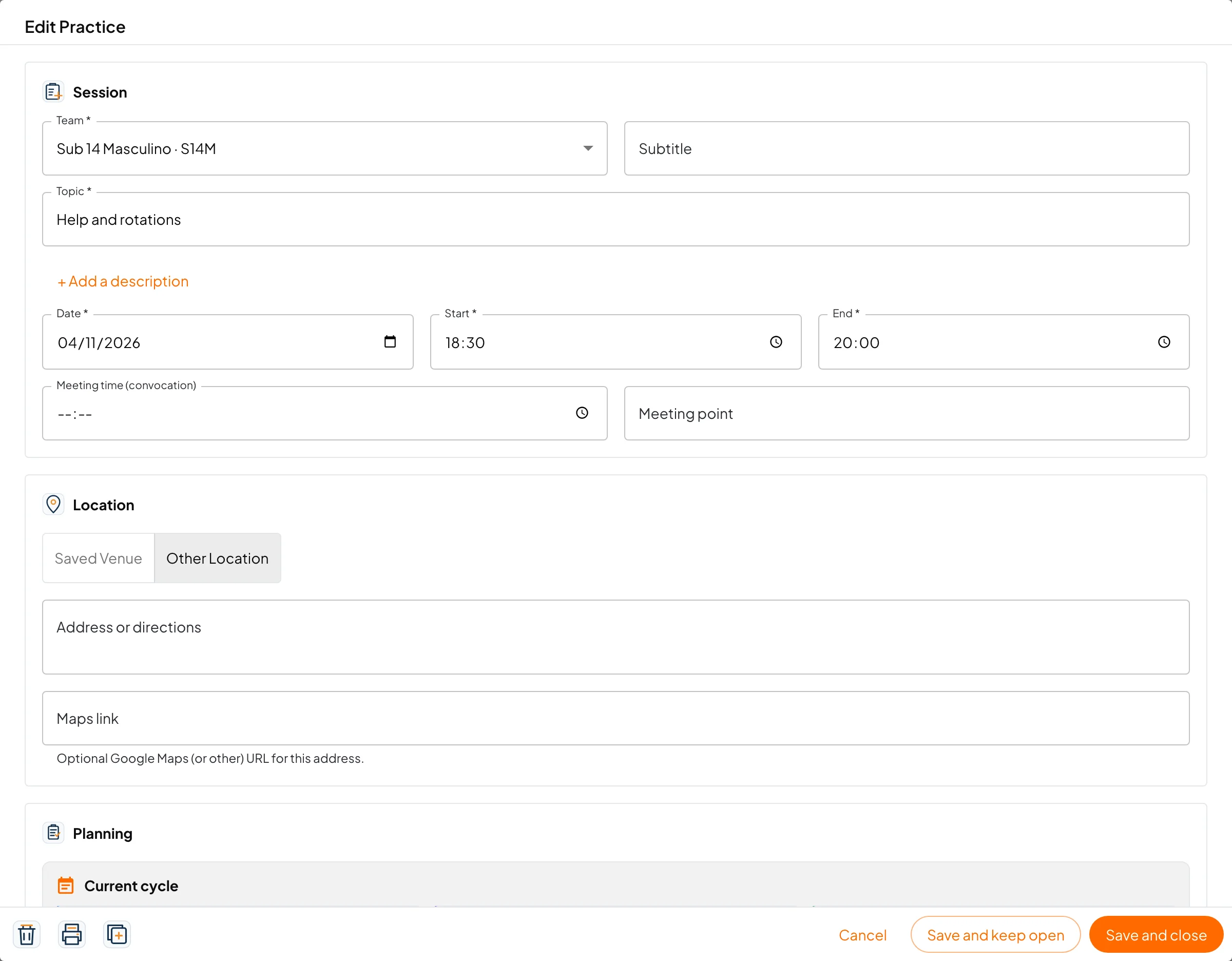
- Team, topic, date, start and end are required. A new practice lasts 90 minutes by default.
- The date must be inside the selected season.
- Subtitle and description are optional.
- Meeting time and meeting point are for practices away from the usual place.
- Under Location choose a club saved venue or other location, with an address and an optional maps link.
Planning
- Current cycle shows the macrocycle, mesocycle and microcycle the practice falls in, with their timeline. Cycles come from Cycles.
- Practice intensity. It is locked when the microcycle or a session goal for that day already sets it.
- Offensive and defensive objectives, and notes.
- Plan completed marks the plan as ready.
Session plan
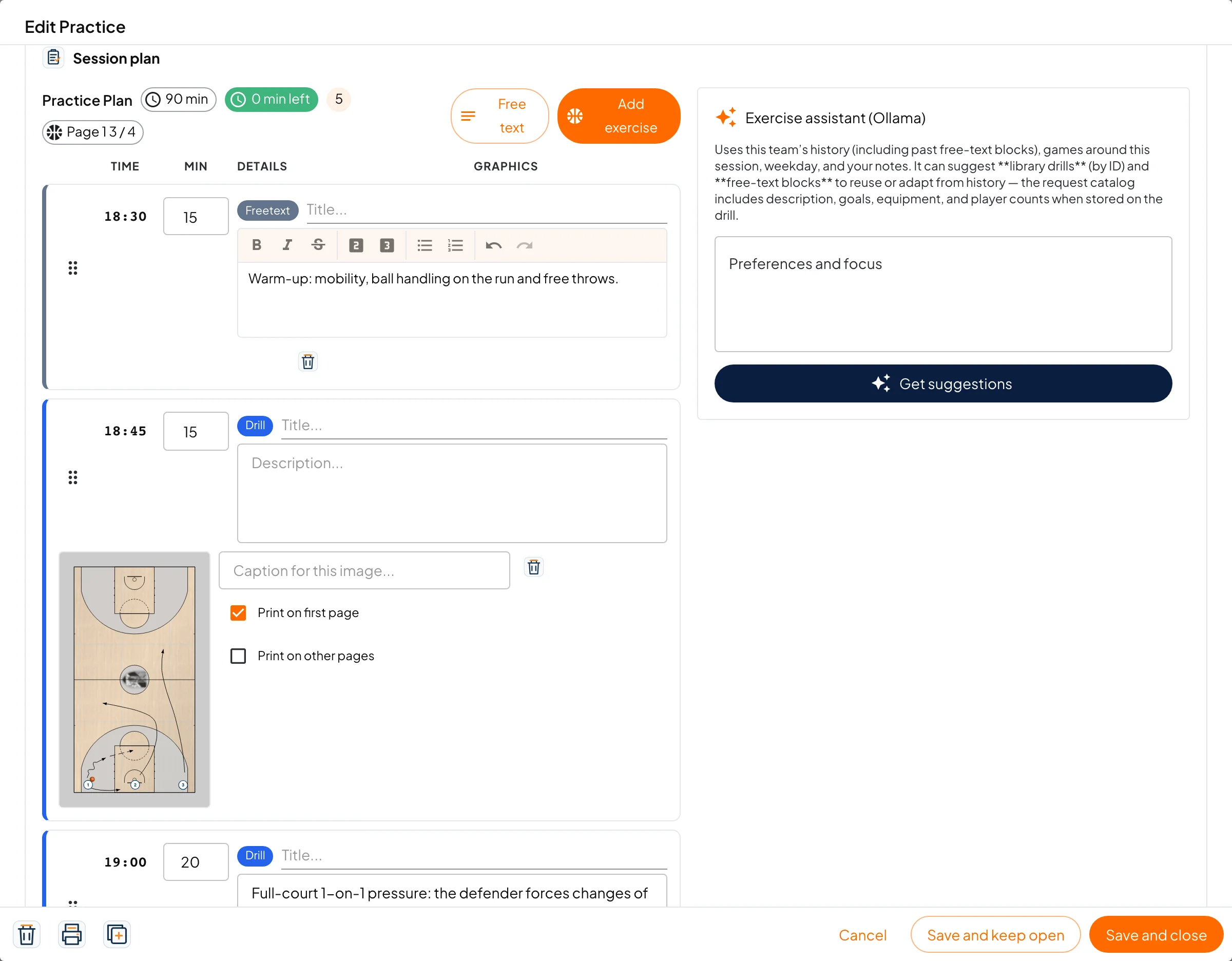
The plan appears after you save the practice for the first time. It is a list of blocks, each with a start time and minutes.
- Free text adds a block with a title and text (warm-up, cool-down, a conditioned game…).
- Add exercise opens the drill library. The block brings the drill's description and graphics, which you can adjust for this practice only.
- You can also add play and breakdown blocks.
- Drag by the handle (six dots) to reorder. Times are recalculated automatically.
- At the top, the total minutes are compared with the practice length: N min left or N min over.
On each graphic choose where it prints: Print on first page and/or Print on other pages. The first page holds at most 4 half courts (a full court counts as 2); the "Page 1" counter shows how much you have used.
The Exercise assistant (Ollama) on the right suggests blocks based on the team's history, upcoming games and your preferences. Type your focus and press Get suggestions. It only appears when the server has Ollama configured.
Attendance and groups
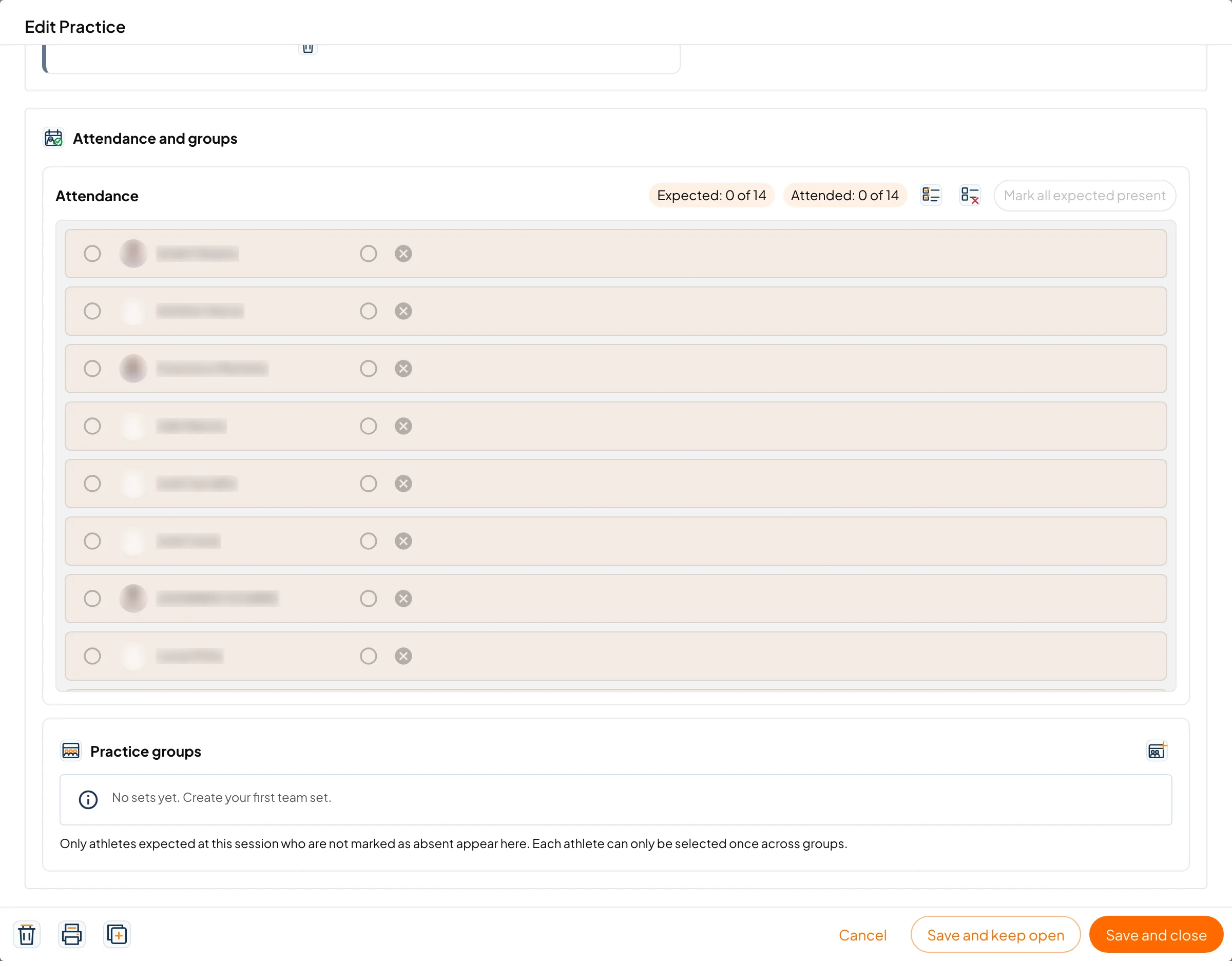
Each athlete in the team has a row:
- The first circle is Has to attend. Athletes unavailable on that date are left out.
- Then mark Attended (green tick) or absent (red cross).
- For someone who attended you can mark Late and the minutes.
- For an absence choose the reason. Absence reasons are set in the club settings.
At the top you see the Expected and Attended counters, buttons to select or clear everyone, and Mark all expected present.
Under Practice groups you create team sets (for example "5v5" with two teams). Only called-up athletes who were not absent appear, and each athlete can be in only one group per set. Add set creates a new set, and there is an option to balance the groups automatically.
Closing the practice
At the end, use Close practice and report (in the list or in the editor):
- Review attendance.
- Write the session report and, if you want, notes per athlete.
- With Ollama configured, you can ask for a proofread version and choose which one to print.
- Confirm. The practice becomes Closed and turns green on the calendar.
Printing
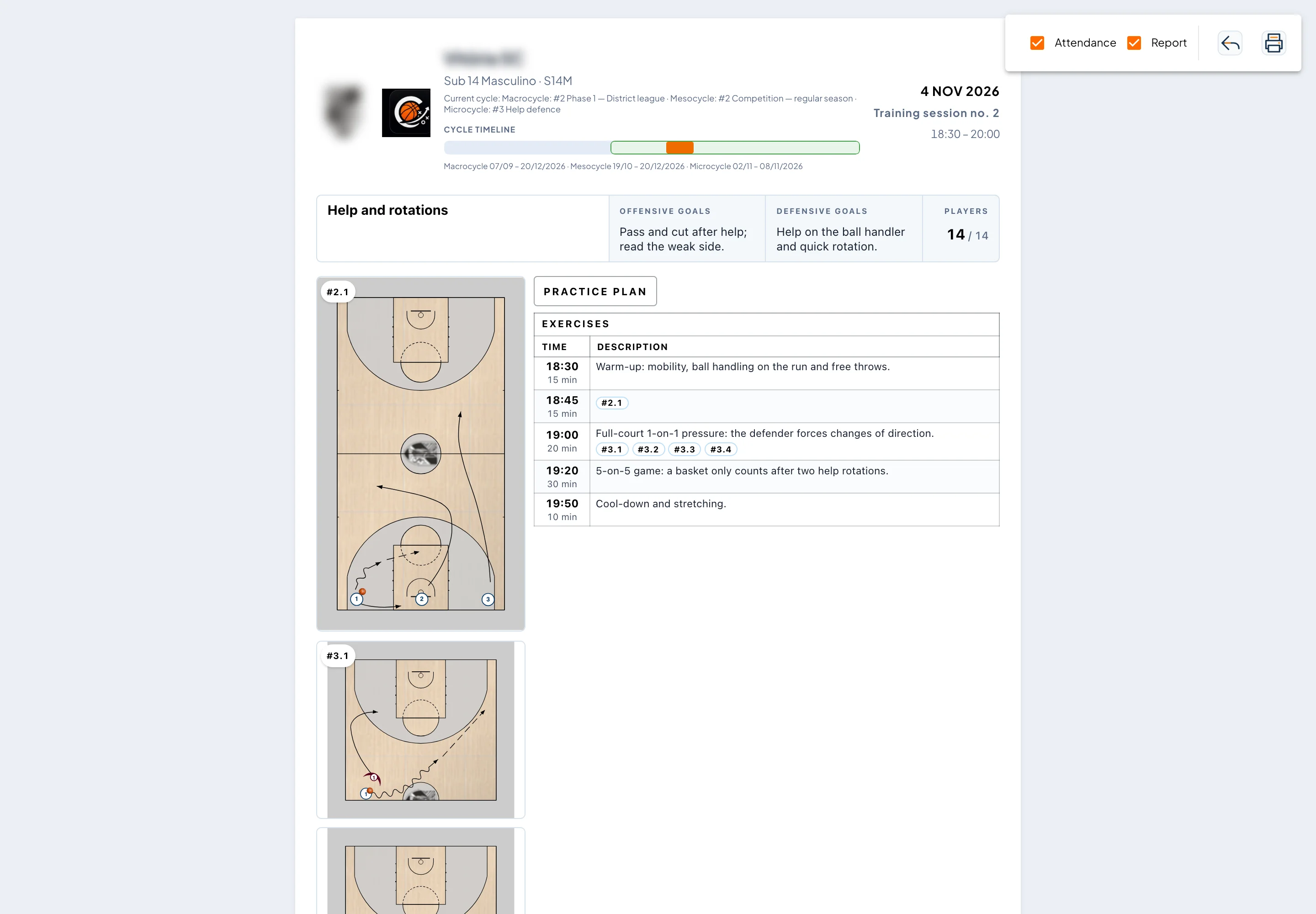
The printout (/utilities/practices/[id]/print) has the cycle timeline, the plan table with times and minutes, and the graphics. The buttons at the top toggle Notes, Attendance, Groups and Report. Use the PDF action in the list to download directly.
Duplicates and series
- Duplicate creates a copy on another date. You choose whether to copy the plan items and/or the attendance.
- Recurring practices creates many practices at once — see Calendar.
- In a practice from a series, editing or deleting asks: This one only or This and following.
Mobile app
In the mobile app you can see the practice list and edit the session details. The plan, attendance and closing are done on the web.