Athletes
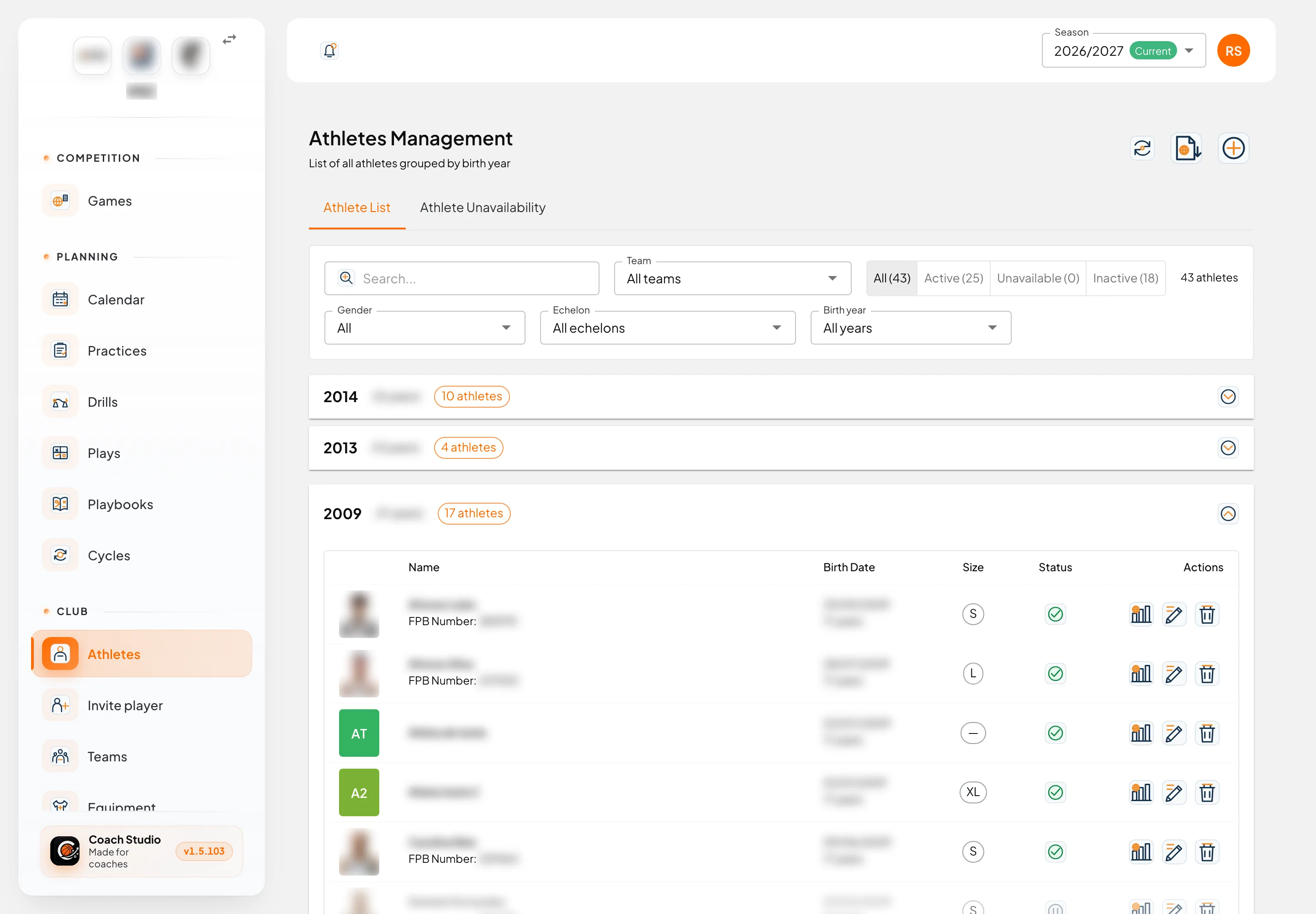
Athletes are under Club → Athletes (/utilities/athletes). The page is Athletes Management: the season’s athletes, grouped by birth year, and the periods when someone cannot be called up or included on practice lists.
The images are screenshots of the app; athlete and club names and crests are blurred.
By default the list is open to administrators, directors, coordinators, coaches and team managers. The club can change this in club settings. Coaches and team managers only see athletes on their teams.
List
Each group is a birth year. Next to the year is the age on 31 December of the season’s start year. Athletes with no date of birth sit in the Unknown group. Open a group to see the profiles.
Each row shows the photo, the name and, when there is one, the FPB Number, the birth date and the age. The status icon is Active, Unavailable (an unavailability period includes today) or Inactive (the row is dimmed).
| Row button | What it does |
|---|---|
| Athlete statistics sheet | Opens game-by-game statistics. Only people who can view statistics see it |
| Edit | Opens the profile |
| Delete | Asks for confirmation. Deletion cannot be undone |
People who can only view the list do not get these actions.
Filters
Your choices are saved to your account for this club.
- Search (the Search... field).
- Team, with All teams. The filter only appears when there is more than one team.
- Status: All, Active, Unavailable or Inactive. The number in brackets is the count.
- Gender: All, Not set, Male, Female or Coed.
- Echelon, with All echelons. Each option includes the echelon’s gender.
- Birth year, with All years.
Clear filters resets everything. With filters on, the box is highlighted.
Toolbar
- Refresh reloads the list.
- Import from FPB opens the import from the FPB website. It only appears for administrators, directors and coordinators, and it does not appear for an association. Choose one gender and one age group, load the Preview, and untick anyone you do not want. Anyone who already exists with the same licence number is skipped unless you tick Overwrite if duplicate. The club needs an FPB Club ID in club settings and a current season.
- Add Athlete opens a new profile. It only appears for people who can create athletes, and only on the list tab.
A coach or team manager can create athletes only as Head coach, or as an assistant with advanced privileges on that team, and only when Head coach can create athletes is on for the club or the team. With several teams, pick the Team in the filter first: date of birth and gender must fit that team’s age group. After the profile exists, that account can no longer change the date of birth or the gender.
Profile
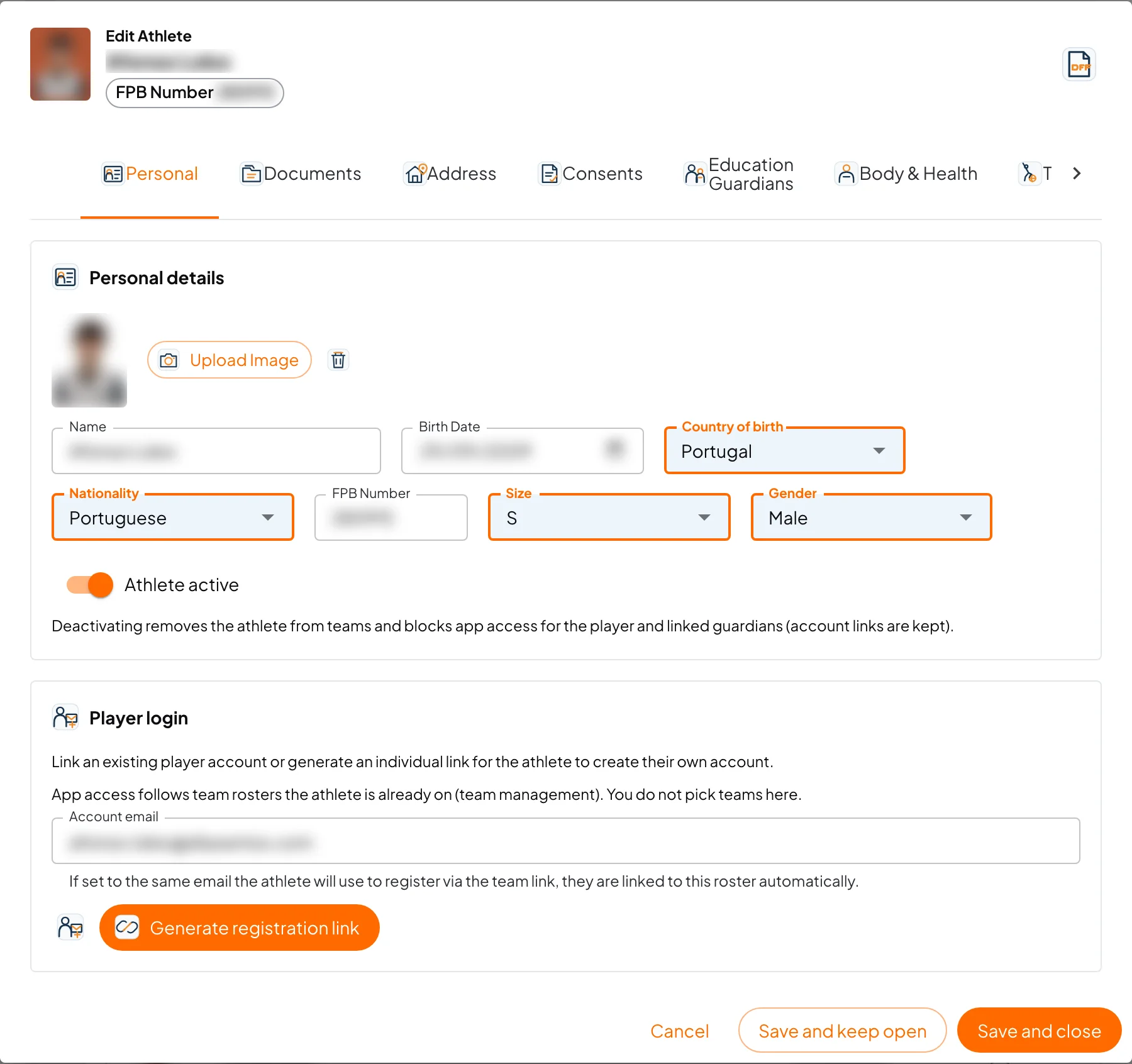
When you create an athlete, every section is on one form. When you edit, the profile is split into Personal, Documents, Address, Consents, Education guardians, Body & health, Technical & mental and Athlete unavailability.
Personal has the photo, Number (when the club uses a personal number), Name, Birth Date, Country of birth, Nationality, FPB Number and Gender (Unknown, Male or Female). Name and birth date are required.
The Athlete active switch keeps the athlete on teams and lets a linked player or guardian account into the app. Turning it off removes the athlete from teams and blocks that access; the account links stay. Turning someone back on when they had teams this season asks whether you want Restore selected teams or Activate without teams.
Game numbers
The rule is in club settings, under Game numbers & kit policy:
- Personal player number (required, unique in the club): the profile and the list have a Number column. An active athlete with no number is highlighted in yellow. The number is at most two characters and cannot be shared inside the club.
- Club-owned kit (no fixed roster number on the profile): there is no number on the profile. The list shows Size, and games use the assigned jersey. See equipment.
If the club has kit colours, the profile (and the list, for people who can edit) shows Preferred Numbers: the number the athlete prefers in each colour, for call-ups and automatic kit assignment.
Player login
Still under Personal, Player login connects app access. Access follows the teams the athlete is already on; you do not pick teams here.
- Type the Account email and use Link player account when the account already exists, with the player role in this club.
- Generate registration link creates a link for this profile only. It only appears for people who can manage accounts (by default, an administrator, director or coordinator). The link lasts 14 days, works once, and the confirmation code is sent to that email. If an account with that email already exists, use Link player account.
The same email, saved on the profile, also matches registration through a team link: if it is the only athlete without an account on that email, the link is made automatically. See Pending.
Other tabs
- Documents: document type and number (Citizen card, Passport or Other), expiry, tax number and Mobile phone.
- Address: address, Postal code (format
1234-123; when it is complete, the app tries to fill locality, municipality and district), Locality, Municipality and District. - Consents: data processing, communications and marketing.
- Education guardians: at most father, mother and tutor. Email, document or tax number fills the form when that person already exists in the club. Link or invite attaches an account or creates an invite. Save the athlete before adding guardians.
- Body & health: measurements defined in club settings, and the Injuries history (area, side, context, physiotherapy). Injuries do not remove the athlete from a call-up; use unavailability for that.
- Technical & mental: the club’s ratings, many on a scale from 1 to 5, with Measurement date. If there are no active fields, set them up in club settings.
The FPB model button (PDF icon, only after the profile is saved) saves, checks the required fields for Model 1 and downloads the PDF. If something is missing, the window lists what to fill in before Download model.
Save and keep open saves and leaves the profile open. Save and close saves and closes it. On the Athlete unavailability tab these buttons are hidden: each period is saved in its own window.
Unavailability
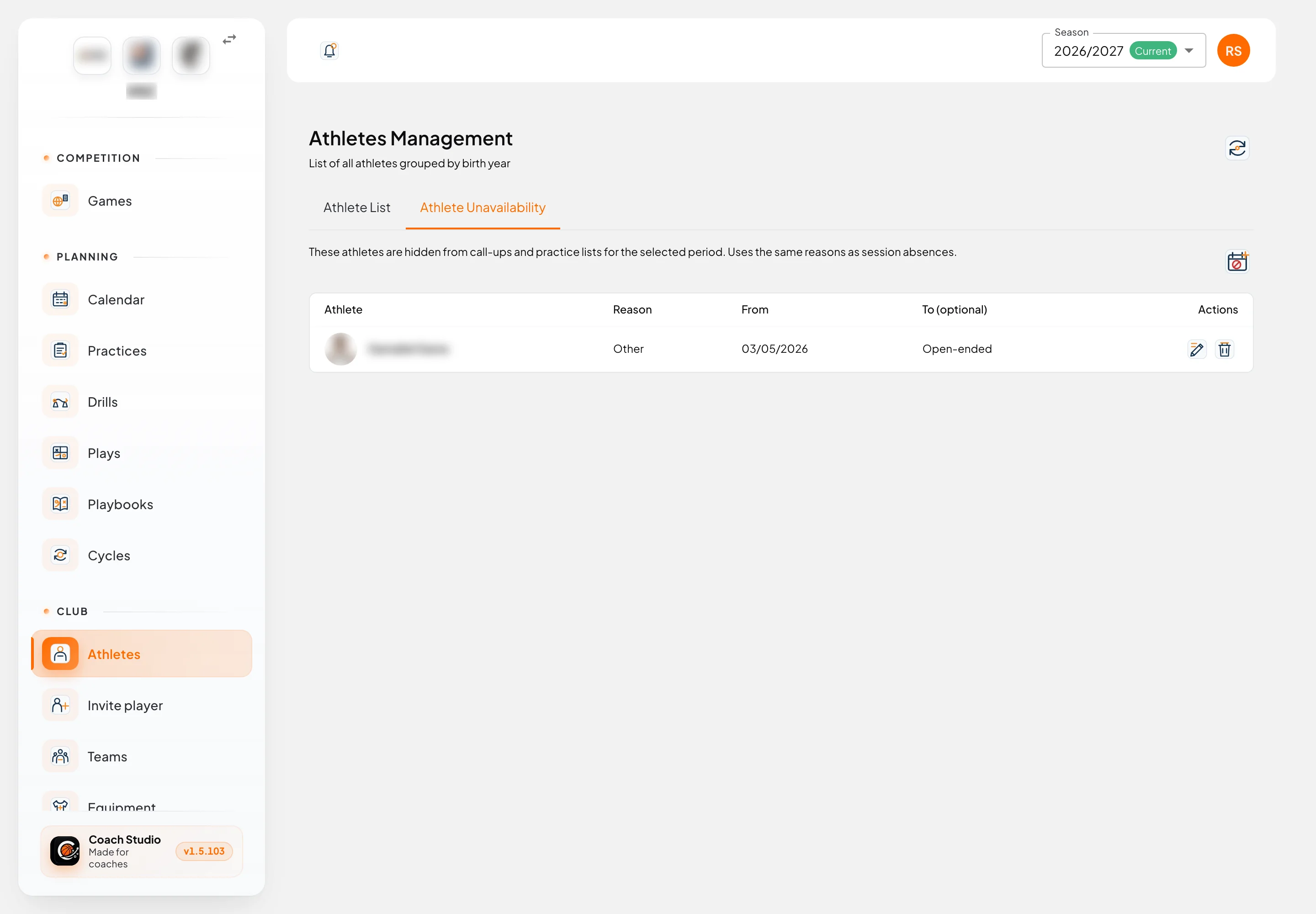
The Athlete unavailability tab lists periods for the whole club (within the teams you can see). The reasons are the same as absences in practices.
Add period asks for the athlete, the Reason, From and To (optional). You can tick No end date (remains until you delete this period). During that span the athlete is left out of call-ups and practice lists. The same panel is on the profile’s Athlete unavailability tab, for that athlete only.
Invite player
Club → Invite player (/utilities/player-invitations) is available to people who can edit athletes. The page is Add player.
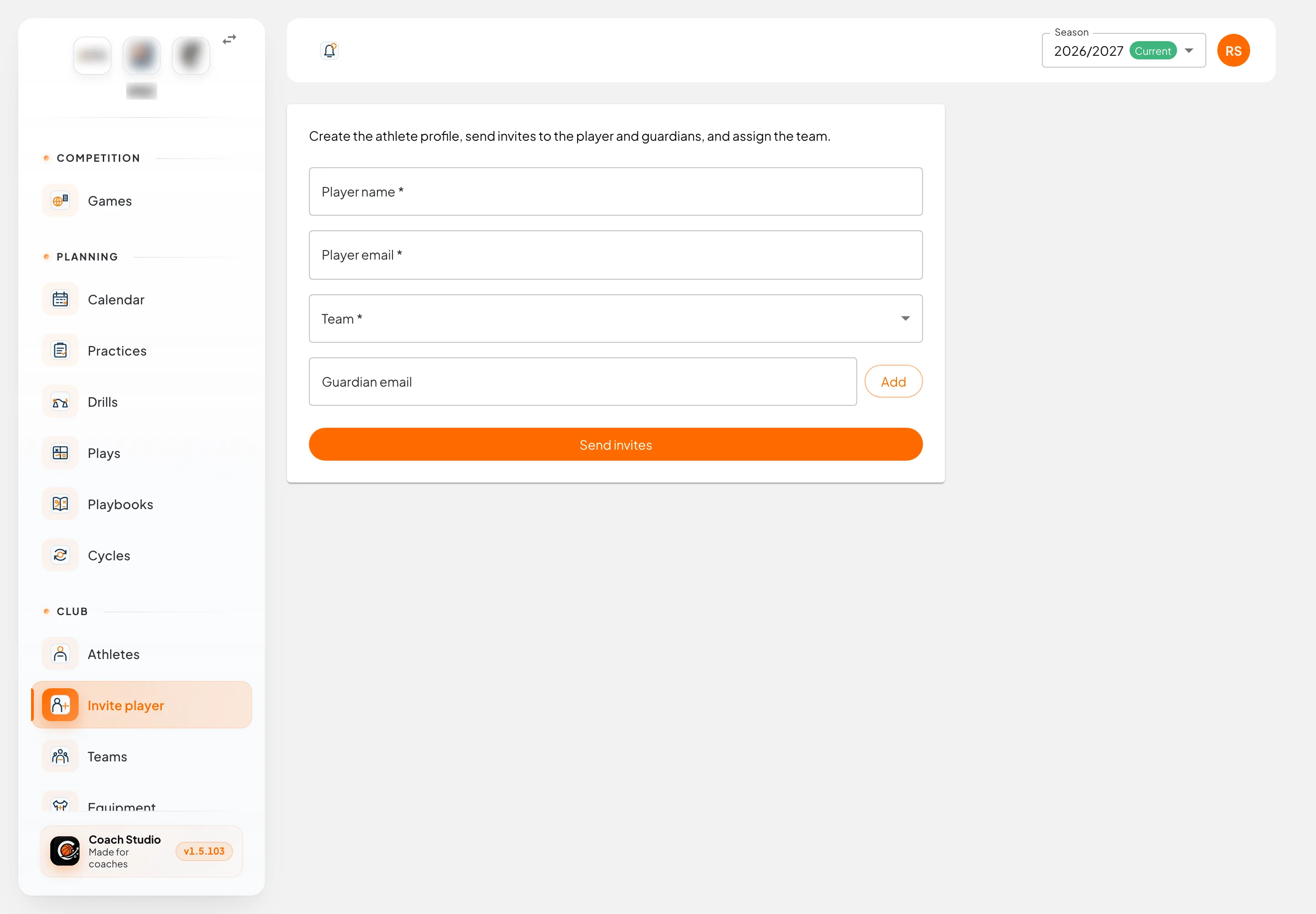
- Player name and Player email.
- Team. With a single team, the field is filled in. With several, choose one.
- Guardian email: type the email and press Add. You can add several. It cannot be the same email as the player.
- Send invites.
The app creates the profile, puts the athlete on that team, records the guardians and generates a registration link for each email. Each link lasts 14 days and can be used once. If club email is configured, the invites go out on their own. If not, the page shows the Player link (if email was not sent) so you can copy it. The player confirms the email with a code before creating the account; the account is linked to this profile straight away. The guardian creates the guardian account for that athlete.
Pending
Settings → Pending (/utilities/pending-signups) handles accounts that are not yet linked to the right profile. By default, the same roles that can see athletes can open the page.
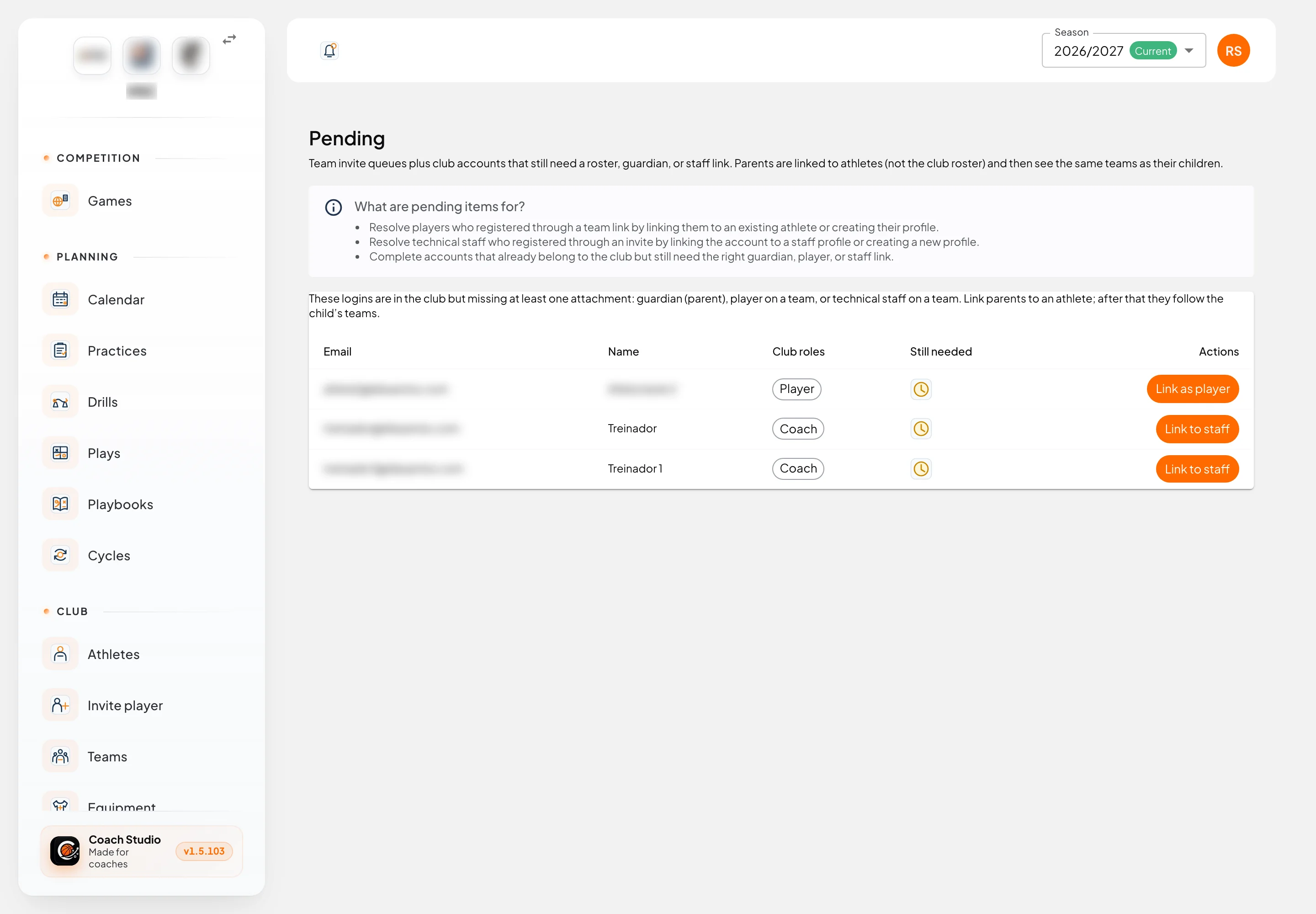
The page explains What are pending items for? and only shows tabs that have a queue: Players, Technical staff and Club accounts to link.
| Queue | What it resolves | Actions |
|---|---|---|
| Players | Someone registered through a team link and was not linked to a single profile (there was no matching contact email, or there was more than one) | Link to athlete, Create athlete, Dismiss |
| Technical staff | A staff member registered through an invite and still needs a profile. Detail is in staff | Link to existing staff, Create staff member, Dismiss |
| Club accounts to link | The account is already in the club, but a guardian link, a player on a team, or staff on a team is still missing | Link as guardian, Link as player, Link to staff — only the ones that are missing |
Dismiss removes the request from this list. The account stays in the club. Use it when the registration was a mistake or was already resolved outside the app.
Linking players or guardians needs permission to edit athletes. Linking staff needs permission to edit staff.
Personal workspace
In the personal workspace, the same address opens My athletes: name, birth date, gender, number, photo and Team assignment. There is no FPB, documents, unavailability or invites.
Mobile app
On the phone, Athletes lists the roster you can see and, if you can edit, opens the profile: photo, personal details, address, consents, measurements and injuries. Number only appears when the club uses a personal number. There is no FPB import, unavailability, player invite or Pending page.