Club settings
The settings are under Settings → Club Settings (/utilities/club). They apply only to the club you have selected. The page is split into sections you open and close; each one is saved on its own.
Only people allowed to view Club settings can open the page, and only those allowed to edit can save. By default that is the administrator, director and coordinator (see Access permissions).
The images are screenshots of the app; athlete and club names and crests are blurred.
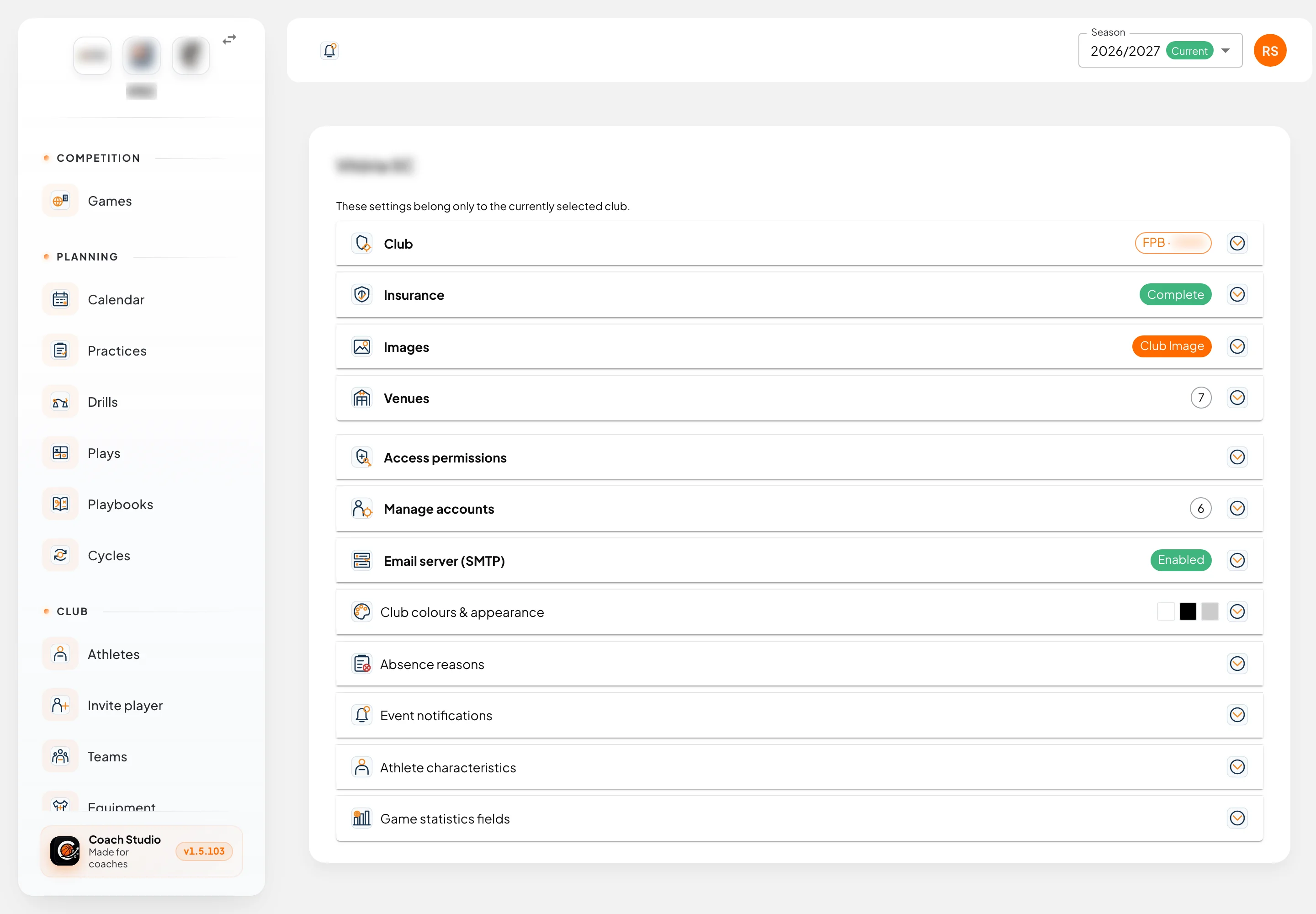
Club
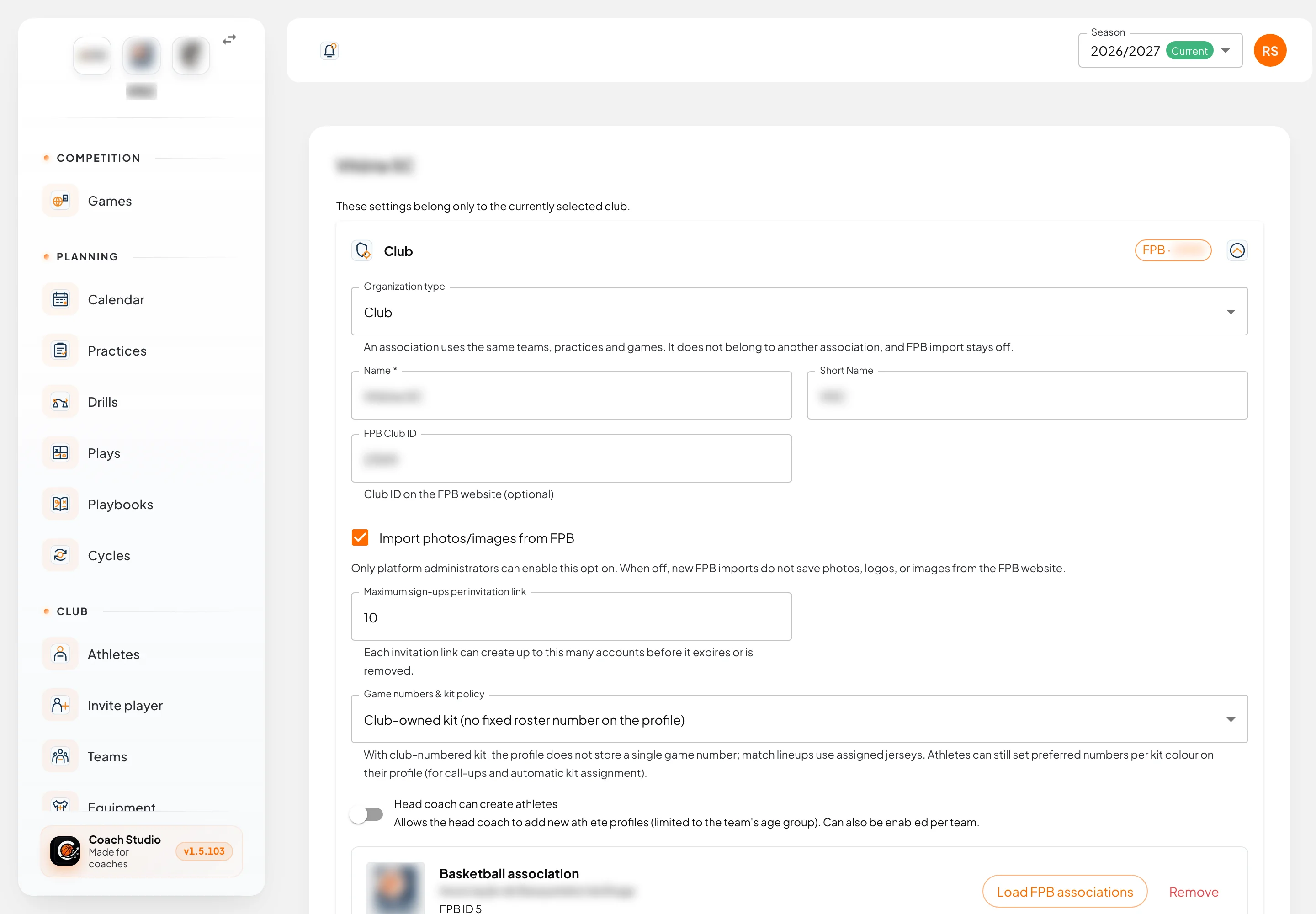
| Field | What it is for |
|---|---|
| Organization type | Club or Association. An association works with the same teams, practices and games, but does not import FPB data. Only a platform administrator can change it. |
| Name and Short Name | The club name and a short code used in lists and prints. |
| FPB Club ID | The club number on the FPB website. Optional, but needed for FPB imports. |
| Import photos/images from FPB | When on, FPB imports store photos, logos and images. Only a platform administrator can turn it on. |
| Maximum sign-ups per invitation link | How many accounts each invitation link can create before it stops working. |
| Game numbers & kit policy | Personal player number (required and unique in the club) or Club-owned kit (the profile stores no number; games use the assigned jersey). See Equipment. |
| Head coach can create athletes | Lets the head coach create athlete profiles, limited to the team's echelon. It can also be enabled per team in Teams. |
| Basketball association | The club's district association. Load FPB associations fetches the list from the FPB. District competition imports use this association. |
Insurance
Insurance type (FPB insurance or Club insurance), Policy no. and Company. It is required to issue the club's official forms; while a field is missing, the section shows Incomplete.
Images
The club crest: Upload Image to change it, Remove Image to delete it. It appears at the top of the side menu and on printed documents.
Venues
The venues where the club plays and practises. Add Venue asks for a name and a maps link. The link lets athletes open directions from the practice or the game.
Access permissions
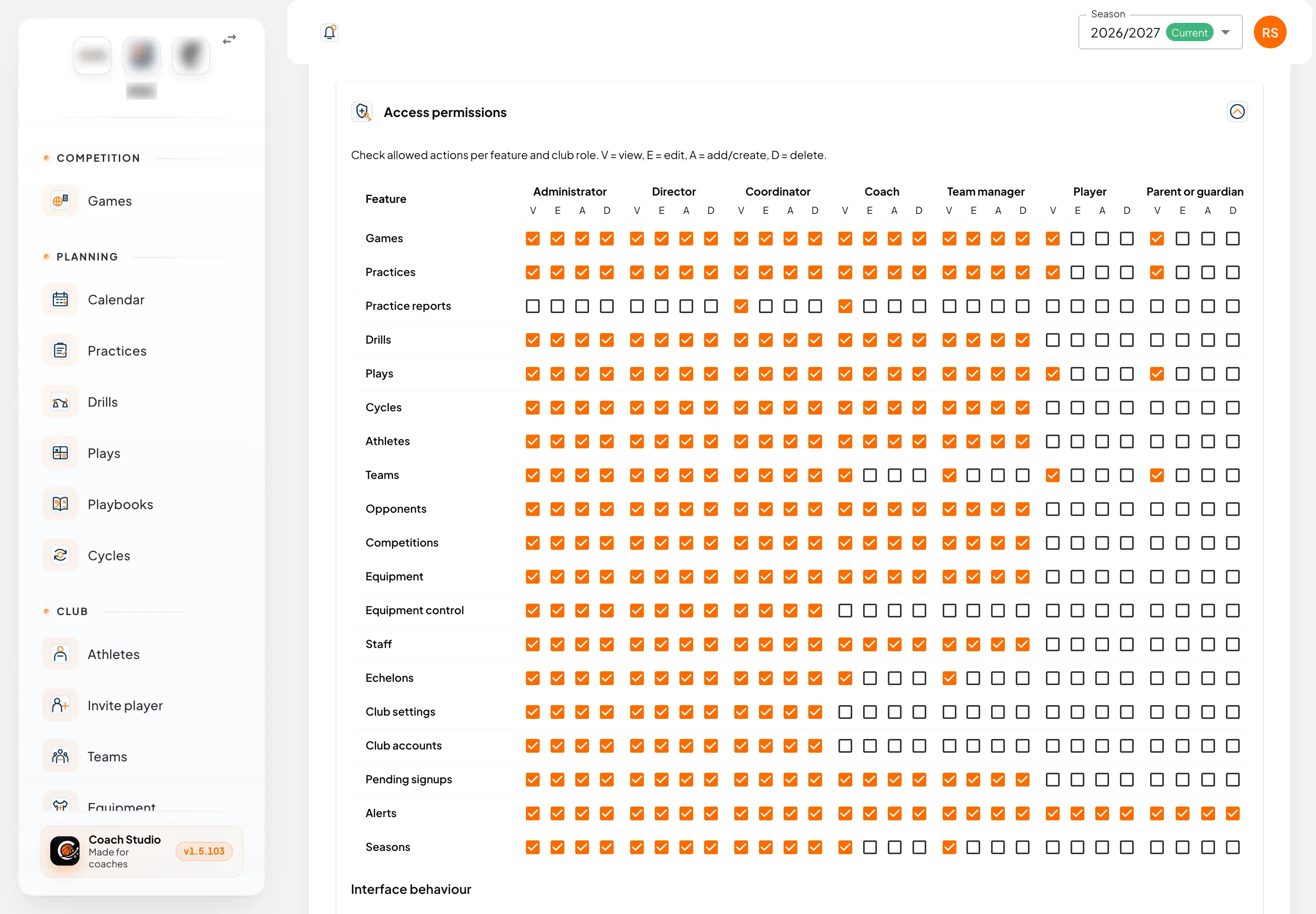
A grid with features in the rows and club roles in the columns (Administrator, Director, Coordinator, Coach, Team manager, Player, Parent or guardian). For each role you tick four actions:
| Letter | Action |
|---|---|
| V | View |
| E | Edit |
| A | Add/create |
| D | Delete |
For example, to let players see games without changing them, tick only V for Games in the Player column.
Below the grid, Interface behaviour holds screen options. Examples are Hide team filter with a single team and Simplified practice list (single team).
Reset matrix to app defaults goes back to the original values. Until you change anything, the app defaults apply.
Manage accounts
The user accounts linked to the club. Add account by email links an existing account to the club; on each account you choose the roles (for example Coach or Coordinator) or remove it. You cannot remove your own account.
To link accounts to athlete or staff profiles, use Pending.
Email server (SMTP)
The mail server the club uses to send email alerts: host, port, user, password, sender and reply-to address. The password is encrypted before it is stored. After saving you can Send test email to check it works. The section shows Enabled when sending is on.
Club colours & appearance
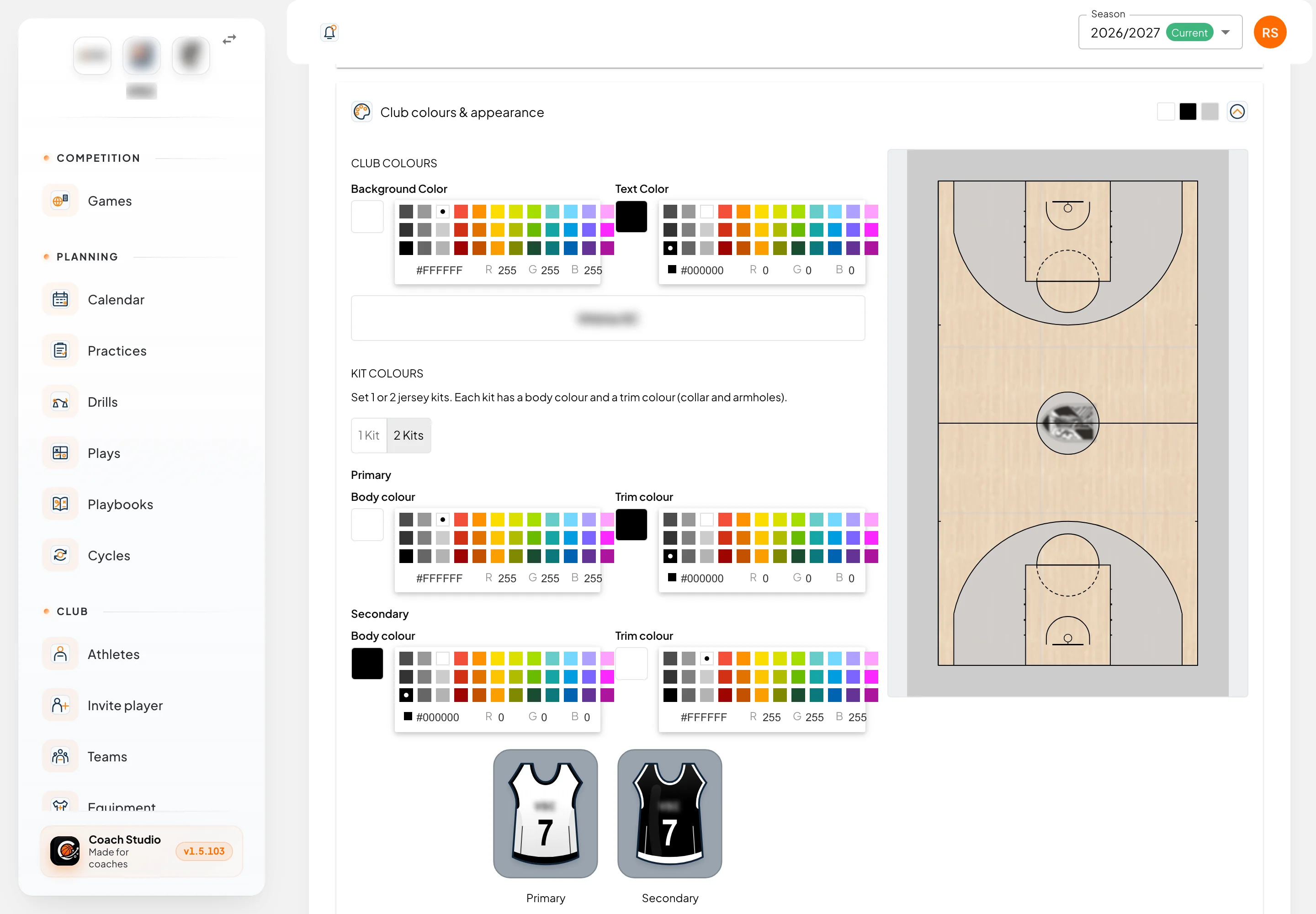
- Club colours: Background Color and Text Color, used for the club name and on prints.
- Kit colours: 1 or 2 jersey sets (Primary and Secondary), each with a body and trim colour. They appear in the Equipment numbers and in graphics.
- Court appearance: the floor (wood, parquet, concrete or clay, or a solid colour), the colour of the lines, court areas and centre circle, and whether the club crest appears in the middle. The court on the right shows the result. This court is used in drills and plays.
Absence reasons
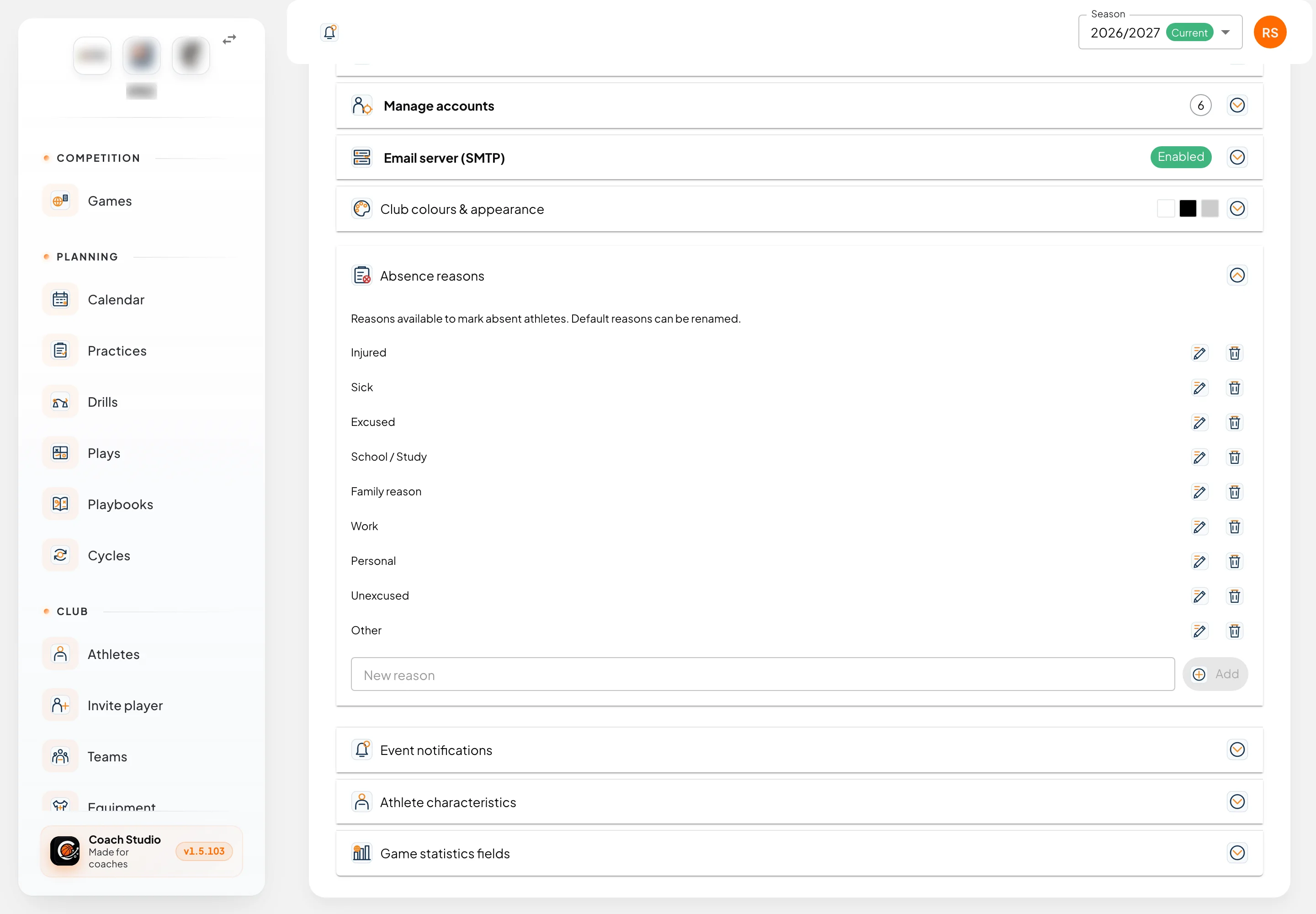
The reasons you can pick when an athlete misses a practice or game, or is unavailable (Injured, Sick, School / Study, and so on). The built-in reasons can be renamed; you can add new ones and delete the ones you don't use.
Event notifications
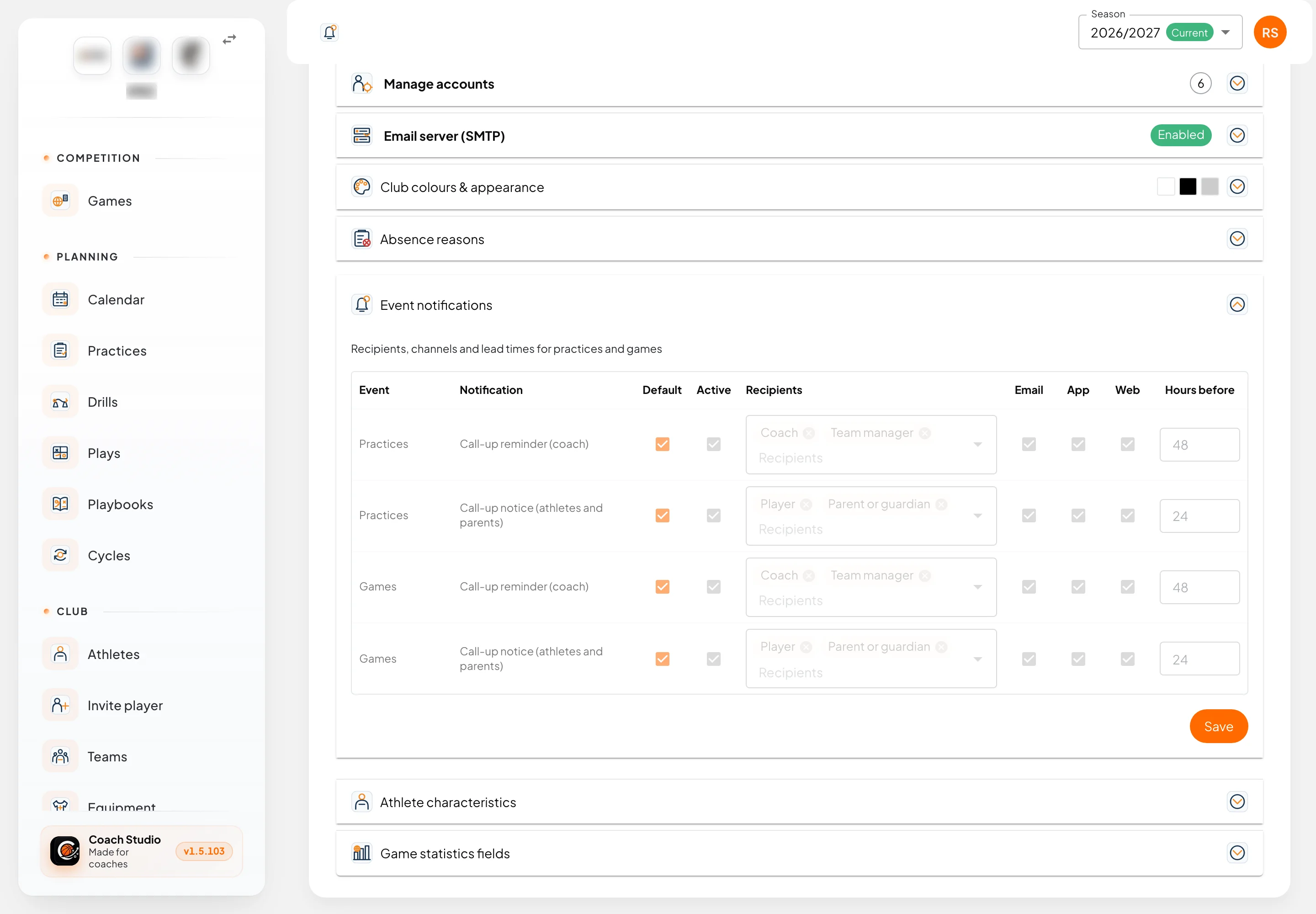
Sets the automatic notices for practices and games:
- Call-up reminder (coach): reminds the coach to make the call-up.
- Call-up notice (athletes and parents): tells the athletes who were called up. They can answer I can't attend from the alert (see Athlete area).
For each notice you choose whether it is on, the Recipients (roles), the channels (Email, App, Web) and how many hours before the event it is sent. Each team can have its own settings (Teams), and so can each practice or game.
Athlete characteristics
The fields of the athlete profile for physical data and assessments: height, weight, wingspan, technical and psychological ratings. You can disable, rename, reorder or add fields, with a type, unit and help text.
Game statistics fields
The box score fields for games. You can disable, rename, reorder or add fields, including fields calculated with a formula.
What is not here
- The game sheet layout is set on the game sheet itself.
- Echelons have their own page: Echelons.
- Seasons and platform-wide data belong to administration.
Mobile app
Club settings exist only on the web. The mobile app follows these settings (permissions, number policy, absence reasons) but cannot change them.