Game sheet
The printed sheet is a grid of blocks (webparts) with the game's data. Anyone allowed to edit games can build it in Games → Customize game sheet (/utilities/games/sheet-layout). Each coach has their own sheet per club, and every print uses that grid.
What you fill in on each game tab is explained in Games. The pictures are screenshots of the app; athlete, club and referee names and crests are blurred.
Available blocks
| Block | Where it comes from |
|---|---|
| Roster | Call-up and five: athletes, numbers, colours, P1–P4 marks |
| Game info / officials | Game: competition, venue, opponent, officials |
| Recent results (FPB) and Standings (FPB) | Only when the opponent has an FPB ID |
| Notes and Speech | Notes |
| Defensive focus and Offensive focus | Preparation (the box prints even when empty) |
| Attacks | Preparation |
| Opponent notes | Preparation |
| Starting five and rotations | Call-up and five |
| Tactics | Tactics: plays with text and images |
| Score / periods | Result |
| Page break | Starts a new page |
Building the grid
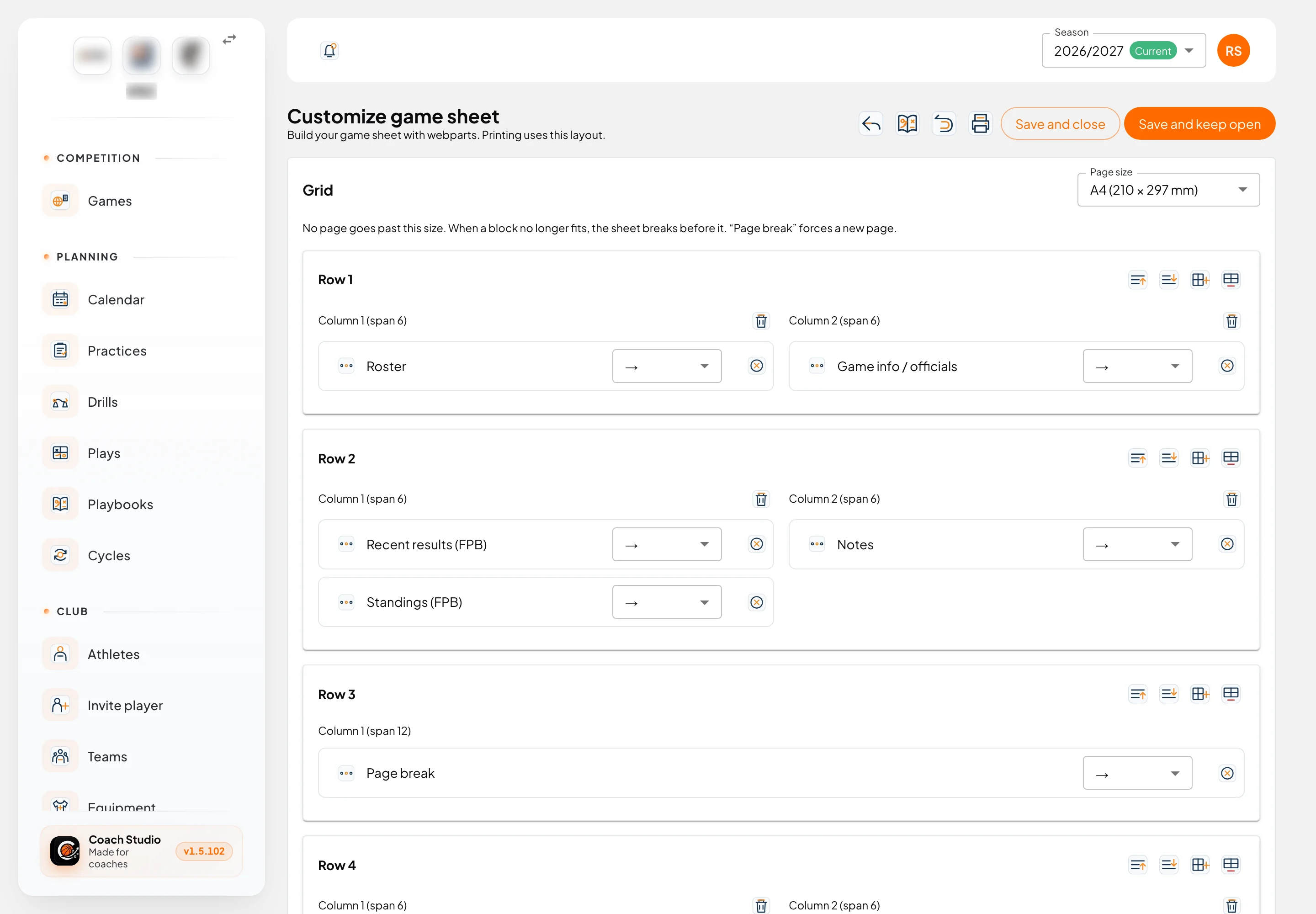
- Open Customize game sheet. The grid is at the top; the preview is below it.
- The grid has rows, and each row has one or more columns. The icons on each row move the row up or down, add a column or remove the row. The bin on each column removes the column.
- Each block sits inside its column:
- drag it by the dots on the left to change the order;
- use the → select to move it to another cell (for example "Cell 2.1");
- the × removes it from the sheet.
- Below the grid, Add webpart adds one of the blocks not yet on the sheet to the chosen cell. Each block can only be used once, except Page break, which is always offered.
- In the top bar: back, guide, Reset to default, Print preview, Save and close and Save and keep open. A reset is only stored after you save.

Preview
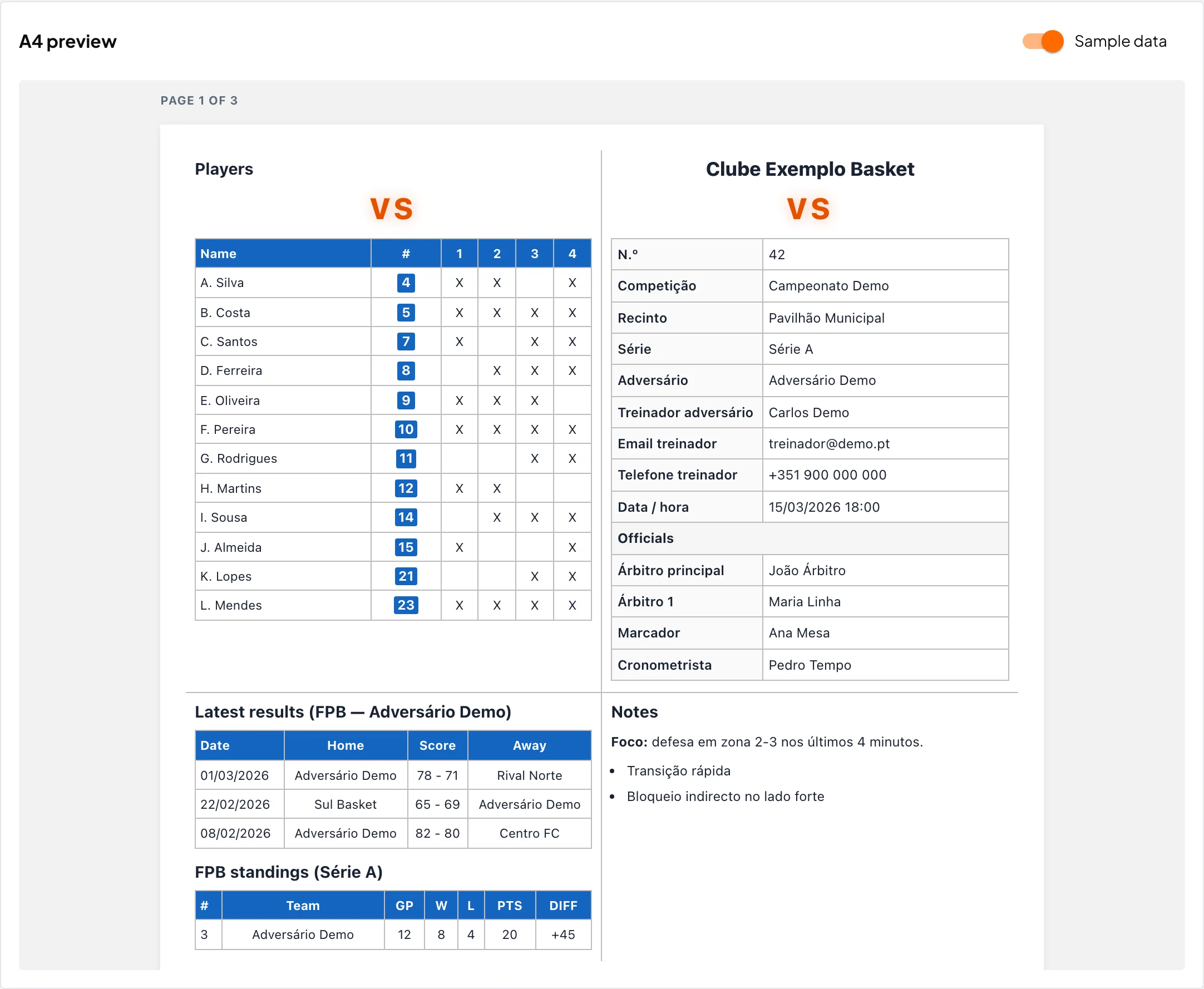
Sample data turns the made-up data on or off. When it is off, the preview uses the club's most recent game. Each page is shown separately, with "Page 1 of 3".
Pages
The Page size field, next to the grid title, picks the paper: A4 (default), A3, A5, Letter or Legal.
- No page goes past that size. The sheet measures each block as it will print. When the next block no longer fits, a new page starts before it.
- If a column is taller than a whole page, the sheet breaks between the blocks in that column.
- Page break forces a new page even if there is still room. You can add several.
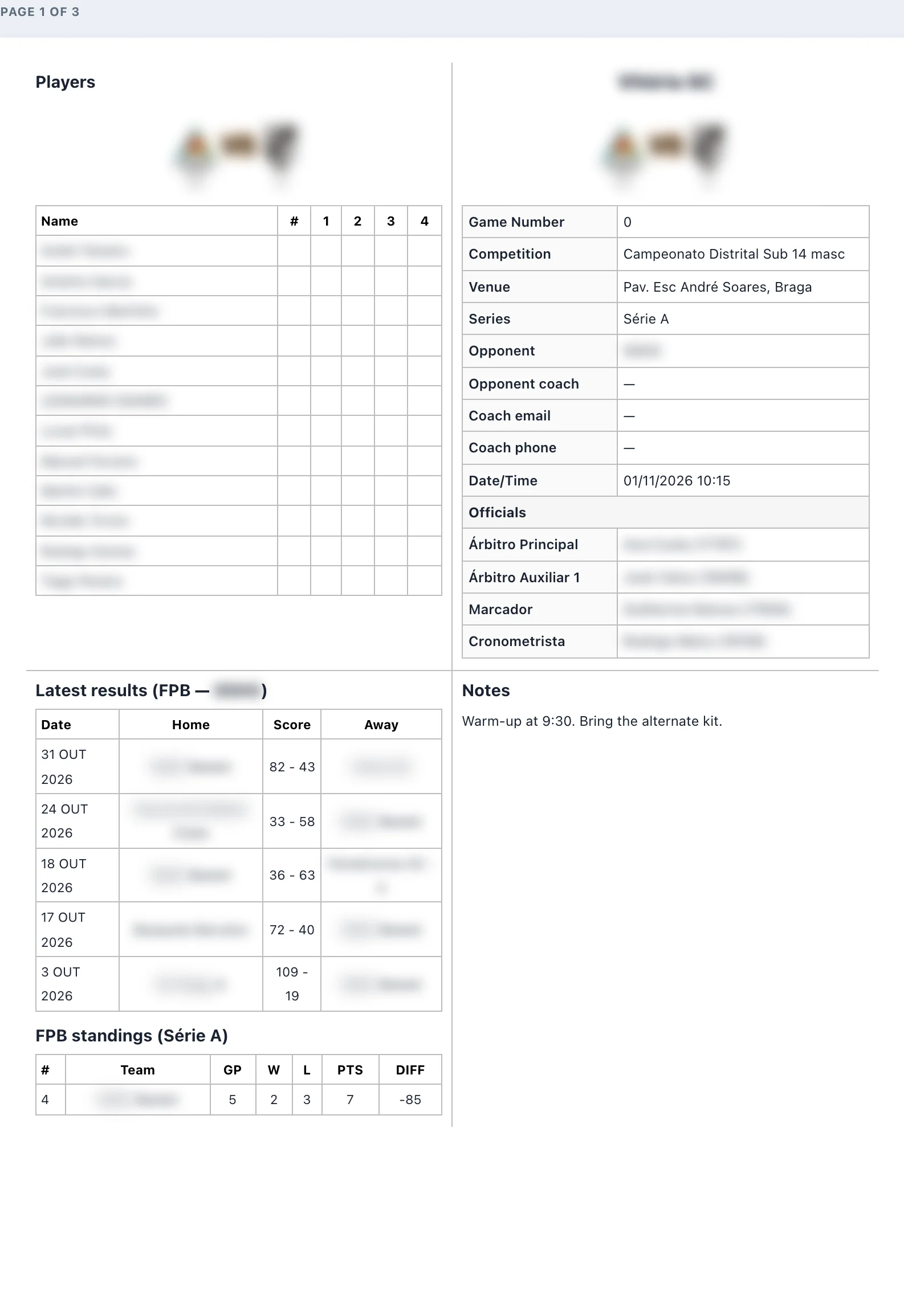
The default has three pages:
- Roster, game info, FPB and notes.
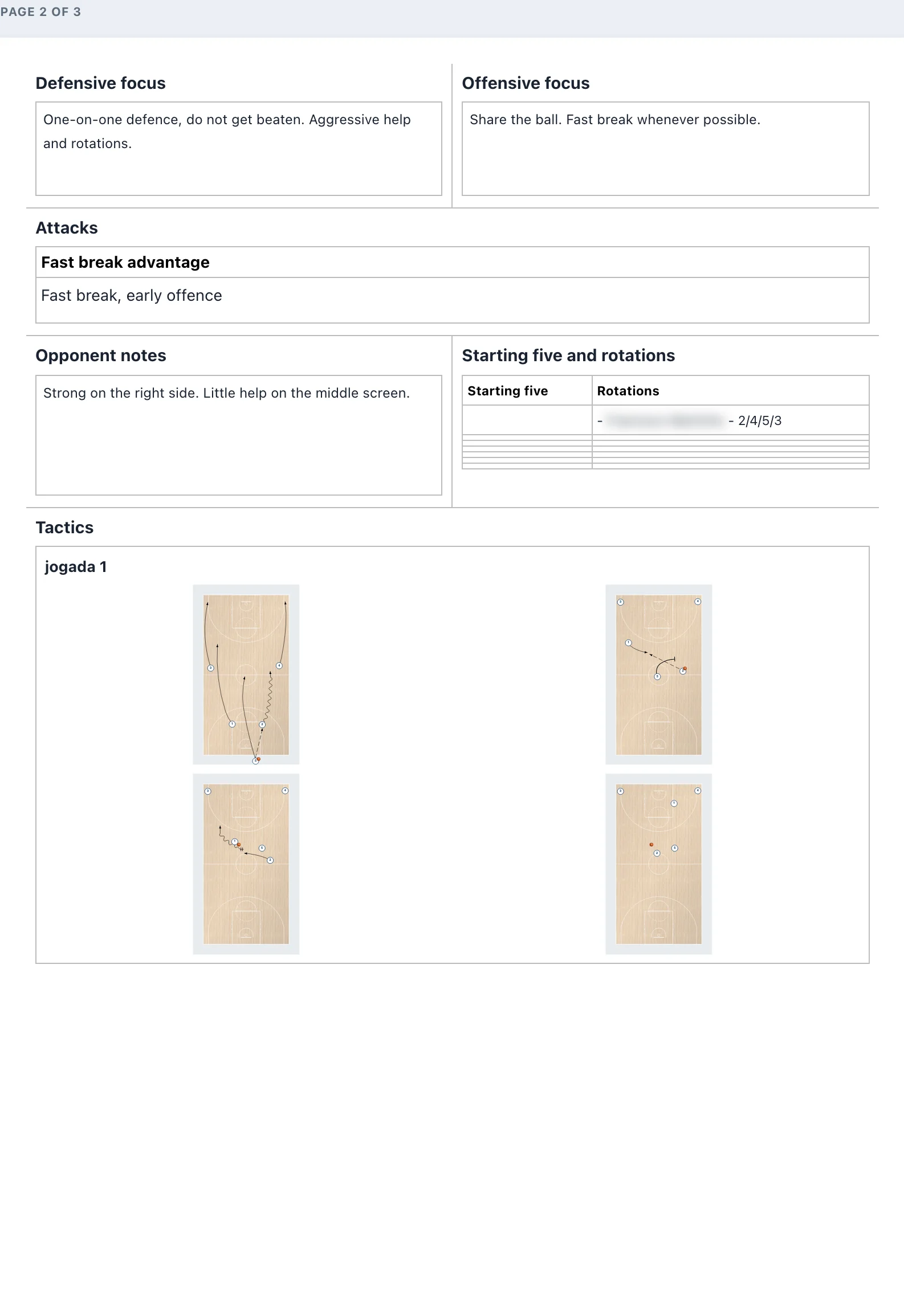
- Preparation (focus, attacks, opponent, starting five) and tactics.
- Speech.
If the preparation or the tactics are long, the sheet adds pages on its own.
Sheets customized before pagination
Sheets saved before this version were reset to the default, because they were built without a page limit. Customize again and save.
Tactics images
Each tactics play prints with its title, text and the images picked in the game, two per row. Images shrink to fit. If the block is still taller than the page, the bottom is cut off, but images are never removed.
Printing
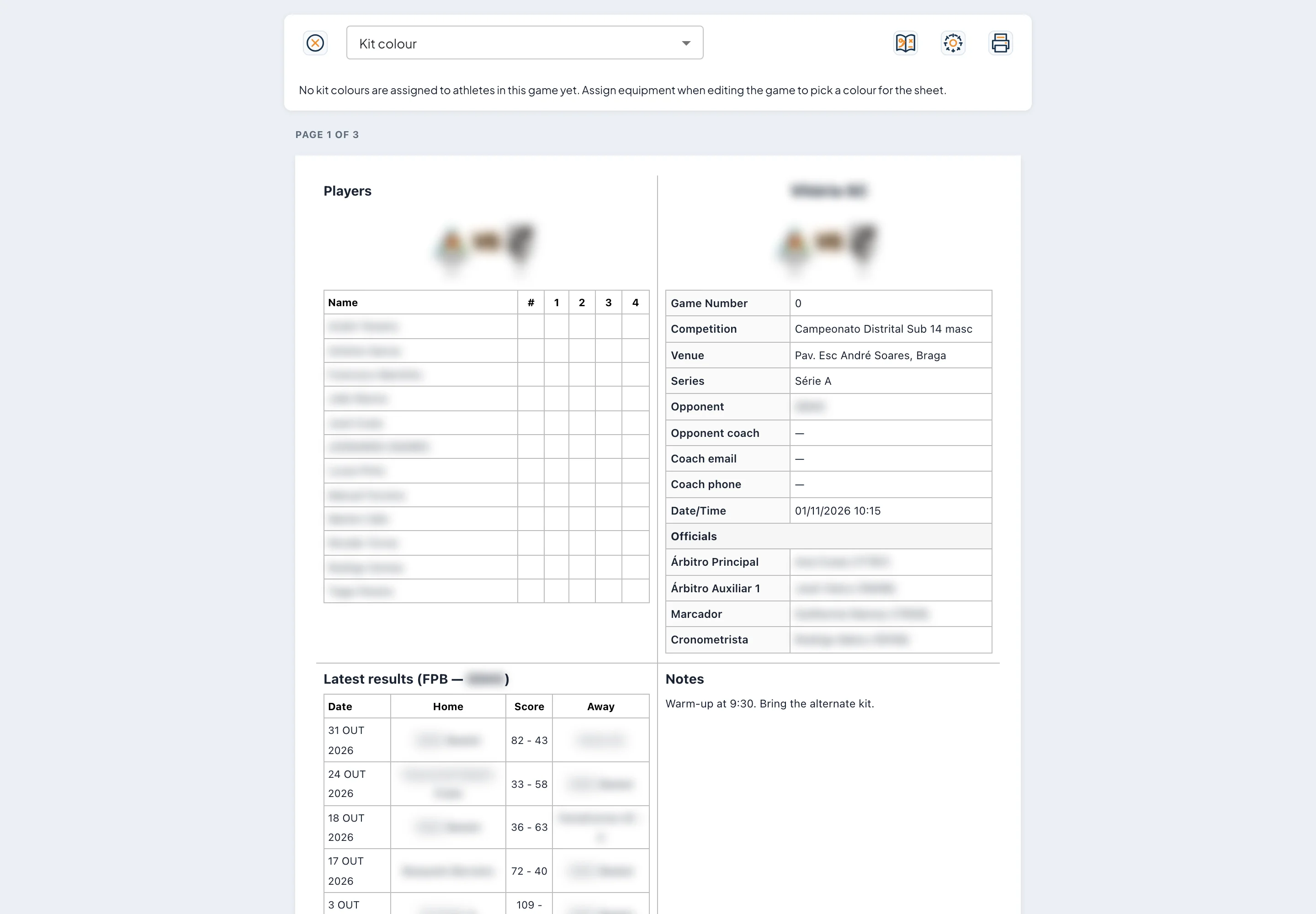
- In the games list, the sheet icon opens the print view in a new tab.
- If the game has an FPB ID and the officials were not updated in the last 2 days, the app asks whether to update them first. Pick Refresh and open or Open without refreshing.
- In the top bar, Kit colour picks the colour shown on the roster. If no colours are assigned to athletes yet, the bar says so.
- The printer icon opens the browser's print dialog (or Ctrl+P / Cmd+P), which can also save to PDF. The paper size is already set and the bar does not print.
Guide from the print view
In the print view's bar, the first icon on the right opens this documentation page in a new tab. Hovering shows the help text. The same icon is in the games list, the sheet customization and the game preparation.
