Platform administration
Platform administration is under Configuration → Overview (/utilities/configuration). Only a Platform administrator can see it. These are settings for the whole site, independent of the club you have selected. Day-to-day club setup lives in club settings.
The images are screenshots of the app; athlete and club names and crests are blurred.
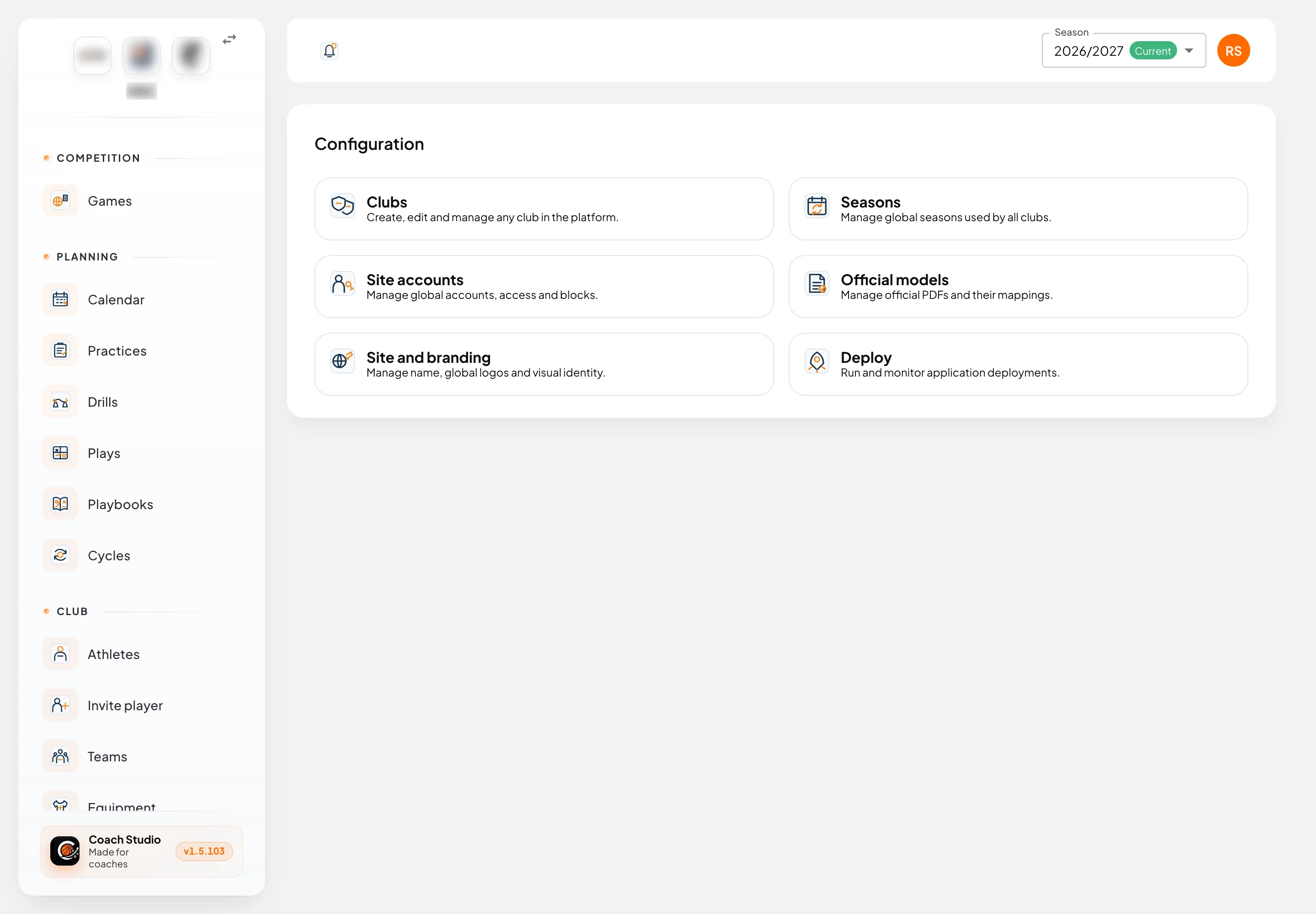
Overview
The Configuration page opens six cards. The same destinations are in the Configuration menu, together with Application errors and Feedback.
| Card | What it is for |
|---|---|
| Clubs | Create, edit and manage any club in the platform |
| Seasons | Manage global seasons used by all clubs |
| Site accounts | Manage global accounts, access and blocks |
| Official models | Manage official PDFs and their mappings |
| Site and branding | Manage name, global logos and visual identity |
| Deploy | Run and monitor application deployments |
Clubs
Under Configuration → Clubs (/utilities/configuration/clubs) you see every club. Search... filters by name or short name. Create Club opens a new record. Each card shows the name and the short name, or No short name.
The record has Club, Insurance, Images, Venues, Manage accounts, Email server (SMTP) and Club colours & appearance. What each field means is in club settings. As a platform administrator, you can change Organization type here and turn on Import photos/images from FPB.
Save and keep open saves and stays on the record. Save and close saves and returns to the list. Delete Club asks you to confirm: it removes the club and everything that belongs to it.
Permissions, absence reasons, that club's notifications, and extra athlete or statistics fields are opened in club settings, with that club selected.
Seasons
Under Configuration → Seasons (/utilities/configuration/seasons) the page is titled Seasons Management. The list has Name, Start, End and Current. The season marked as current is the one clubs use by default; when you set it, the app switches to that season.
Add Season asks for Season Name, Season Start, Season End and, if you want, Mark as current season.
On each row:
- Make current marks that season as the season in force. It does not appear on the season that is already current.
- Copy teams from previous season copies the selected club's teams (name, echelon, type and colour), without athletes or coaches. Teams that already exist with the same name and echelon are left out. The window is titled Copy teams.
- Delete removes the season after you confirm.
Site accounts
Under Configuration → Site accounts (/utilities/configuration/accounts) there are two tabs: Accounts and Invitation links.
Accounts
Add account asks for Name, Email and Password.
The table shows Name, Email, Platform role, Status, Email verified and Blocked.
| Status | Meaning |
|---|---|
| Active | The email is verified and the account is not blocked |
| Pending | The email has not been verified yet |
| Blocked | The person cannot sign in |
The Email verified switch marks the email as confirmed. The Blocked switch stops access; you cannot block your own account.
Edit changes the name, email, role (Platform administrator, User or Viewer), the block, and, if you fill in New password, the password. Leave that field empty to keep the current password.
In the Actions menu:
- Reset password creates a temporary password and shows it so you can copy it straight away.
- Send email sends an email to that account.
- Delete removes the account after you confirm.
Invitation links
Create invitation link chooses the club, the team (or Club only (no team)), the Staff role on team, the Club roles after signup, when it Expires and the Max sign-ups. If you leave the maximum empty, the club's own limit is used. When you create the link, the registration link is copied.
The list shows the club, the team, the expiry, the Activations and the status: Active, Limit reached or Expired. While the invitation can still be used, you can Copy registration link or Delete.
Official models
Under Configuration → Official models (/utilities/configuration/models) you manage official PDFs before any club context, such as the player registration form. Clubs use this model when issuing the document from an athlete; the club's insurance has to be filled in.
In Model upload you set the Model title and Choose PDF. Uploading replaces the model with the same key and reads the form fields.
In Selected model you pick the PDF, Download it or Delete it. In Field mapping you choose, for each field, the Data source (or Unmapped). On text fields you can adjust the Font when the space on the PDF is narrow. Save and keep open saves the mapping.
Site and branding
Under Configuration → Site and branding (/utilities/configuration/site) you set what is shared by every club, including the federation logo.
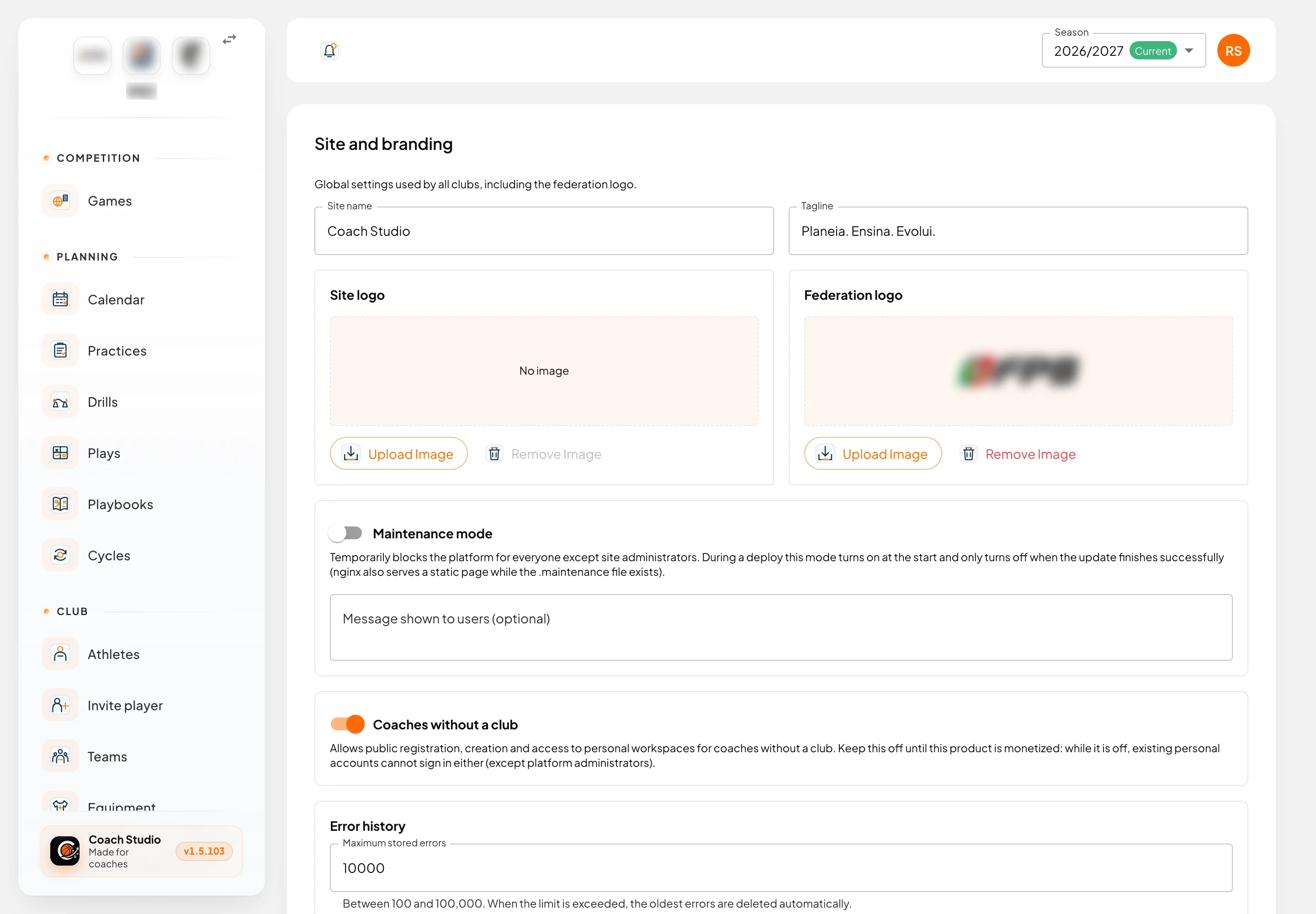
- Site name and Tagline appear on sign-in and in emails.
- Site logo and Federation logo use Upload Image and Remove Image. With no file, you see No image.
Maintenance mode blocks the platform for everyone except site administrators. You can write the Message shown to users (optional). During a deploy this mode turns on by itself at the start and only turns off when the update finishes successfully. While a .maintenance file exists, nginx serves a static page. If the update fails or is interrupted, that page stays up. During that time you can still open Deploy, Application errors and Feedback to follow the process.
Coaches without a club allows public registration and access to personal workspaces. While the option is off, existing personal accounts cannot sign in either, except platform administrators.
Error history has Maximum stored errors, between 100 and 100,000. When the limit is exceeded, the oldest errors are deleted automatically.
Stored images sets the size and quality of photos the platform keeps (athletes, technical staff, logos, feedback). Reset all to defaults restores the original values. If older images are still stored in the database, Migrate existing images appears, with Migrate now.
Event notifications sets the default recipients, channels and lead times for practices and games. Each club can use its own rules in club settings.
Save and keep open saves and stays on the page. Save and close saves and goes back.
Application errors
Under Configuration → Application errors (/utilities/admin/errors) you see errors captured on the server and in browsers. Search looks through the text. Source filters by All, Server or Browser.
The table has Date, Source, Page / endpoint, Account / club, Message and Details. View opens Error details, with the message, the Stack trace and the Context.
Clear all opens Clear error history and permanently deletes the history. The maximum number of stored rows is set in Site and branding.
Feedback
Under Configuration → Feedback (/utilities/admin/feedback) the page is titled User feedback. Here you read what was sent from Help → Your feedback, reply as the platform and update the status.
The chips at the top filter by status and show the count: Not resolved, In review, Needs information, Planned, Resolved and Won't do. Beside them, Type filters by Idea, Problem, Improvement or Other. Search looks through the text and Clear filters restores the full list.
Click a row to open the note. The original text cannot be changed. You change Status in the list. The reply is written in Platform reply and published with Post reply; the sender sees it as Platform team. You can attach photos (up to 4, 1.5 MB each).
Deploy
Under Configuration → Deploy (/utilities/admin/deploy) the page is titled Deploy and Updates.
Current Status shows the installed version, whether it is Up to date or there is an Update available, and the Last commit in production. Refresh reads the status again.
Execute Deploy explains what will happen and Start Deploy asks you to confirm in Confirm Deploy. The application may be unavailable during the process: maintenance mode turns on at the start. The update, in this order, fetches the latest version, installs what the application needs, updates the database, builds the site and the documentation, and restarts the application.
Deploy Progress shows the current step, for example Step 3 of 11, and a bar. Each step opens so you can read its log. At the end, Deploy Result says whether it succeeded, whether a step was Skipped, or whether it failed. When it fails, the maintenance page stays up until an update finishes successfully.
On the same page, Scheduled tasks service shows whether automatic reminders are running. Scheduled jobs (data-driven) lists each job, its interval and the result of the last run. Add job creates one. Recent job runs shows the recent history. If the scheduler does not look healthy, the page warns you; after it is fixed, use Refresh.
Warning
A deploy puts the site into maintenance for other users. Confirm it is the right moment before you press Yes, start deploy.
Mobile app
Platform administration exists only on the web. The mobile app does not have these pages.