Opponents
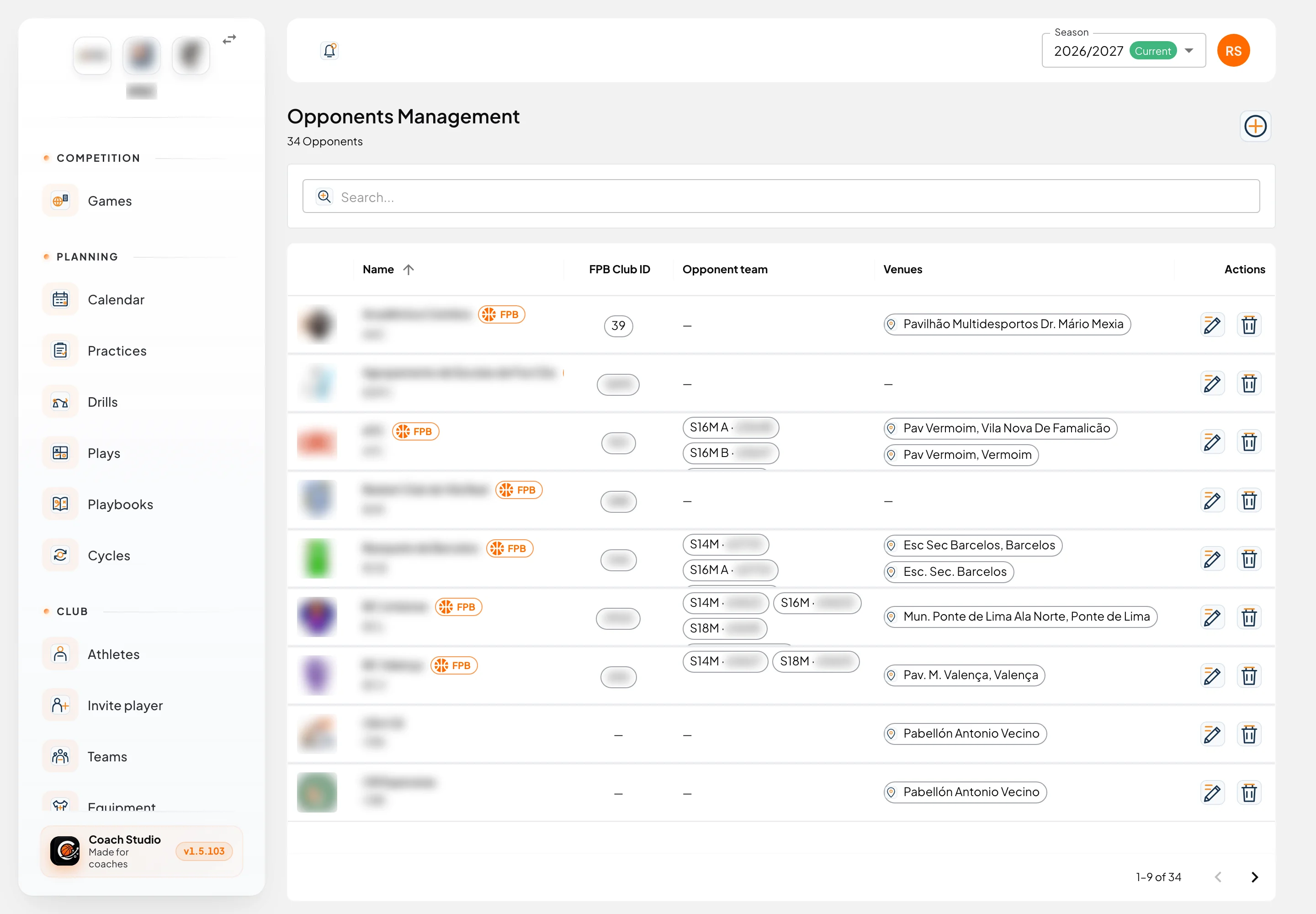
Opponents are under Settings → Opponents (/utilities/opponents). The page is titled Opponents Management. The opponent club stays on the club for every season; the teams you see are the ones for the selected season.
The images are screenshots of the app; athlete and club names and crests are blurred.
By default, administrator, director, coordinator, coach and team manager can view and edit. People who can only view do not get the edit and delete buttons. The club can change this in permissions.
List
Search... filters by name, short name and venue name. The list starts sorted by name.
| Column | What it shows |
|---|---|
| (crest) | The club image, or initials when there is none |
| Name | The name, the short name underneath and, when there is an FPB link, the FPB chip (Linked to FPB) |
| FPB Club ID | The club id on the FPB website, or — |
| Opponent team | One chip per team this season: echelon, letter (A, B or C) and, when set, the FPB team id |
| Venues | This opponent's venues |
| Actions | Edit and Delete, only for people who can change records |
Editor
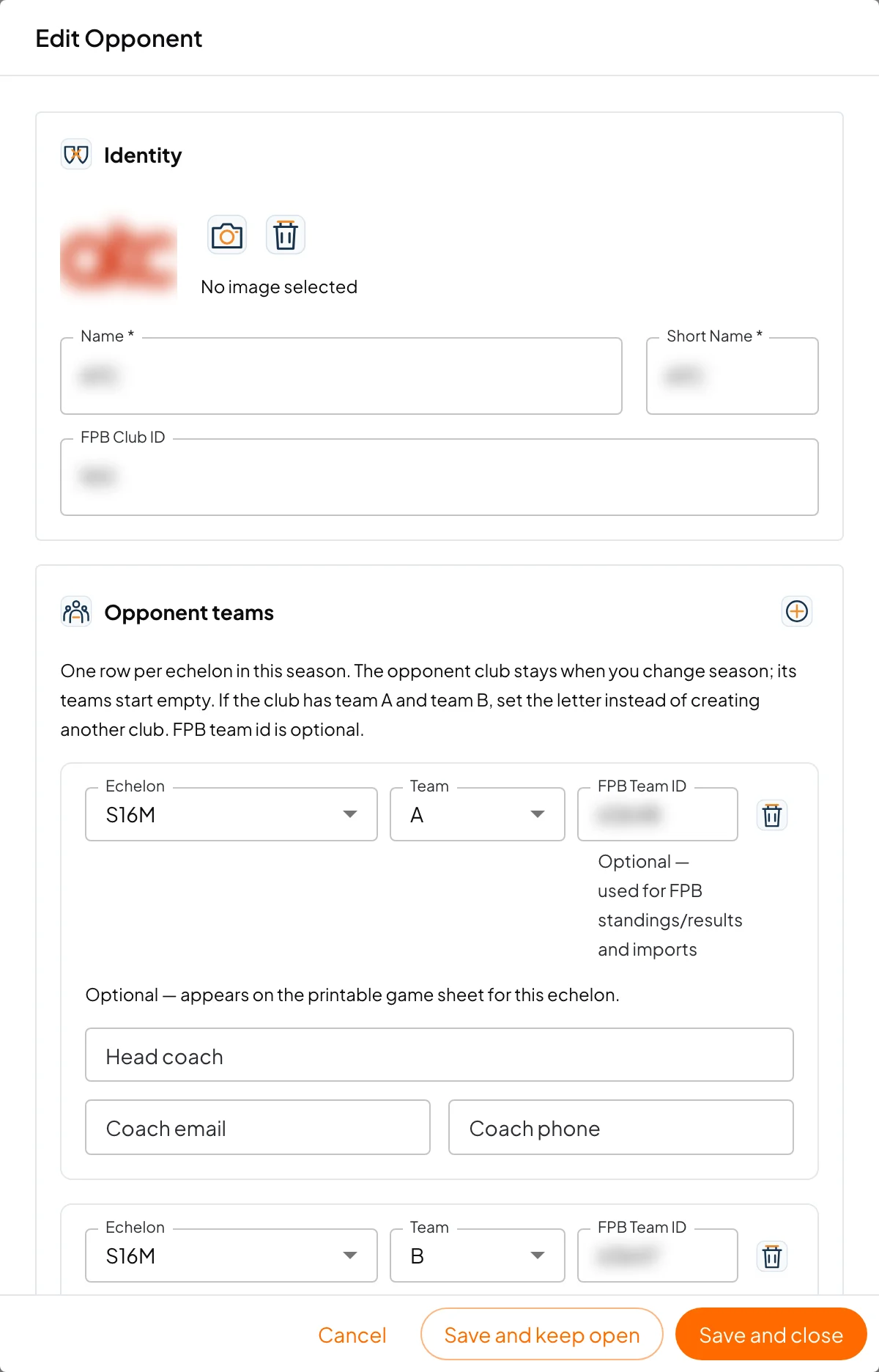
Add New Opponent or Edit opens the window. Save and keep open saves and stays on the form; Save and close saves and leaves. If you leave with unsaved changes, the app asks whether to discard them.
Name and Short Name are required. The short name is stored in capitals and is at most 6 characters. The name is at most 50. The image is loaded with Upload Image (or Update, when one already exists).
Identity
The Identity section holds the image, Name, Short Name and FPB Club ID. The id is optional and lets FPB recognise the club.
Opponent teams
Opponent teams needs at least one row with an Echelon. Without that, saving shows Add at least one team row with an echelon selected.
The section text explains the rest: one row per echelon in this season. The opponent club stays when you change season; its teams start empty. If the club has team A and team B, set the letter instead of creating another club.
- Team: Only team, or A, B or C.
- FPB Team ID: optional, for standings, results and imports.
- Head coach, Coach email and Coach phone: optional. The hint says they appear on the printable game sheet for this echelon. On the sheet the labels are Opponent coach, Coach email and Coach phone. When empty, the sheet shows —.
Add team adds a row. You cannot remove a row that already has games this season: the app tells you how many games are linked.
Venues
The Venues section is the opponent's hall. The text asks for a maps link so players can open directions from session details or games.
Type the name in Add Venue, the Maps link (optional; an https address, for example from Google Maps) and press Add. Each venue already saved shows Venue and Maps link; Remove takes it off the list. With none, you see No venues. On the main list, venues appear as chips. Search finds them too.
Deleting
Delete asks Are you sure you want to delete opponent followed by the name. If any team of this opponent has games (this season or another), deletion is refused and the message says how many games are linked. Delete or change those games first.
Created from FPB
When you import games from FPB (on Games), Create from FPB searches the club on fpb.pt/clubes and creates the opponent plus the echelon team. The venue is not filled in that step: it is set when you import the games. If the club already exists with the same FPB Club ID, the import updates the name and adds the missing echelon team. The crest is copied only when the club has FPB image import turned on.
Games FPB could not match land in FPB doubts, where you confirm the opponent.
Mobile app
Opponent management is not in the mobile app. Games on the phone show the opponent name, but the crest, teams, coach and venues are edited on the web.